This article addresses frequently asked billing questions for Omnix agency accounts, including subscription types, payment issues, invoice access, financial assistance, cancellations, and upgrades. It helps agency owners manage their billing effectively and understand Omnix's plan options.
IMPORTANT : If you signed up through another agency and not directly with Omnix, please contact your Agency Admin to cancel your services. Omnix cannot process cancellations for agency-managed accounts.TABLE OF CONTENTS
- What is Omnix Agency Billing?
- Key Benefits of Omnix Agency Billing
- How to Set Up and Manage Billing in Omnix
- Omnix Agency Plan Comparison
- Proration Explained (Immediate Charges After Upgrading)
- Financial Assistance Requests
- Error: "Please Update the Billing Address"
- Issues with Online Listing Services
- Card Payment Errors
- Viewing Past Invoices
- Frequently Asked Questions
- Related Articles
What is Omnix Agency Billing?
Omnix Agency Billing is the system used by agency account holders to manage their subscription plans, payments, invoices, and financial settings. It supports billing operations such as upgrading or downgrading plans, viewing invoices, reactivating accounts, and troubleshooting billing errors.
Understanding how billing works within the platform is essential to avoid service disruptions, make the most of subscription benefits, and efficiently manage client sub-accounts.
Note: For Omnix Pricing refer to Omnix Pricing Guide.
Key Benefits of Omnix Agency Billing
Omnix’s billing platform offers flexibility, transparency, and control over your subscription. Key benefits include:
- Easy upgrades and downgrades with pro-rata adjustments
- Transparent access to current and past invoices
- Support for multiple payment methods
- Financial assistance options for temporary relief
- Direct subscription control from the agency portal
How to Set Up and Manage Billing in Omnix
Setting up and managing billing is straightforward in your agency account. Follow the steps below for common billing actions:
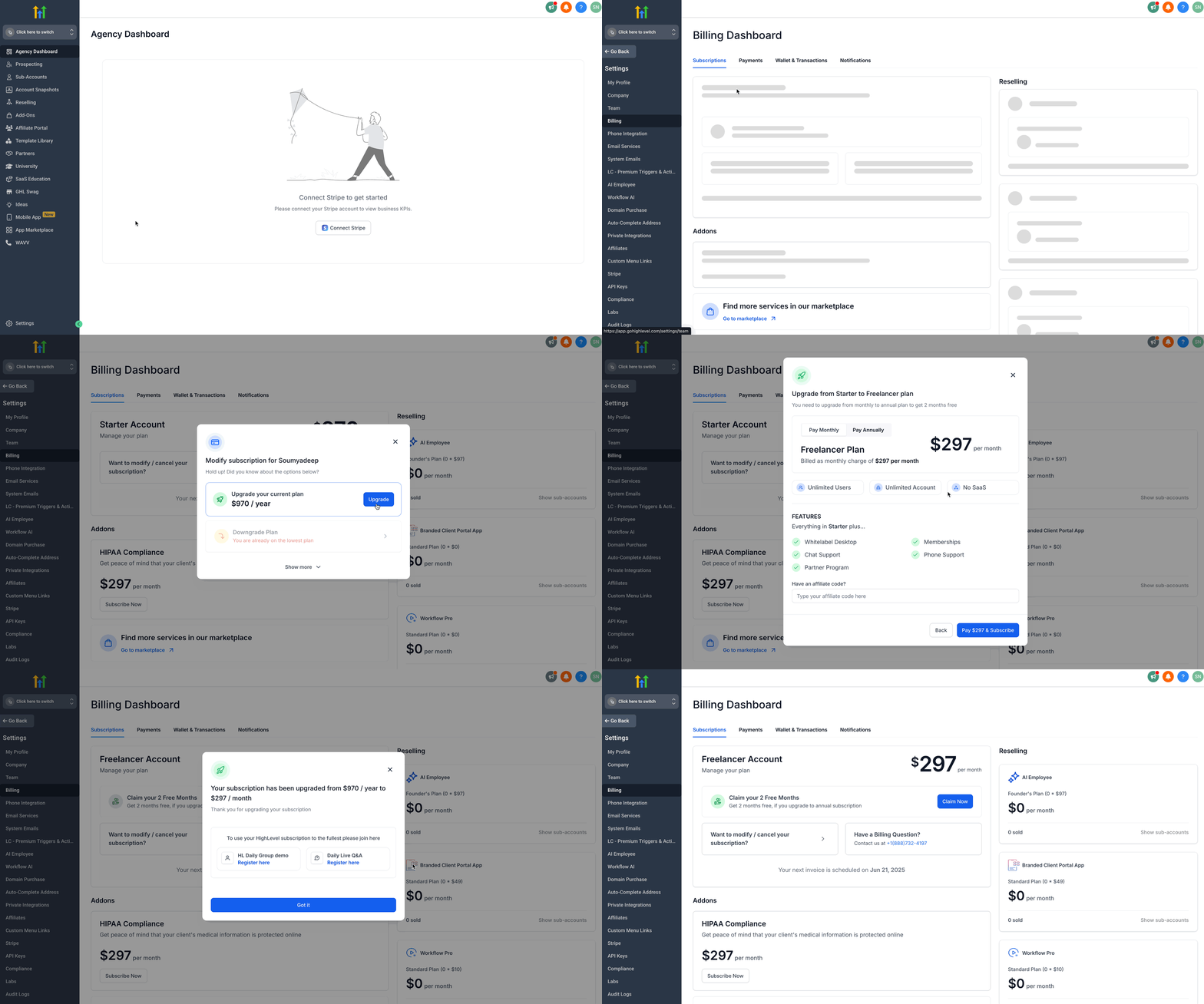
How to Upgrade Your Omnix Account
- Go to your Agency Settings.
- Click on the Billing tab.
- Click on Want to Modify/Cancel Your Subscription? option.
- Click the Upgrade button.
- Toggle between Monthly and Yearly billing options and select a plan as per your needs.
- Click on the Upgrade Now button of your selected plan.
- Click on Pay (amount) & Subscribe button. (You’ll be charged a prorated amount immediately.)
How to Cancel Your Omnix Subscription
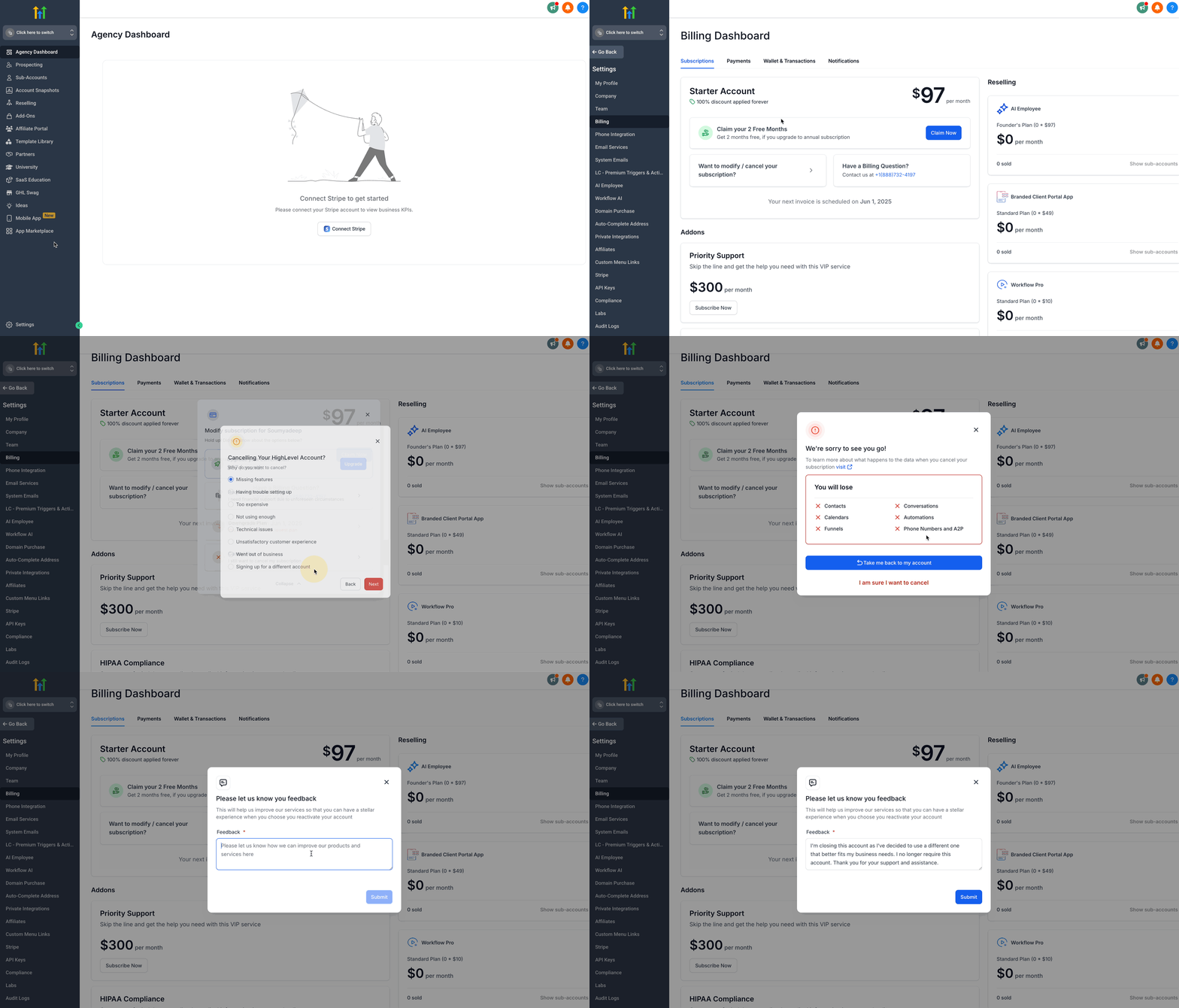
- Go to Agency Settings and click on Billing.
- Click on "Want to modify/cancel your subscription?"
- Click Show More in the pop-up.
- Select Cancel Plan.
- Choose your Reason for Cancellation, then click Next.
- Review the data loss warning.
- Click "I am sure I want to cancel".
- Provide feedback (minimum 30 words).
- Click Submit.
How to Reactivate Your Account
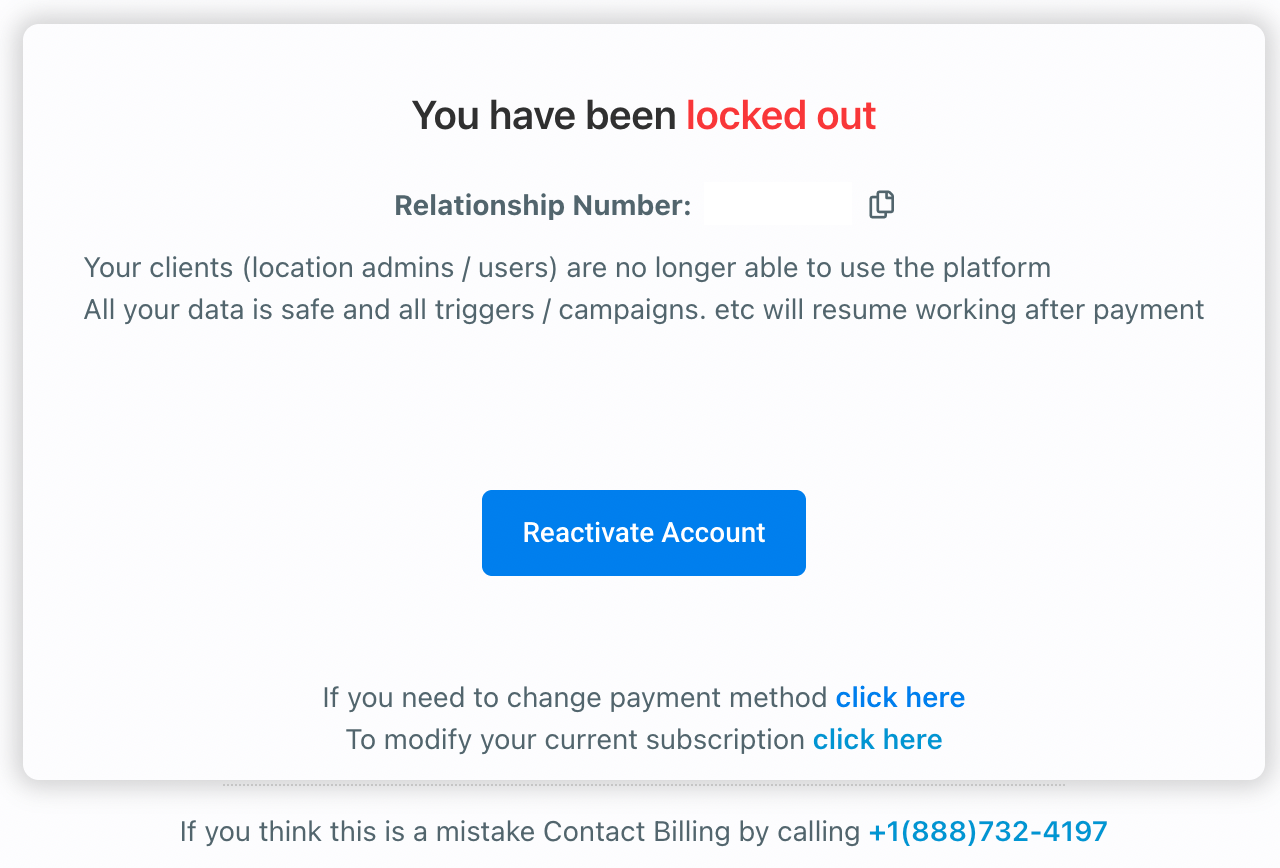
- Click Reactivate Account to reactivate instantly.
- Or select "To modify your current subscription, click here"
- You may be prompted to add a new payment method.
Omnix Agency Plan Comparison
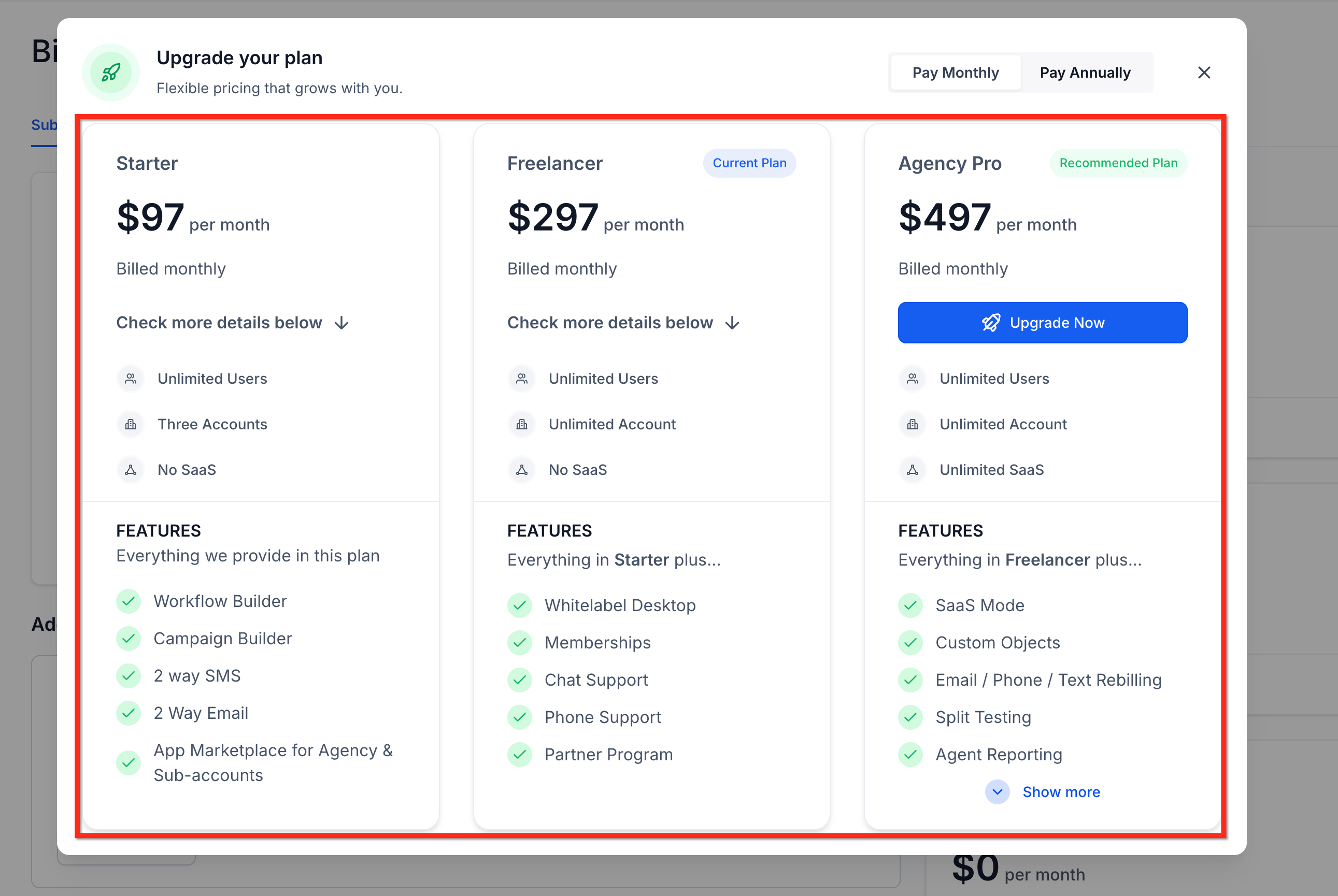
There are three main subscription tiers for agencies. Each offers different sub-account limits and support options.
Starter Plan ($97/month):
- 3 sub-accounts
- App Marketplace for Agency & Sub-accounts
- Omnix community and help videos
- Omnix mobile app access
- Workflow Builder
- Campaign Builder
- 2-way SMS
- 2 Way Email
Freelancer Plan ($297/month):
- All features of Starter plan, plus
- Unlimited sub-accounts
- White-label Desktop
- Memberships
- Chat Support
- Phone Support
- Partner Program
Agency Pro Plan ($497/month):
- Everything in Freelancer plus
- SaaS Mode
- Custom Objects
- Email / Phone / Text Rebilling
- Split Testing
- Agent Reporting
- AI Conversational Bot
- Advanced API Access
Proration Explained (Immediate Charges After Upgrading)
Omnix is a prepaid service. If you upgrade mid-cycle:
- You’re charged immediately for the new plan.
- A prorated credit is applied for unused time on the lower-tier plan.
- Example:
- Upgraded on March 15 from $297 to $497
- Used $297 plan for 10 days → credit = $99
- Charged for remaining 20 days at new plan → billed ~$133.33
Financial Assistance Requests
Omnix supports temporary relief for agencies needing financial help:
- Go to Settings and click on Billing.
- Click on Want to Modify/Cancel Your Subscription? button.
- Choose the Request Financial Support option.
- Please provide a detailed explanation of your reasons for requesting financial support.
- Check all the Acknowledgement boxes and click on Proceed.
- Check your next invoice details and click on Confirm and Apply.
- Approved accounts receive 1-month access at only 10% of their plan cost.
Error: "Please Update the Billing Address"
If you see this error:
- Stripe has flagged a mismatch between your billing address and the card information.
- Confirm that the postal code, address line, and CVV all match the card’s data.
Issues with Online Listing Services
To modify or cancel your Online Listing service:
- Contact accountmanagers@agencyonfile.com directly.
- To cancel, submit the following via chat:
- Location Name
- Location ID
- Reason for cancellation
- A 3-month commitment applies to this service.
Card Payment Errors
Accepted payment types:
- Visa
- Mastercard
- American Express (AMEX)
- Discover
- Visa-Debit
- Ensure card details (CVV, expiry, billing address) are correct to avoid issues.
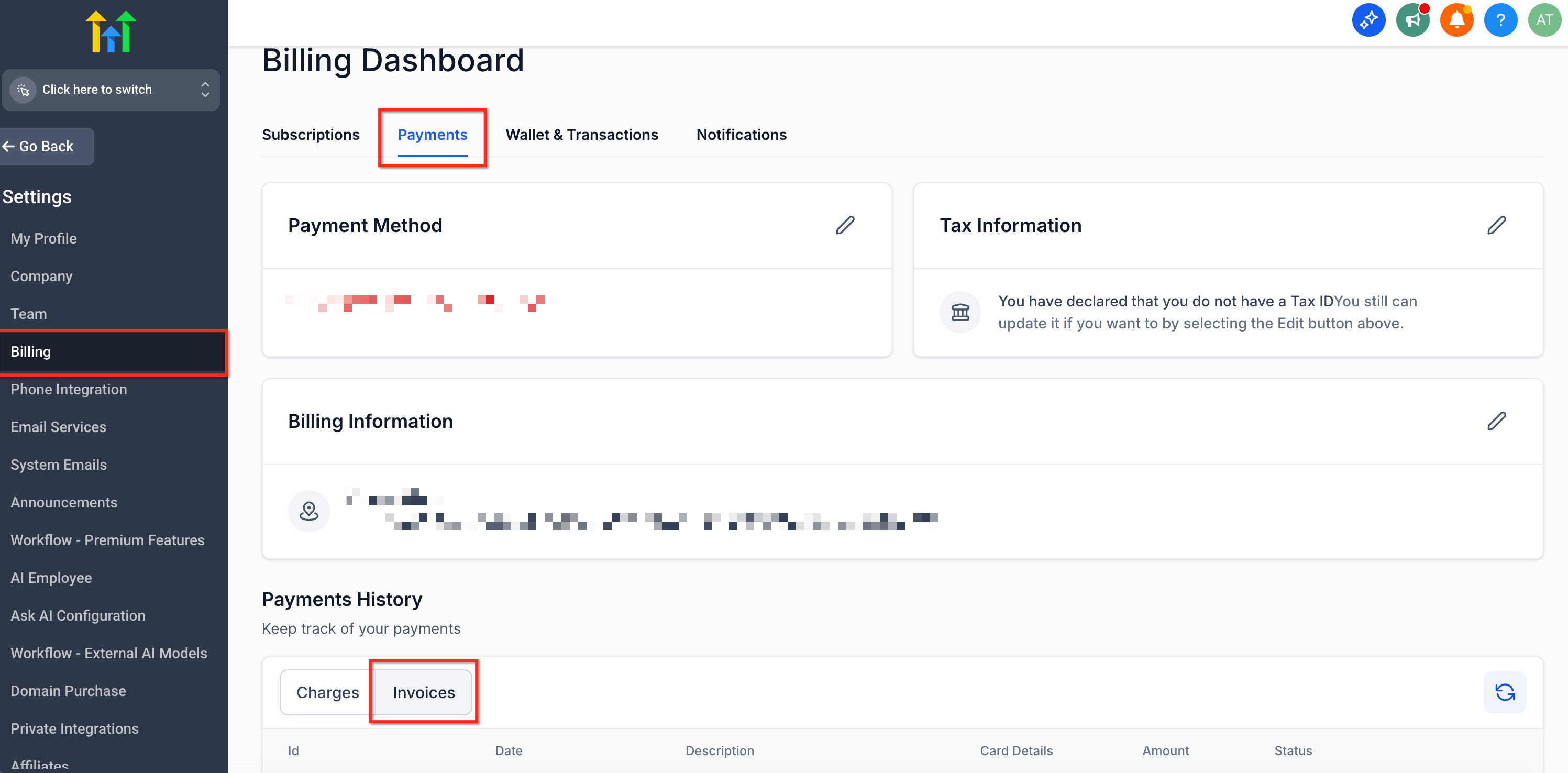
Viewing Past Invoices
To access invoice history:
- Go to Settings and click on Billing.
- Click on the Payments tab.
- Click on Invoices under Payment History.
Frequently Asked Questions
Q: Why was I charged twice this month?
Charges may include prorated upgrades or failed previous attempts. Check the invoice section for the breakdown.
Q: What if I signed up via another agency?
Contact your Agency Admin for any subscription changes. Omnix cannot process cancellations for agency-managed accounts.
Q: Can I switch between monthly and yearly billing?
Yes. When upgrading, you can toggle between billing cycles.
Q: Will my data be deleted if I cancel?
Your data is retained but inaccessible. You can reactivate to regain access.
Q: I can’t see the modify/cancel button. What should I do?
Reach out to support via live chat. They can assist or escalate your request.
Q: What does “Email Notification” mean in Wallet Transactions?
“Email Notification” refers to transactional emails (like confirmation emails, workflow-based messages, or other automated sends) that use LC Email, Omnix’s built-in email service. These messages are billed per send and deducted from your Wallet balance.
If you’re seeing charges labelled this way, it means your account is actively sending emails via LC Email. You can review and confirm these in Settings > Billing > Wallet Transactions and check corresponding sends in the Email Logs under Marketing > Emails > Logs.