It’s frustrating when a text never arrives—whether it’s an appointment reminder, a promotion, or a two-way chat. This guide walks you through each step of our delivery pipeline, shows you where things can go wrong, and gives you clear, actionable fixes so you can get back on track fast.
TABLE OF CONTENTS
- How Message Delivery Works
- Where to Find Error Messages in Omnix
- Common Reasons Why Messages Fail (And How to Fix Them?)
- Super-Quick Checklist Before You Click “Send”
- Frequently Asked Questions
- Related Articles
How Message Delivery Works
When you send a message from Omnix, it travels through multiple layers:

If the message fails at any layer, it may not be delivered to the end user. Let's look at how to spot these issues and fix them.
Where to Find Error Messages in Omnix
If your message didn’t go through, check the Conversations View. In most cases, when a message fails to send or deliver, we display an error in the conversation view that appears like this:
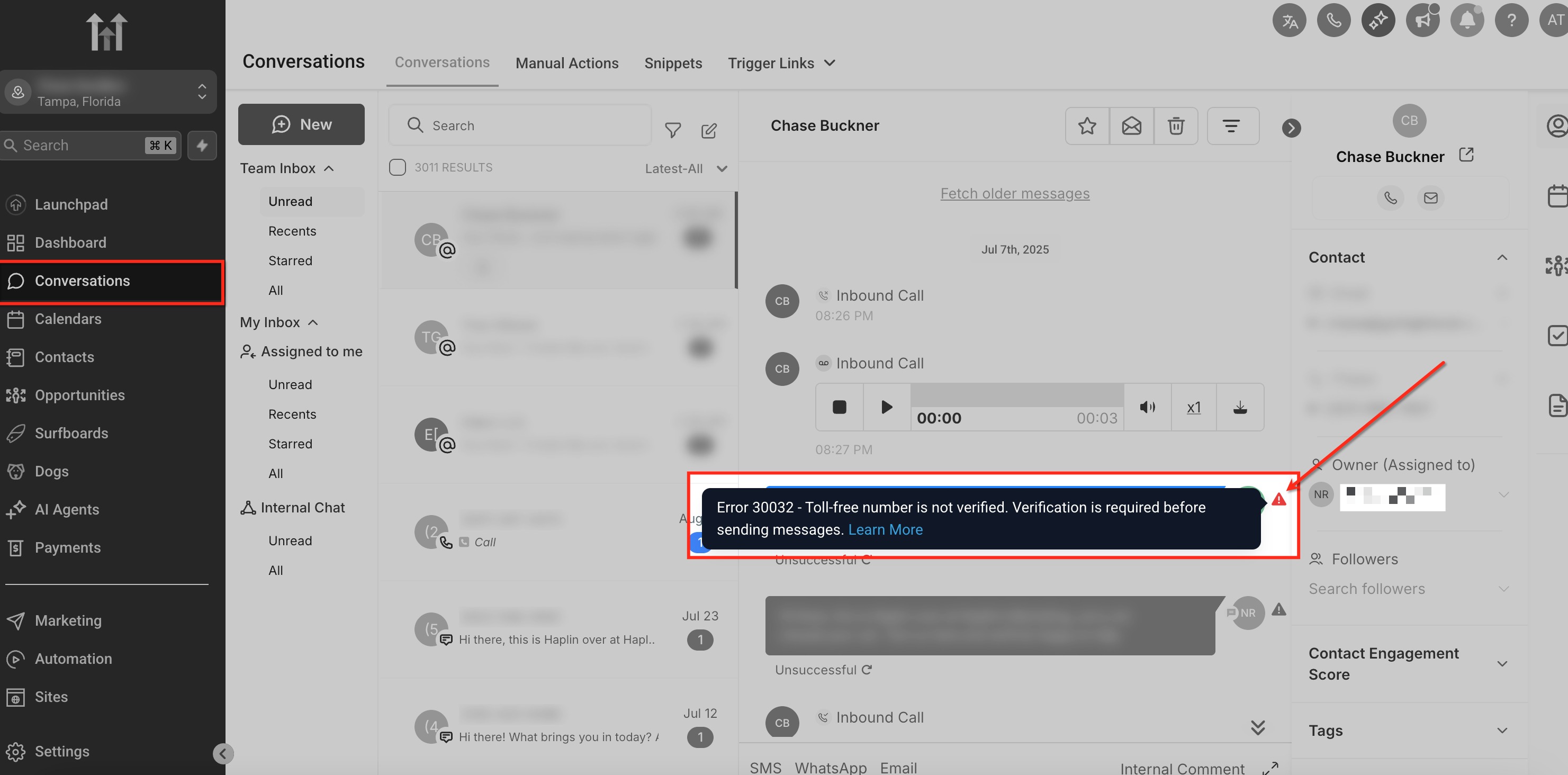
The error message and error code will provide you with clues about what is going wrong and how to proceed from there.
Common Reasons Why Messages Fail (And How to Fix Them?)
1. At the High-Level Layer
2. At the Twilio/LC Phone Layer
3. At the Sender Carrier Network Layer
Please Note: To learn more about error codes and troubleshooting, refer to Error and Warning Dictionary
Super-Quick Checklist Before You Click “Send”
- Check Conversations: Note any red error badge.
- Match Error Code: Use the tables above to find the cause.
- Apply Fix: Follow the “Fix” column for that issue.
- Retry: Resend the message after adjustments.
- Monitor: Confirm delivery or note a new error code
Frequently Asked Questions
Q: Why am I getting charged for failed message messages?
Charges apply once a message is attempted—even if it fails later in the process.
Q: How do I know exactly why a message failed?
You can check the message logs in Twilio.
➡️ How to check Twilio logs