This article explains how the AI Agent Node works within Agent Studio and how each of its core elements shapes agent behavior. It covers how to configure the node effectively, when to use it, and how to make it perform reliably in real-world scenarios.
TABLE OF CONTENTS
- What is AI Agent Node in Agent Studio
- Prompt
- Model
- Mode
- Tools
- Variables
- Node Connections
- How to Configure the AI Agent Node
- Frequently Asked Questions
- Related Articles
What is AI Agent Node in Agent Studio
The AI Agent Node is a core component in Agent Studio that defines how an AI agent thinks, responds, and takes action. It acts as the intelligence layer of the agent, processing incoming input, understanding intent, and determining the next best step whether that is generating a response, using a tool, or capturing information.
Agent Studio enables you to build AI agents using triggers and nodes. Execution begins with a Start Trigger, and the AI Agent Node runs when it receives input from that trigger or another node.
Instead of relying on fixed logic, the AI Agent Node allows the agent to operate dynamically, adapting its behavior based on context and instructions. This makes it especially useful in scenarios where inputs are unpredictable, conversations are required, and decisions depend on context.
At its core, the AI Agent Node is built on five elements. Understanding these elements is key to configuring the agent effectively.
Prompt
Model
Mode
Tools
Variables
These elements work together to shape how the agent behaves during execution.
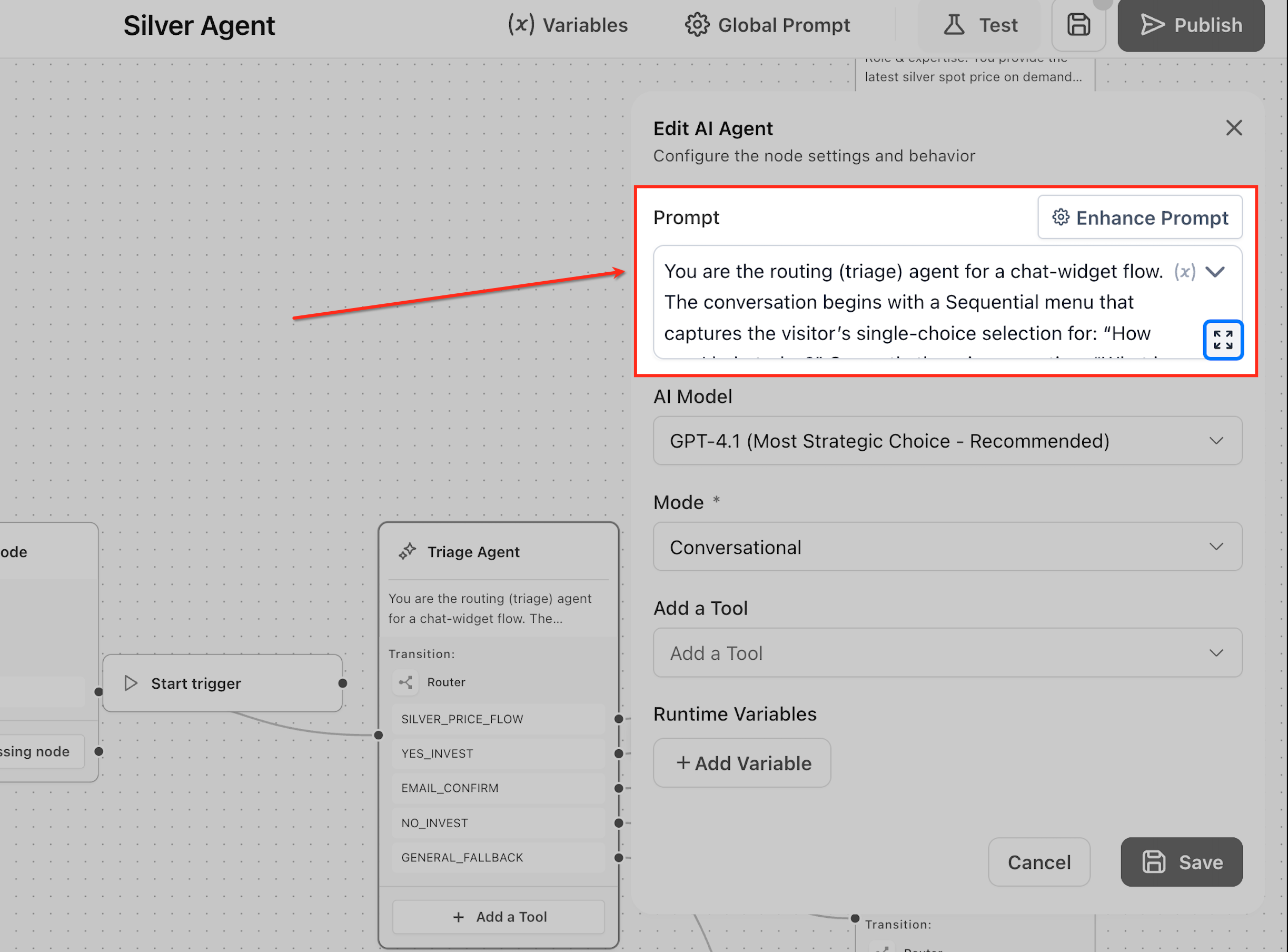
Prompt
The prompt defines how the AI Agent Node behaves by specifying the agent’s role, tone, tasks, and when to use tools. The agent relies on these instructions to interpret input and make decisions during execution.
This ensures the agent responds consistently based on defined behavior. For example, a support agent prompt may instruct it to answer pricing queries and use the knowledge base when needed, allowing it to correctly handle a question like “What does your premium plan include?” by identifying it as a pricing query and responding appropriately.
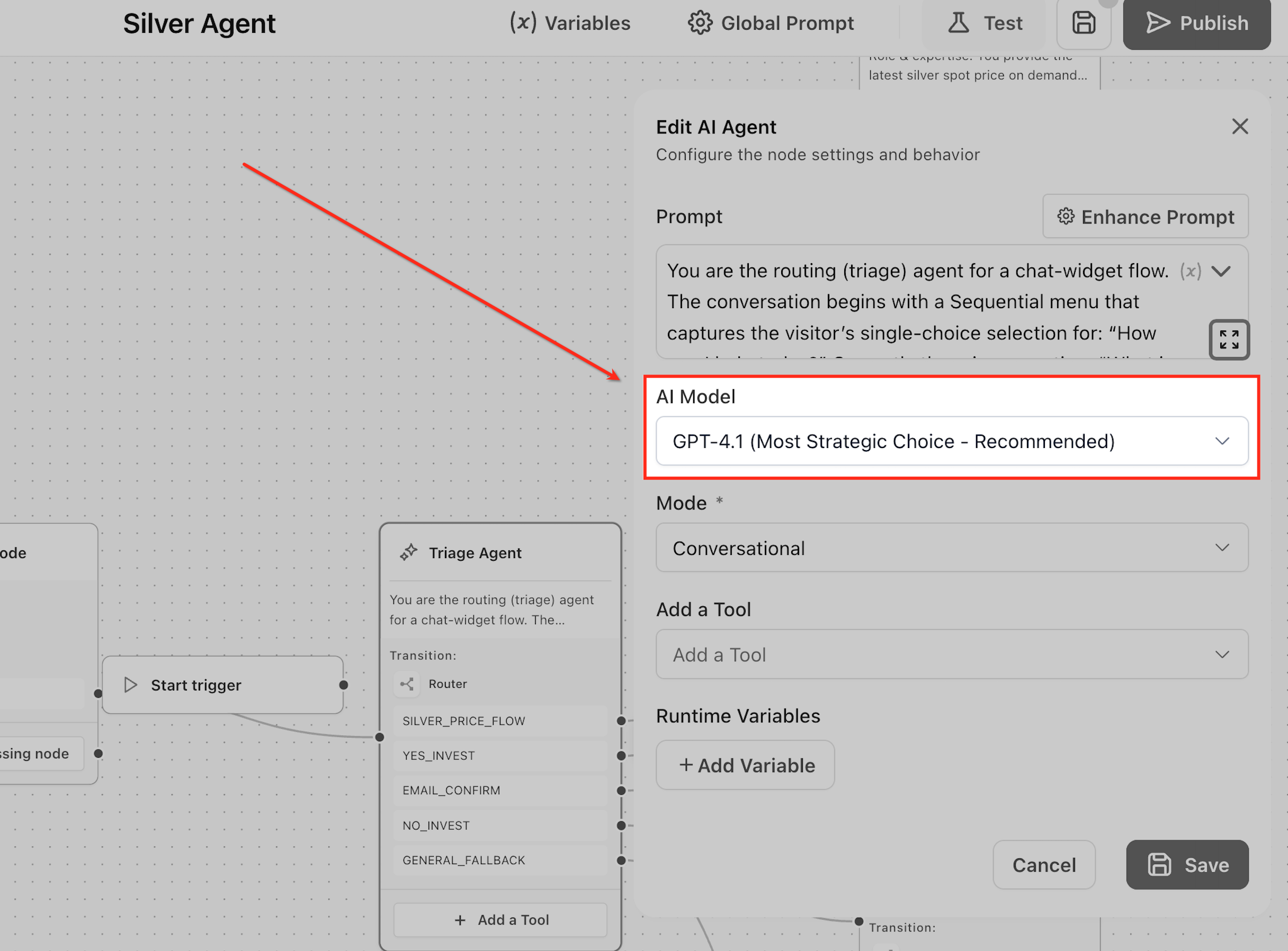
Model
The model determines how effectively the AI Agent Node understands input and generates responses. Higher-capability models like GPT-5 or GPT-4.1 provide stronger reasoning, while Mini and Nano models are faster and more lightweight, and GPT-4o offers lower latency.
This directly impacts how the agent interprets user intent and responds. For example, when a user says, “I’m exploring options for my business,” a stronger model can identify this as a potential lead, while a lightweight model may respond more generically.
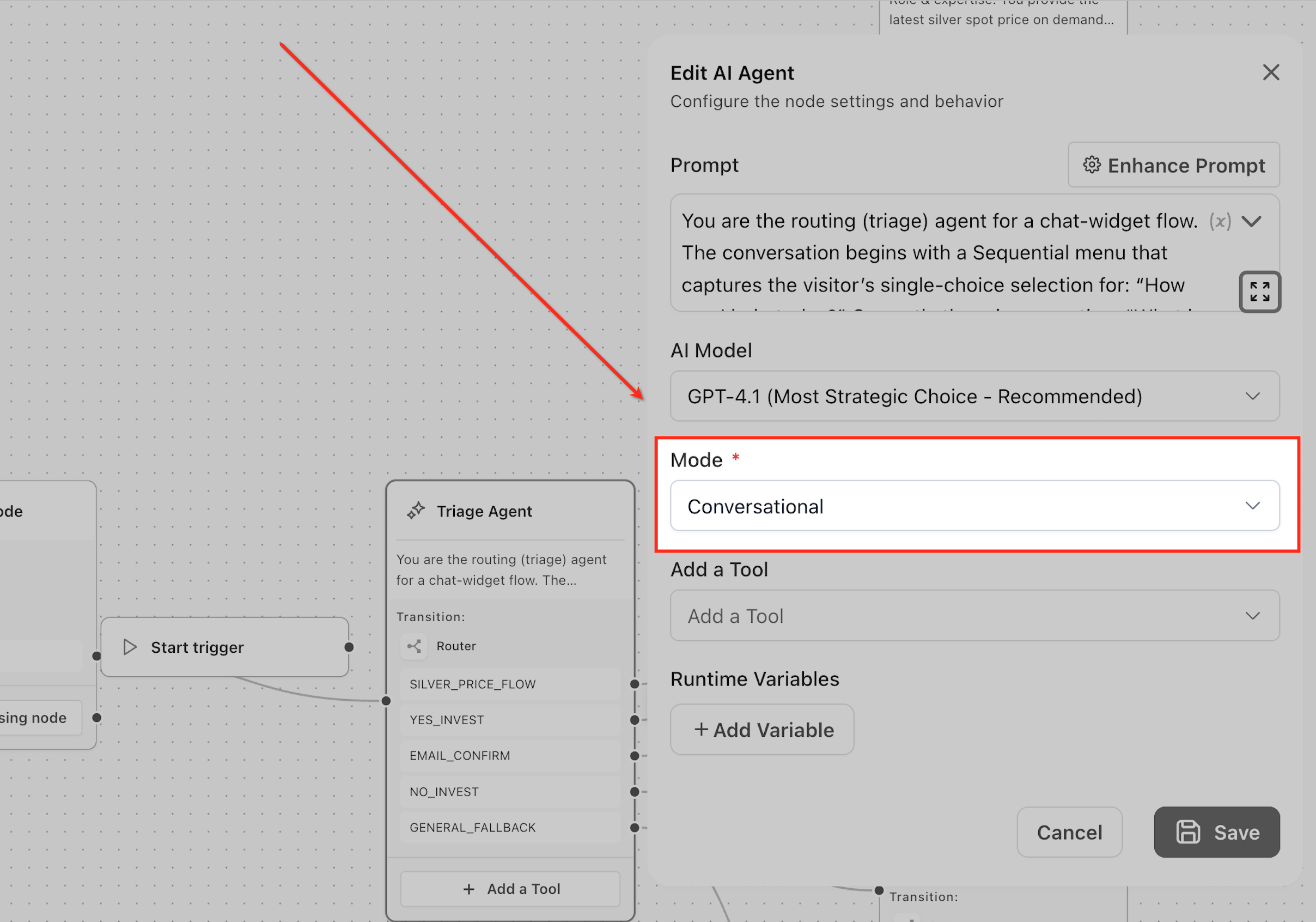
Mode
Mode defines how the AI Agent Node operates—whether it communicates with users or executes tasks silently. In Conversational Mode, the agent responds and handles interactions, while in Task Based Mode, it performs actions without generating user-facing responses.
This allows the agent to adapt its behavior based on the use case. For example, in Conversational Mode, the agent can answer pricing questions, whereas in Task Based Mode, it can extract user details like email and update the CRM without sending a response.
Tools
Tools extend the capabilities of the AI Agent Node by enabling it to perform actions beyond generating responses, such as retrieving information or directing flow. Based on the prompt and context, the agent evaluates when a tool is needed and selects the appropriate one.
Available tools include: Router, Search Knowledge Base, Search the Web, MCP Server, and Actions.
This allows the agent to combine decision-making with execution in real time. For example, when a user asks, “Do you support international payments?”, the agent can use the Knowledge Base tool to retrieve accurate information before responding, or use the Router tool to direct the flow when user intent is unclear.
Variables
Variables enable the AI Agent Node to handle data by using existing inputs for context and extracting new information during execution. Input variables provide context to the agent, while runtime variables capture structured data during interactions.
This allows the agent to retain and pass meaningful information across the flow for further actions. For example, when a user says, “Hi, I’m Rahul. I need a demo,” the agent can capture details like Name = Rahul and Requirement = Demo, which can then be used for CRM updates or follow-ups.
Node Connections
The AI Agent Node executes when it receives input from a connected trigger or node, using its configured prompt, model, tools, and variables to process the data. It evaluates the context, determines the appropriate action or response, and then outputs the result to the next connected node in the flow.
Within the agent flow, this enables the node to drive outcomes by passing structured results forward for further actions. For example, after qualifying a lead, it can send captured details like name and requirement to a CRM node for follow-up.
How to Configure the AI Agent Node
A well-configured AI Agent Node is built on a clear prompt, the right model, an appropriate mode, minimal and relevant tools, and well-defined variables. When these elements are set correctly, the agent delivers accurate responses, executes tasks efficiently, and maintains clean, structured logic.
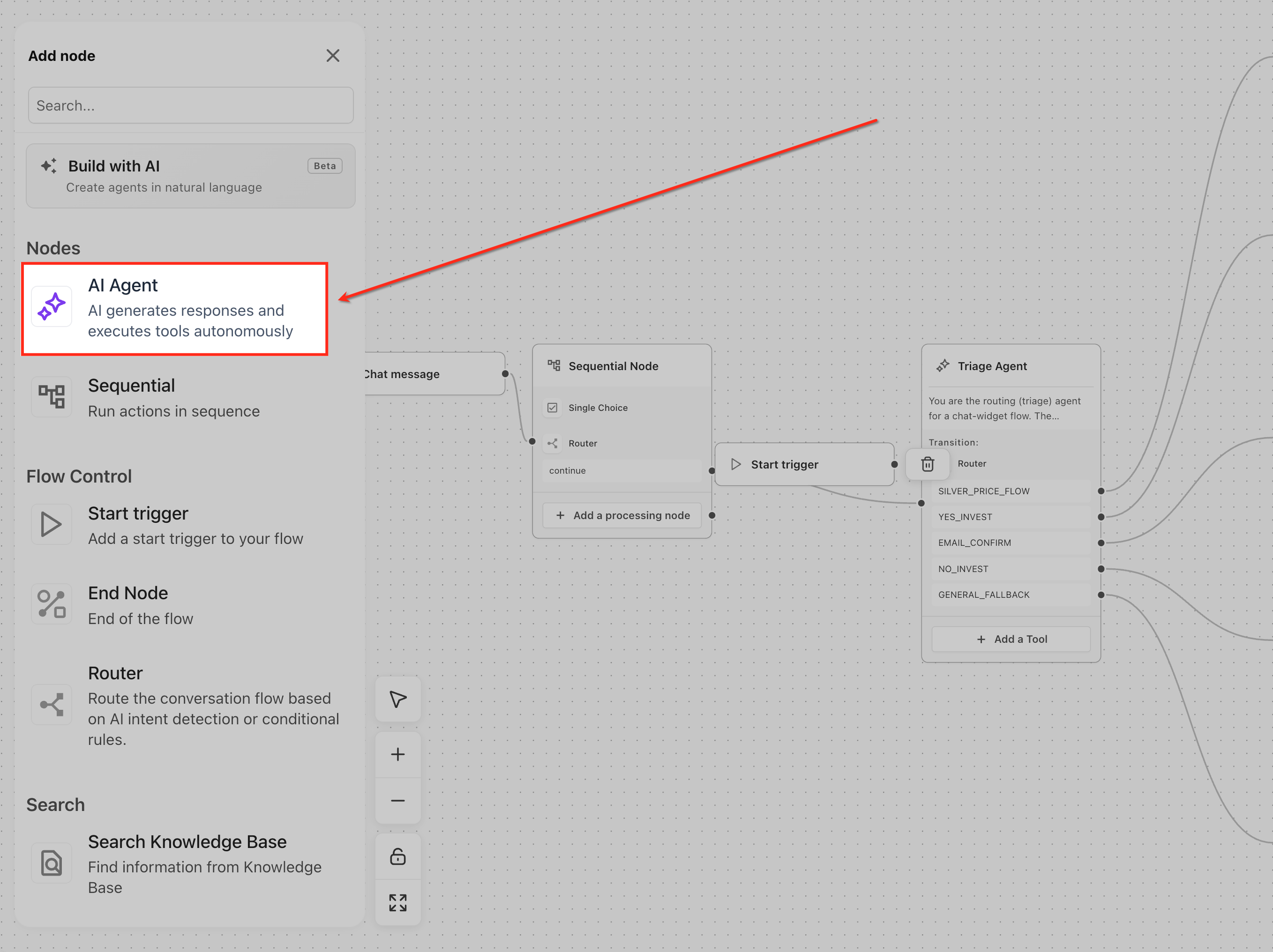
Step 1: Add the AI Agent Node
Open the Nodes panel in Agent Studio and add the AI Agent Node to your agent flow. Place it on the canvas and connect it to a Start Trigger or a previous node.
Step 2: Define the Prompt
In the configuration panel, enter a clear and structured prompt. Specify the agent’s role, responsibilities, tone, and when it should use tools. This defines how the agent will behave during execution.
Step 3: Select the Model
Choose the model that will power the agent. Use higher-capability models for complex reasoning and lighter models for faster, simpler tasks.
Step 4: Choose the Mode
Select how the agent should operate:
- Conversational Mode for user interactions
- Task Based Mode for silent execution
Choose based on whether the agent needs to respond to users or perform background actions.
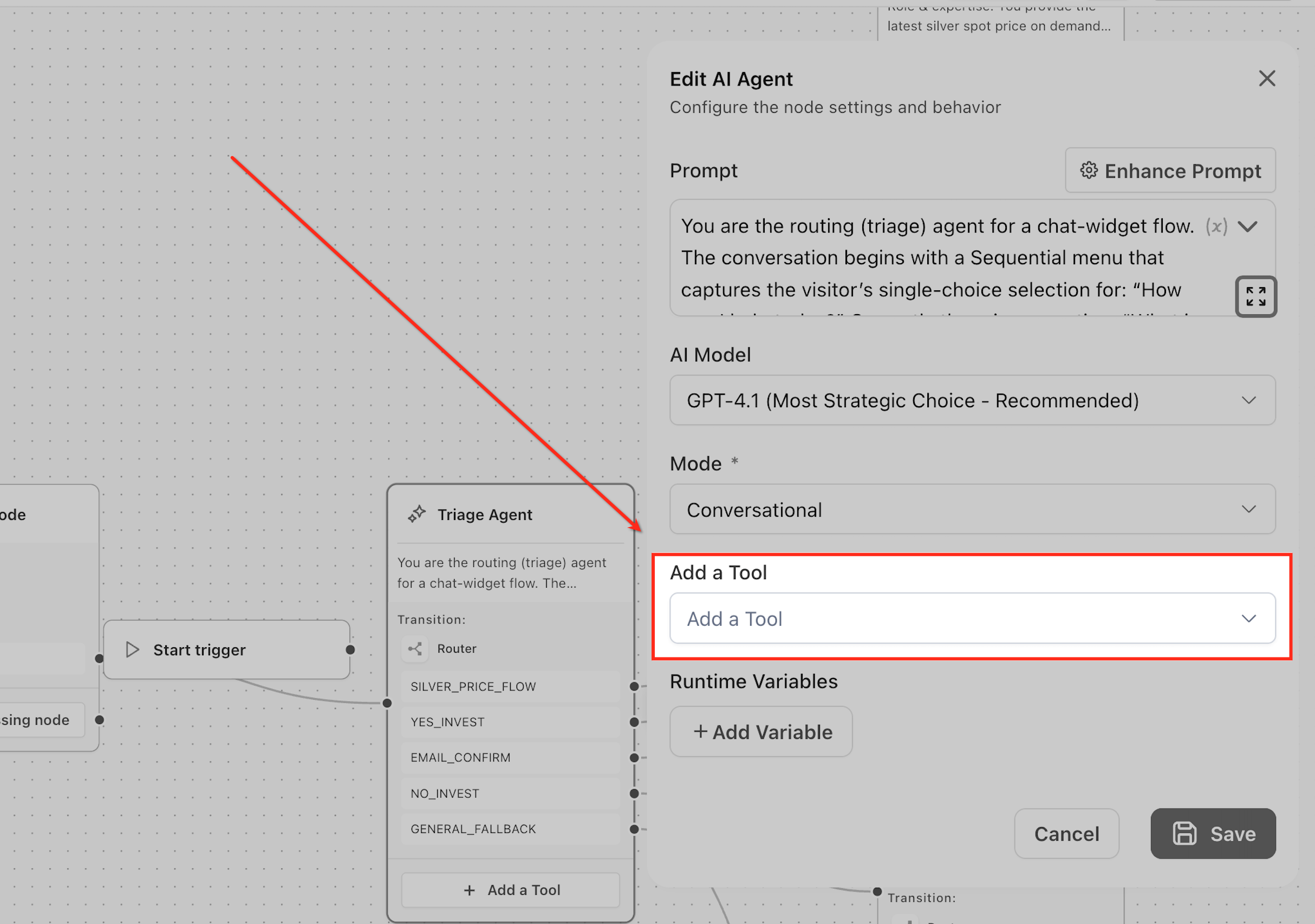
Step 5: Attach Tools
Add only the tools required for your use case, such as Knowledge Base, Router, or Web Search. These tools enable the agent to retrieve information or take actions when needed.
Step 6: Define Runtime Variables
Create runtime variables to capture important data during execution, such as user name, email, or requirements. This data can be used in later steps of the agent flow.
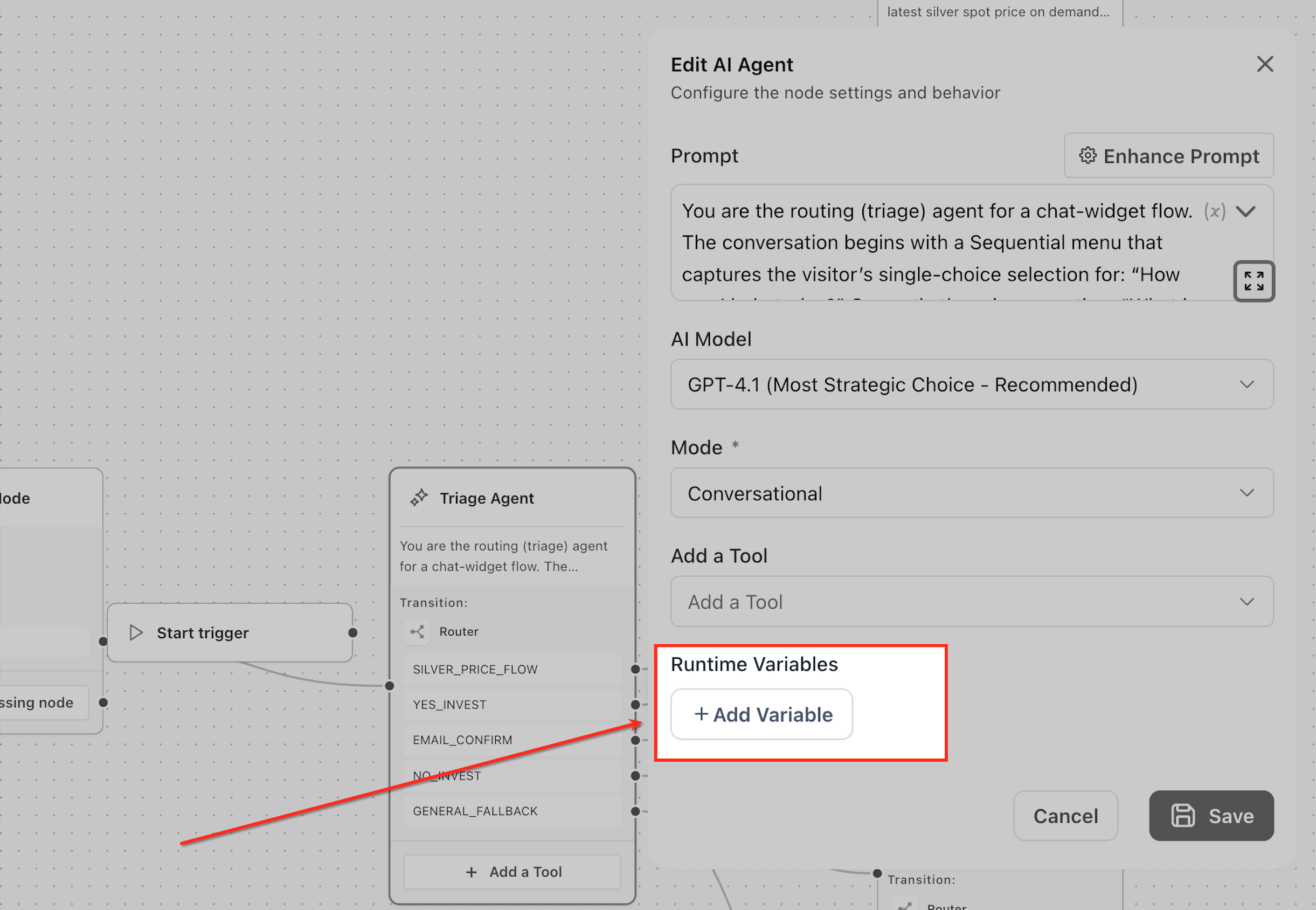
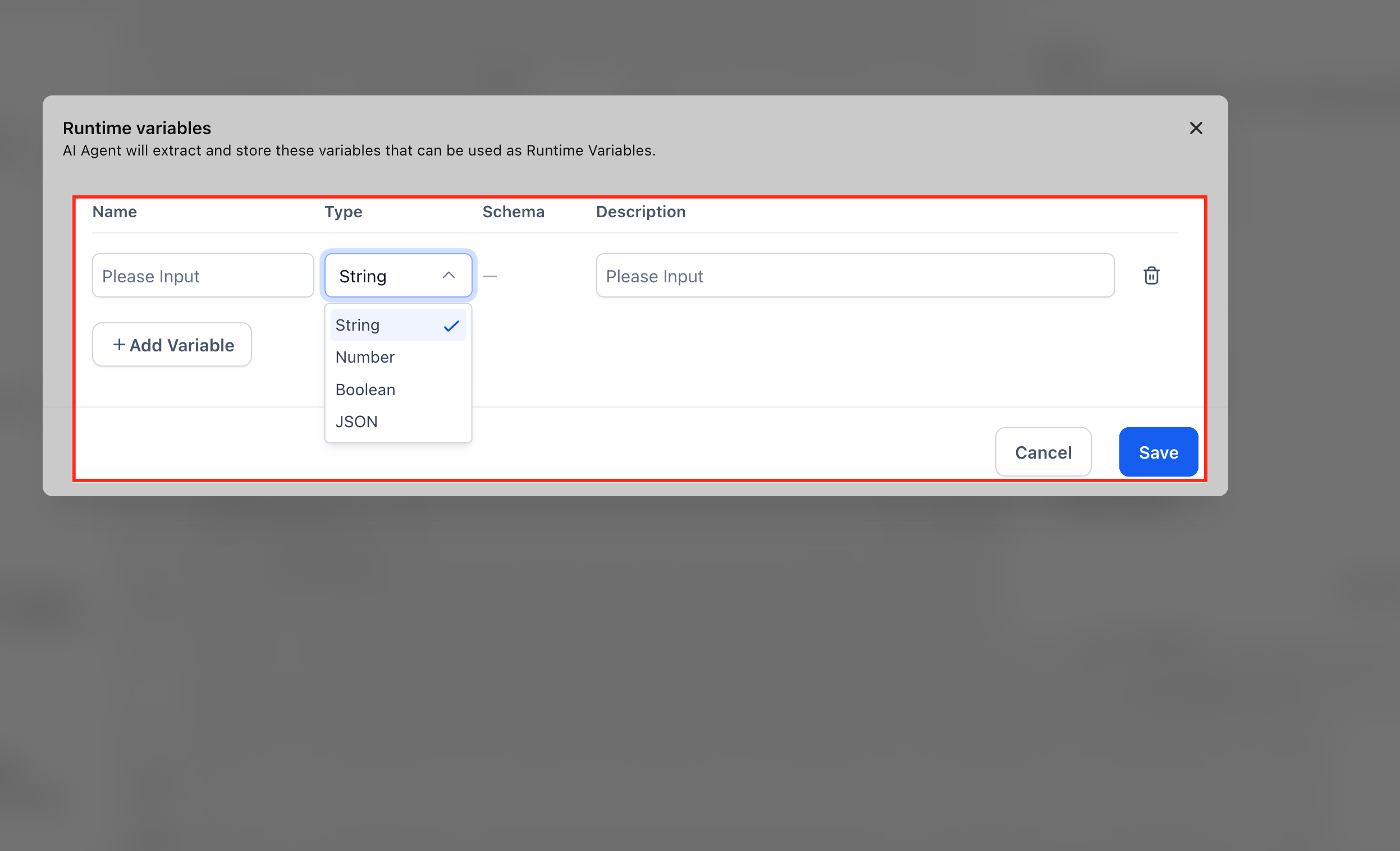
The AI Agent uses the Name and Description to understand what information to look for in the conversation and automatically extracts it during execution.
For each variable, you need to define:
Name → The identifier for the data you want to capture (e.g., user_name, email, requirement)
Type → The format of the data:
String → Text values (e.g., name, email, query)
Number → Numeric values (e.g., budget, quantity)
Boolean → True/false values (e.g., interested: yes/no)
JSON → Structured data (used for complex data capture)
Description → A clear instruction describing what the agent should extract
Step 7: Connect the Node in the Flow
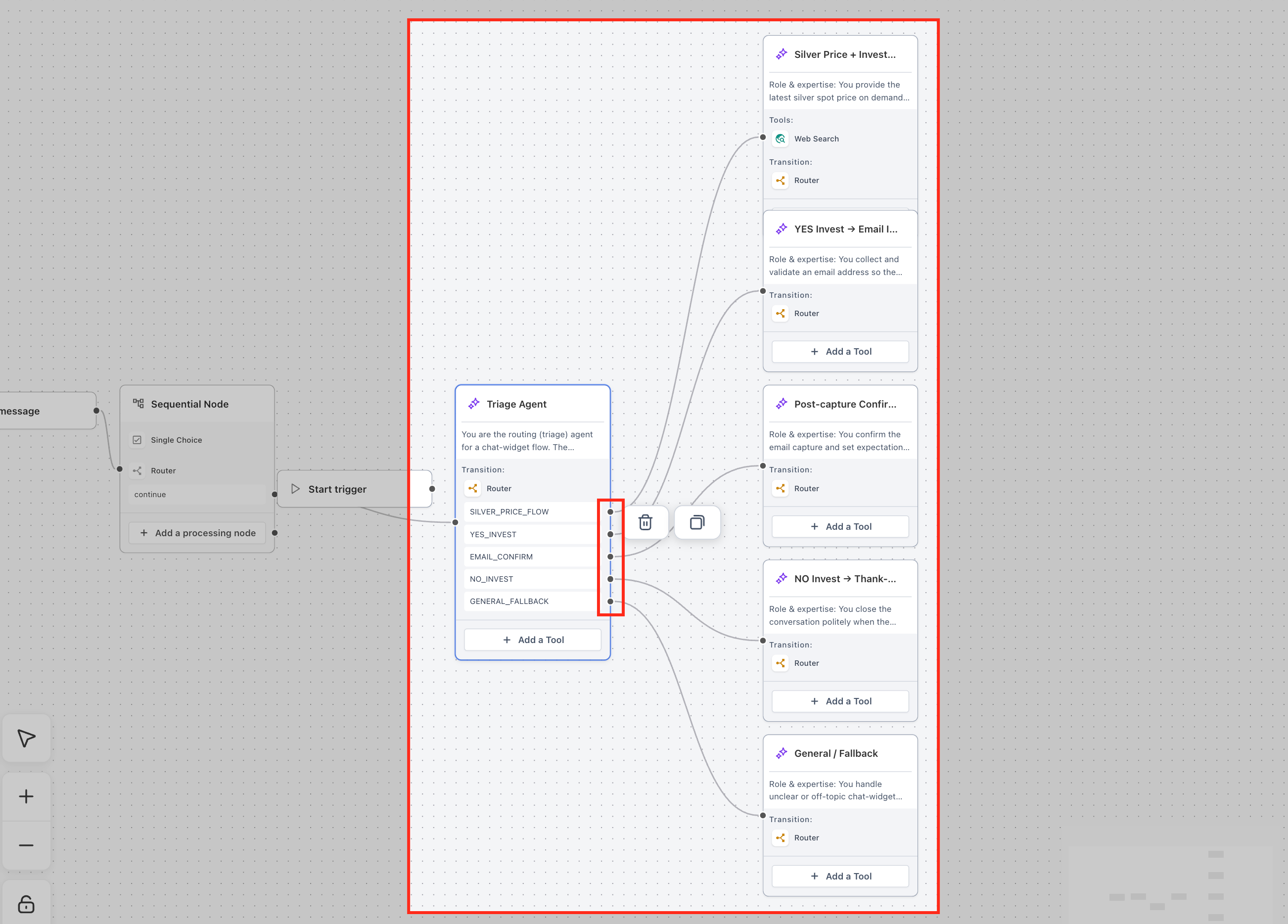
Ensure the AI Agent Node is properly connected to the next step in your agent flow. This allows the output (response, action, or extracted data) to be passed forward for further processing.
Frequently Asked Questions
Q: How does the AI Agent decide when to respond versus when to use a tool?
The AI Agent makes this decision based on the prompt instructions, available tools, and user input context. The prompt acts as the primary guide (e.g., “use knowledge base for pricing”), while the agent evaluates whether it has enough information and uses tools only when required. For example, if a user asks, “What are your latest pricing plans?”, the agent may give a general response without a tool, but with a Knowledge Base tool, it retrieves accurate information.
Q: Can the AI Agent Node handle multiple tasks at once, or should it be focused on a single goal?
The AI Agent Node performs best when focused on one role. Handling too many tasks can lead to confusion and lower accuracy. For example, a single node managing both support and sales may produce inconsistent results, whereas separating them into dedicated nodes improves performance and clarity.
Q: How can I tell if my AI Agent Node is working effectively?
You can evaluate effectiveness by checking response quality, correct tool usage, accurate data extraction, and consistency across interactions. For example, in a lead qualification scenario, the agent should ask relevant questions and capture correct user details reliably.
Q: How do I control or limit what the AI Agent is allowed to do?
Control is defined through prompt instructions, tool selection, and variables. The prompt sets behavior boundaries, tools limit what actions the agent can take, and variables define what data is captured. For example, using only a Knowledge Base tool prevents CRM actions, while prompt restrictions ensure the agent stays within scope.