In this article, you will learn how to connect your Mercado Pago account so you can accept payments inside Omnix. To complete the setup, you will need your Mercado Pago production credentials, and you may also need to configure webhook notifications inside your Mercado Pago developer settings.
Before you begin
Make sure you have:
A Omnix account
A Mercado Pago account with CVV/CVC less support enabled (Refer FAQ)
Access to your Mercado Pago developer dashboard
Your business website URL, if Mercado Pago asks for it while enabling production credentials
Mercado Pago production credentials are tied to an application you create inside Your integrations, and live payments require production credentials rather than test credentials.
What you will need from Mercado Pago
To connect Mercado Pago, you will typically need these two values:
Public Key
Access Token
Country of account
Webhook secret
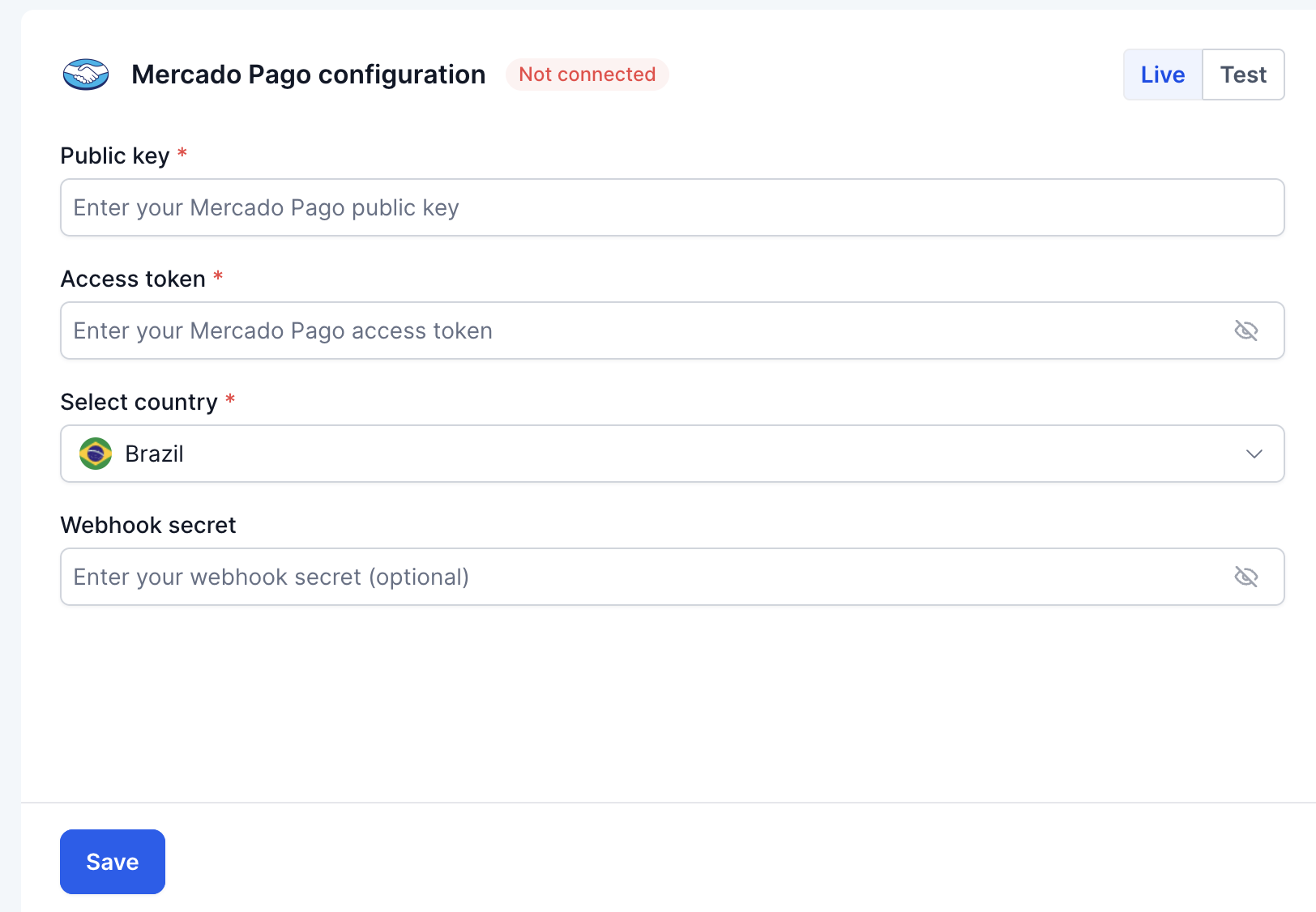
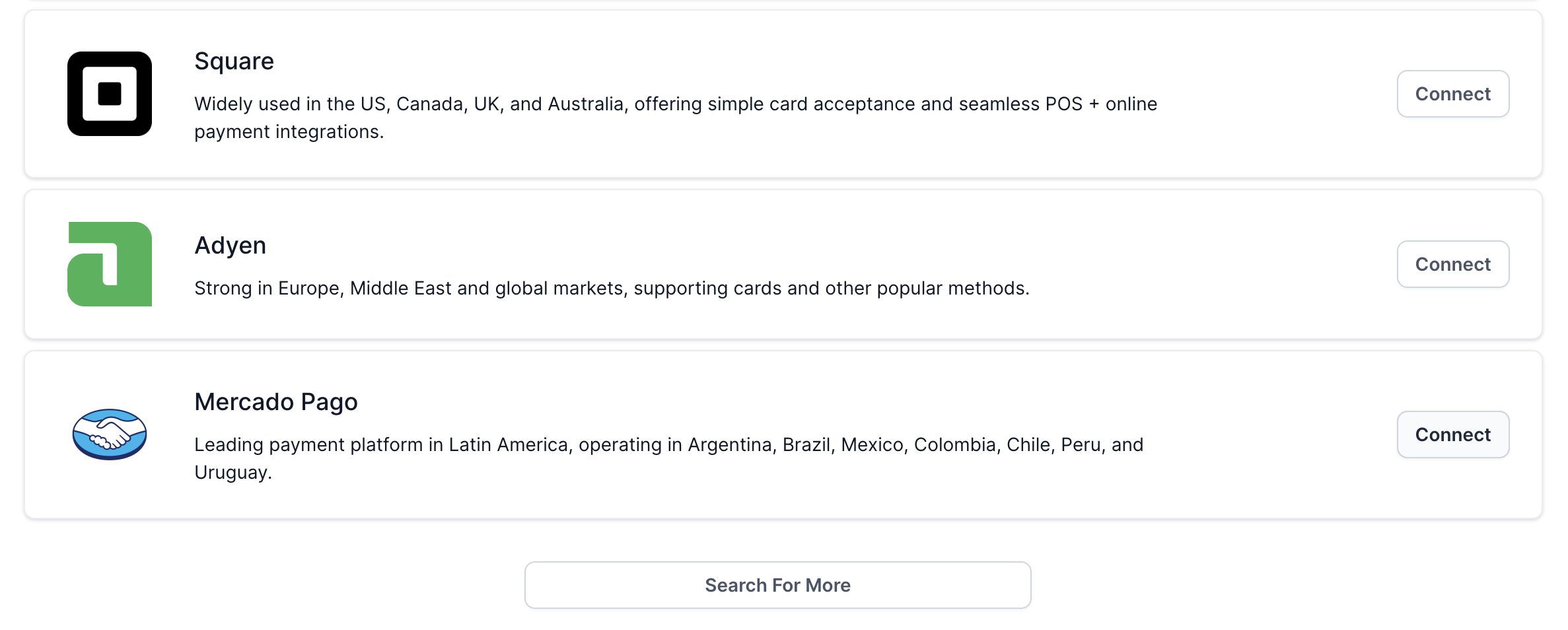
Step 1: Open payment integrations in Omnix
Sign in to your Omnix account.
Go to Payments from left nav bar.
Open the Integrations tab where payment gateways are managed.
Find Mercado Pago in the list.
Click Connect.
 Step 2: Generate your Mercado Pago production credentials
Sign in to your Mercado Pago account.
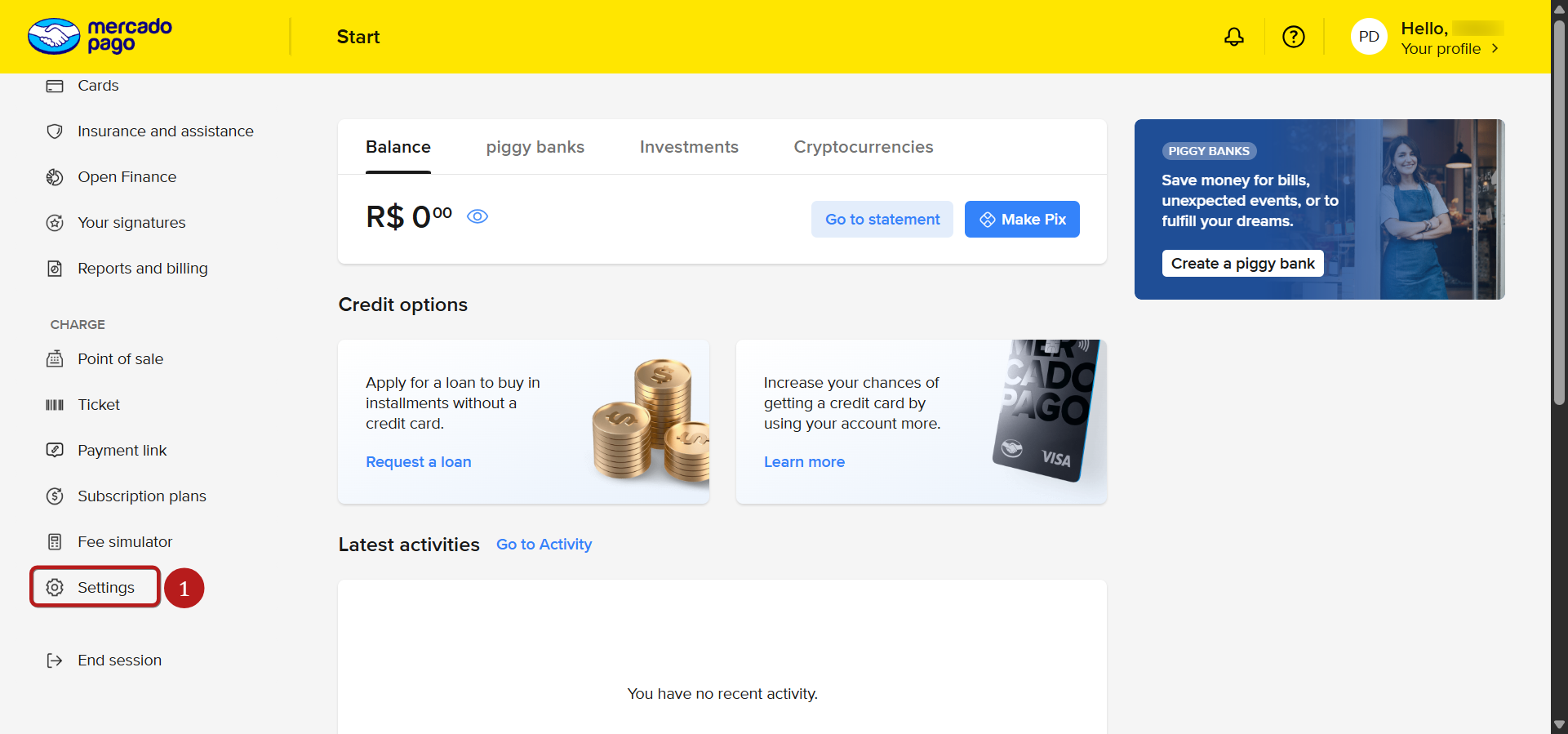
Open the Mercado Pago developer area.
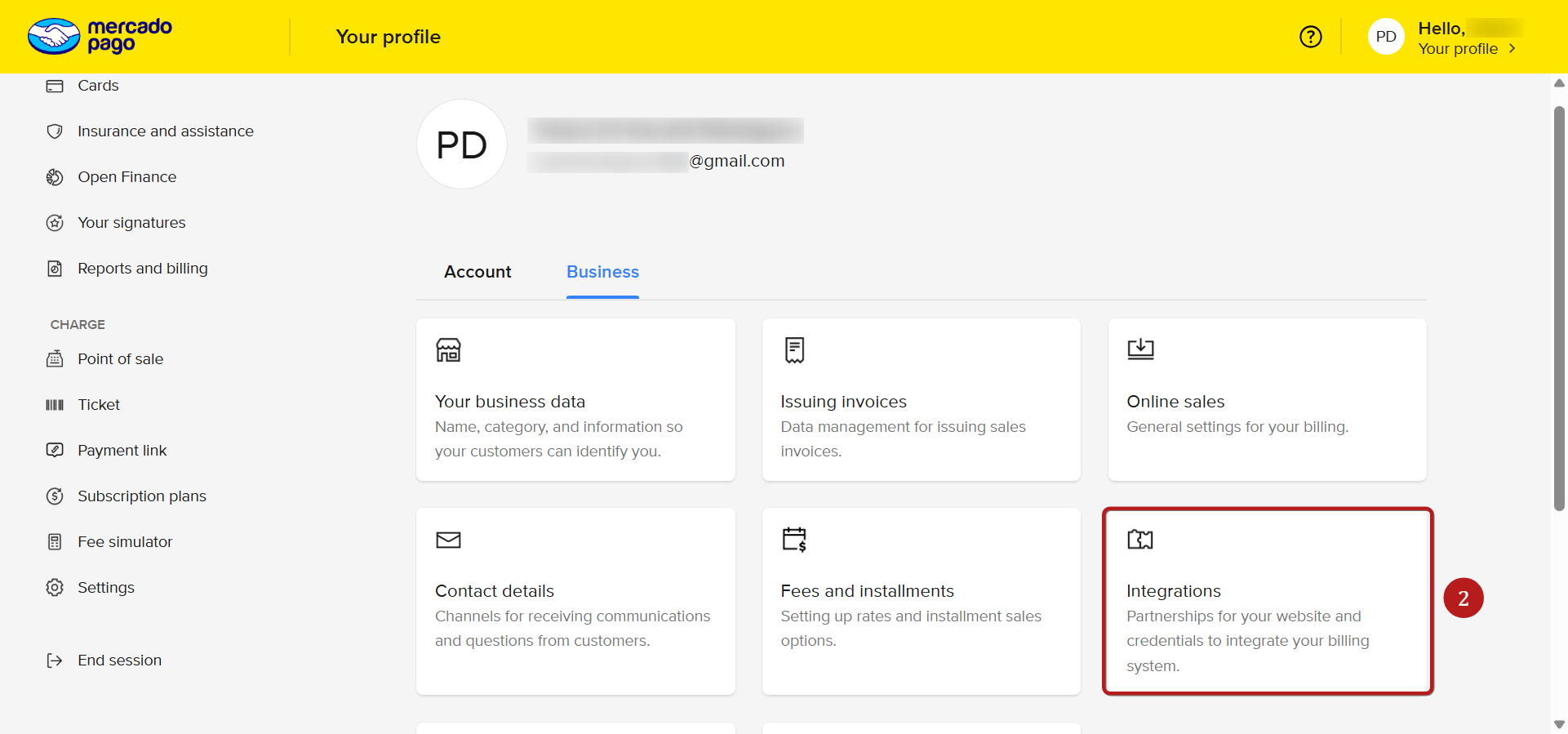
Go to Your integrations.
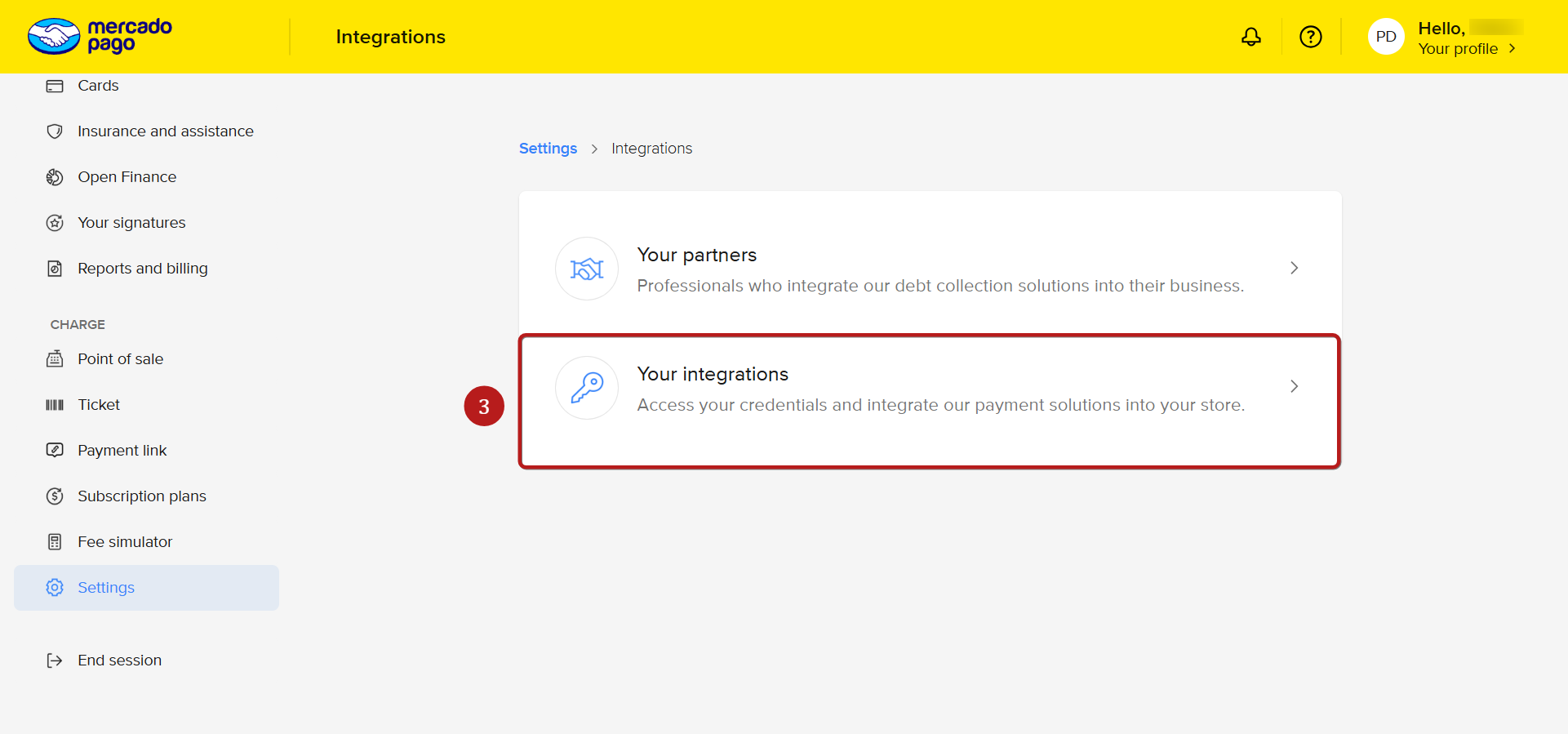
Open an existing application, or create a new one.
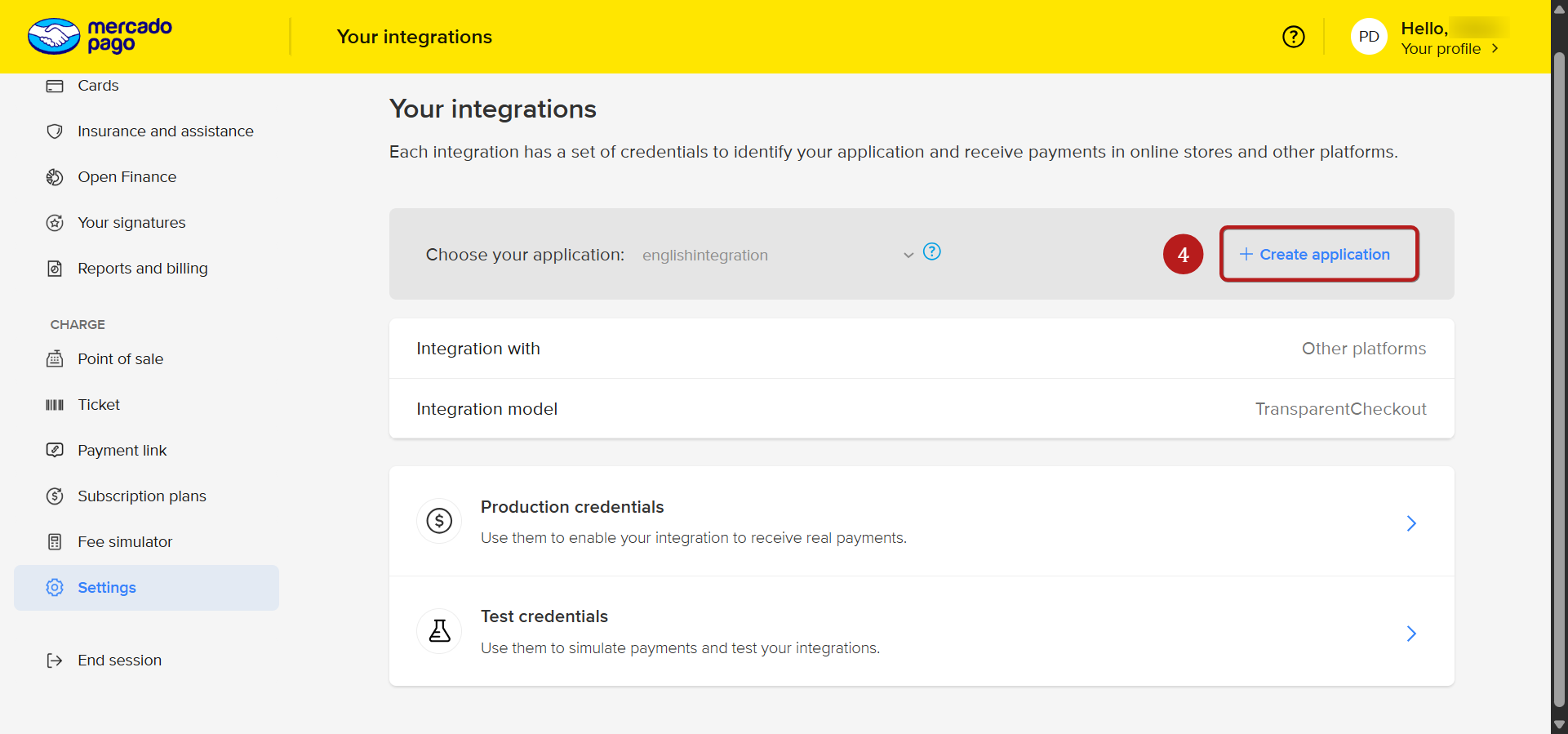
Navigate to Production credentials.
Copy the Public Key and Access Token.
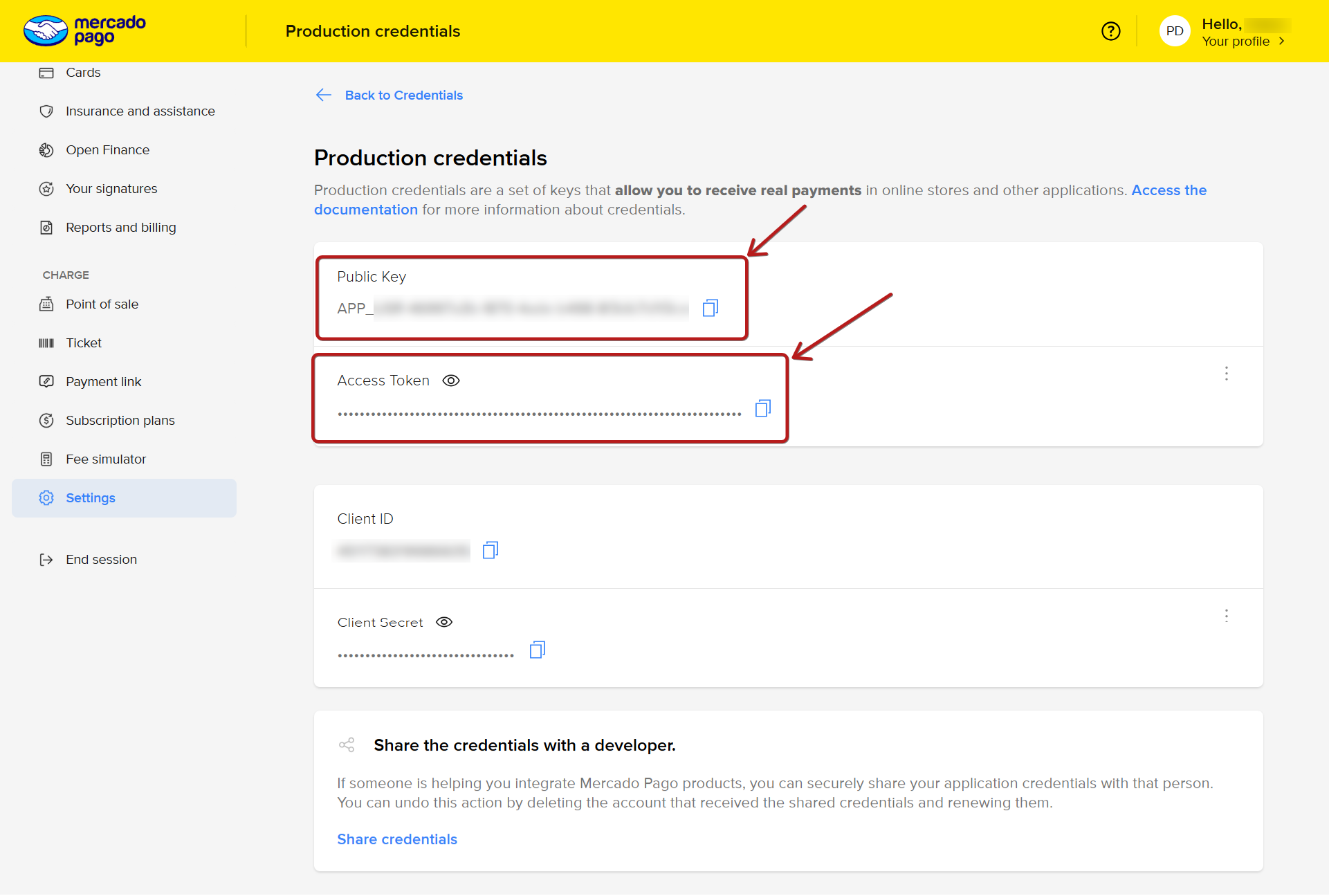
If production credentials are not active yet, you may be asked to complete business information such as your industry and website before activation.
If you need to create a new application
If you do not already have an application inside Mercado Pago, create one first. In most cases, Mercado Pago will ask you to:
Enter an application name
Choose the payment type or business use case - online payments
Confirm your setup details
Enable production credentials and use them as in Step 2
Step 3: Add the credentials in Omnix
Paste your Public Key into the matching field.
Paste your Access Token into the matching field.
Choose the correct country or account region if that option appears.
Generate a webhook secret and add into the matching field. (Refer FAQ)
Click Save or Connect.
Once saved, your Mercado Pago account should be linked, now we will enable webhooks in Mercado Pago app.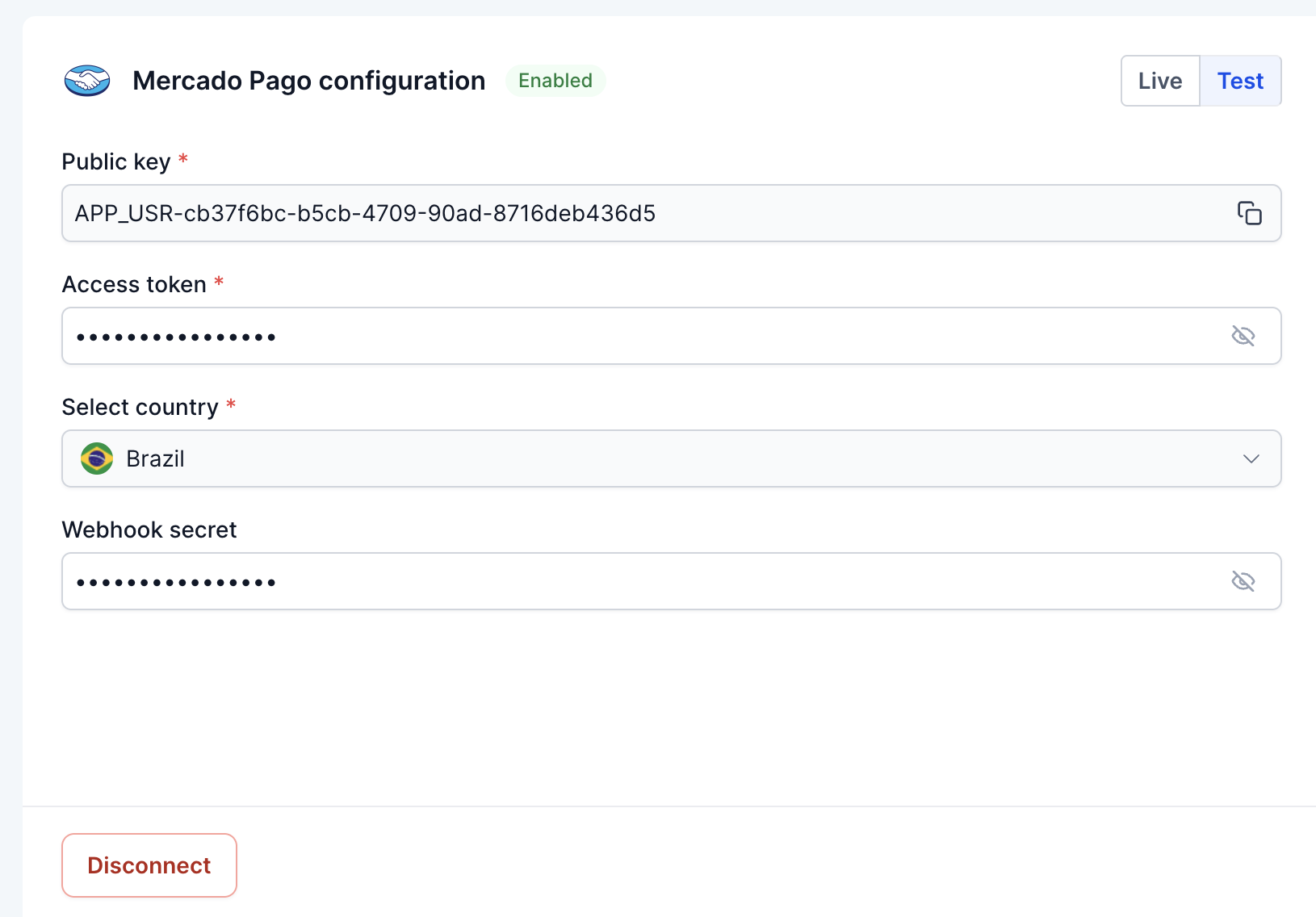
Step 4: Configure webhook notifications in Mercado Pago
Some Mercado Pago integrations require webhook notifications so payment events can sync correctly back to your platform. Log in to your Mercado Pago account and go to the developer panel (https://www.mercadopago.com.br/developers/en)
In Mercado Pago, open the application you used for the integration.
Go to Webhooks
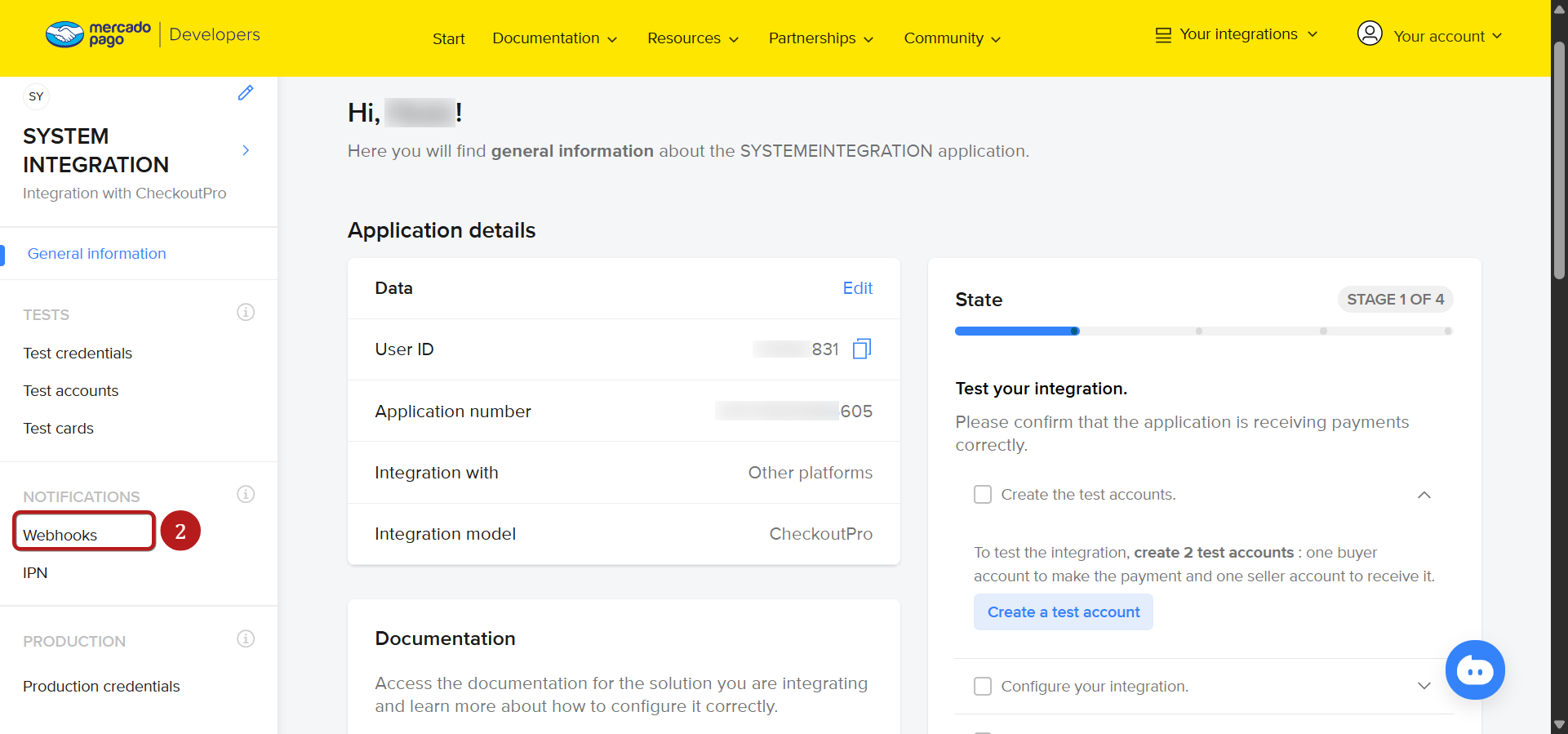
Click Configure notifications.
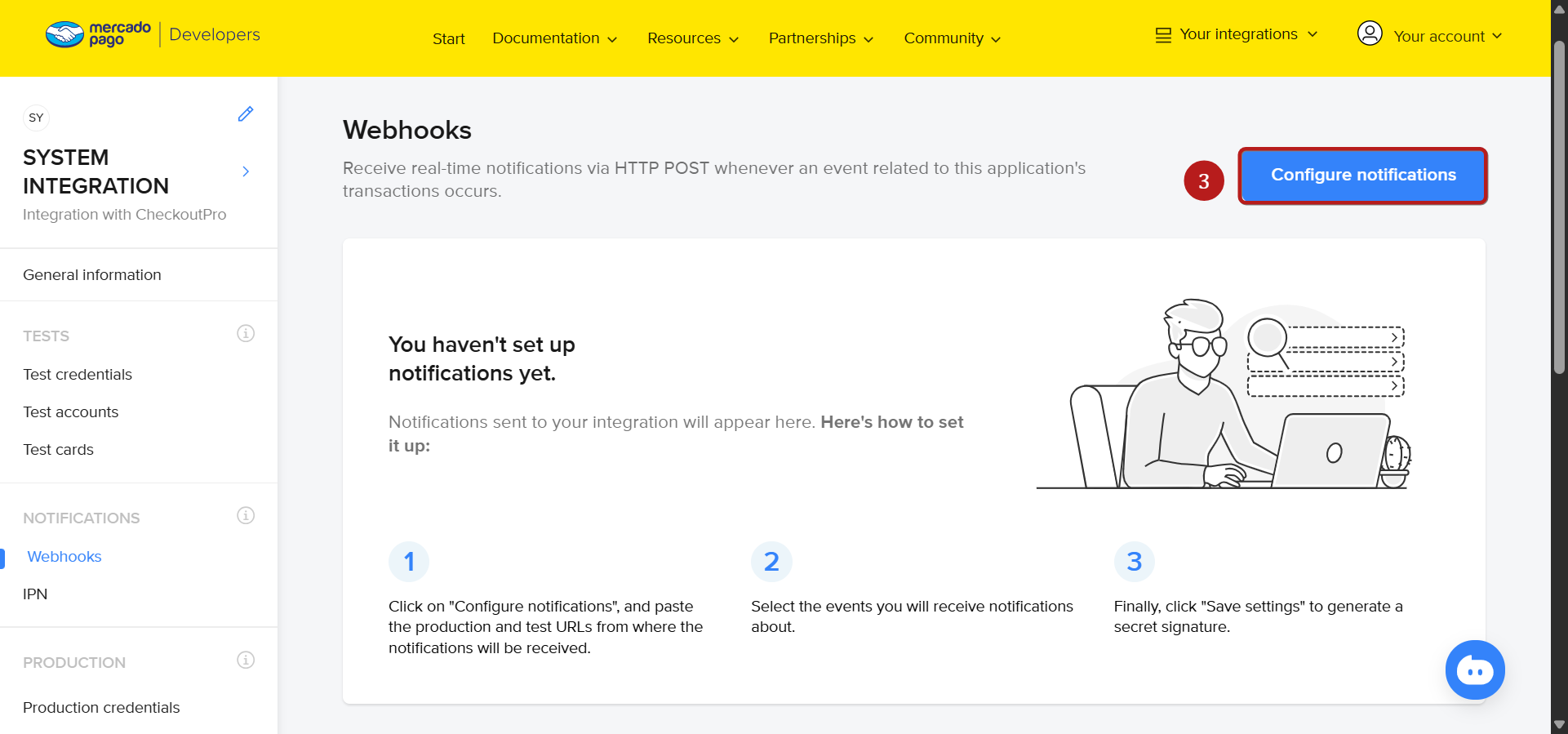
Paste the webhook URL into the Production mode URL field - https://backend.Omnix hq.com/payments/mercado-pago/webhook
Add Webhook secret same as on Omnix page
Select the ‘Payment’ event required for your integration.
Save your changes.
Important notes
Use production credentials for real payments. Test credentials are only for testing and will not process live transactions.
Keep your Access Token private and store it securely.
Depending on your Mercado Pago country setup, available options may vary. Like different countries have different minimum accounts, refer to FAQ.
Your Mercado Pago account must have CVV less support enabled for this integration to work as expected.
Mercado Pago doesn’t allow two checkout elements to be launched on one single page, for example you cannot keep two 1 step order forms on a funnel
FAQ
1. Are there any minimum amount conditions in my country?
Yes. Mercado Pago has specific minimum and maximum payment amount rules depending on the payment method. If you create a product that does not meet these conditions, the payment may fail. Current reference is based on Mercado Pago's supported payment limits:
Credit and debit cards
Visa, Mastercard, American Express, Naranja, Cabal, and Sucrédito
Minimum amount for one time payments: $100.00
Minimum amount for installment purchases: $100.00 per installment
Maximum amount: $15,000,000.00
Easy Payment and Rapipago
Minimum amount: $100.00
Maximum amount: $1,000,000.00
Reference: https://www.mercadopago.com.ar/ayuda/monto-minimo-maximo-medios-de-pago_620
2. What happens if I create a product in USD currency?
At the moment, Mercado Pago does not dynamically convert the currency for this setup. It is recommended to keep your product or service currency the same as your domestic Mercado Pago account currency.
For example, if your Mercado Pago account is based in Argentina, you should use Argentine Peso for your product pricing.
3. I added two checkout or payment elements to my funnel, but they are not working
Mercado Pago does not allow this because of its security conditions. You can only open one checkout screen in one active session. To avoid payment issues, make sure your funnel uses only one active Mercado Pago checkout or payment element at a time.
For example, two or more order forms with card capturing element on a single funnel or webpage won’t be loaded.
4. What happens if CVV less support is not enabled on my account?
It is strongly recommended to enable CVV less support on your Mercado Pago account. Without it, features such as subscriptions, off session payments, and SaaS mode may not work correctly.
If you want, I can now merge these directly into the full article and return the complete cleaned draft in one copy ready block.
5. What countries are supported for this integration?
Colombia, Argentina, Chile, Mexico, Ecuador, Uruguay, Peru, Brazil, El Salvador
6. How do I generate a webhook secret?
A webhook secret is a random, high entropy string used to sign payload requests. This string can very well be a password that you can remember, but it should match at Omnix and Mercado Pago side. You may also use web based webhook secret generator, which will generate a hmac-sha256 algorithm based secret like this, these are more secure - e70fd2ccfed7cf82596fe0494925a0ada87e3b03873a83150bd5458754650211 (only for example)
7. What is CVV/CVC less account enablement
CVV or CVC is the 3 or 4 digit security code printed on a credit or debit card. It is commonly used to verify online or phone transactions and helps reduce fraud.
In saved card payment flows, especially when charging customers off session or starting subscriptions using an already saved card, asking the customer to enter the CVV every time can create friction and increase drop off.
To avoid this, some payment providers support CVV less flows. In these flows, the card is securely vaulted in a way that allows smoother repeat payments and better compatibility with Omnix features such as subscriptions, off session payments, and SaaS related billing flows.
Your Mercado Pago account may already have this enabled, but you will need to verify this with the Mercado Pago support team. If it is not enabled, you will need to request activation from them.