Recurring Webinar Settings let you automate a series of live sessions in minutes—no more cloning events, juggling dates, or confusing your audience. Use it to turn one-off webinars into reliable weekly classes, monthly product demos, or evergreen “watch any time” broadcasts.
TABLE OF CONTENTS
Overview of Recurring Webinar Settings
Recurring Webinar Settings add an optional “Recurring” layer to Omnix webinars so a single event can repeat automatically on a schedule you define. Behind the scenes, Omnix generates future occurrences, updates the broadcast page to the next upcoming session, and ensures registrations, reminders, and analytics stay linked to the entire series. This means you set your cadence once and Omnix handles the rest—whether that’s daily stand-ups, a bi-weekly mastermind, or a “3rd Friday” workshop.
Key Benefits of Recurring Webinar Settings
- Save hours of manual cloning and instead configure one series
- Consistent attendee experience with a single registration and broadcast link
- Higher engagement and retention through predictable, “habit-forming” schedules
- Flexible patterns (daily, weekly, monthly, custom) match almost any use case
- "No Fixed Time” evergreen option keeps replays available 24/7
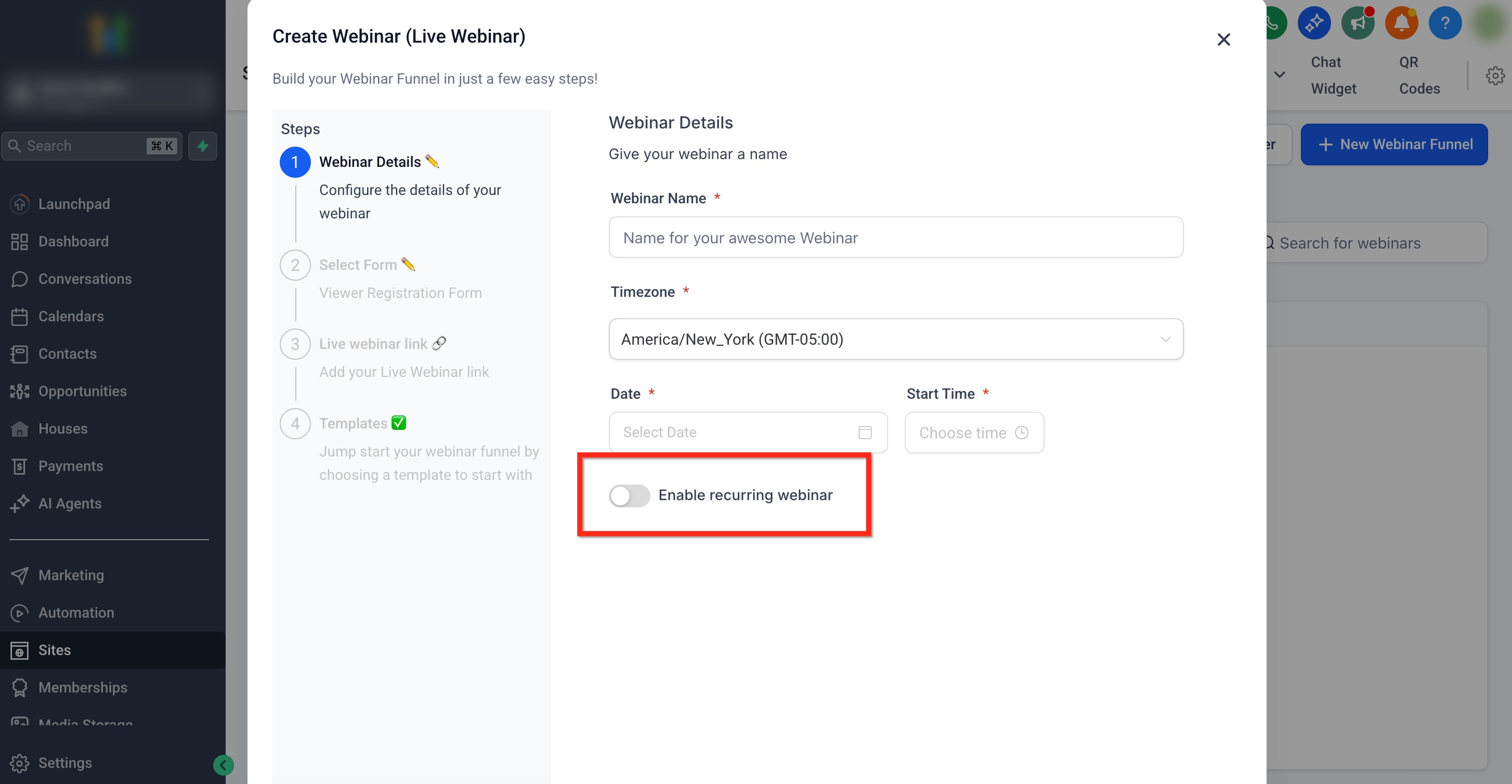
Recurring Webinar Toggle
Enable the “Recurring” switch inside any webinar’s Schedule tab. Once on, the frequency selector and advanced options become visible. Attendees still register once; Omnix automatically assigns them to every upcoming occurrence.
Flexible Recurrence Patterns
Choose the cadence that fits your program. These options mirror familiar calendar rules, making setup intuitive for new users. For each recurrence schedule, you are able to customize the settings to match your use case.
- Daily: repeat every X days (e.g., every 2 days)
- Weekly: repeat every X weeks on specific weekdays (e.g., Mondays & Wednesdays)
- Monthly: repeat on a calendar date (15th) or ordinal weekday (3rd Friday)
- Custom End: stop “after N sessions” or “on a specific date."
- No Fixed Time: create an always-on, evergreen replay that attendees can watch any time
These options mirror familiar calendar rules, making setup intuitive for new users.
Broadcast Page Logic
A single broadcast URL serves the entire series. Before each session the page displays a countdown; once you go live, it streams the webinar; between sessions it shows “Next session starts in …” messaging. This keeps your marketing assets evergreen and eliminates broken links.
How To Setup Recurring Webinars
Setting up a recurring webinar is only a few clicks:
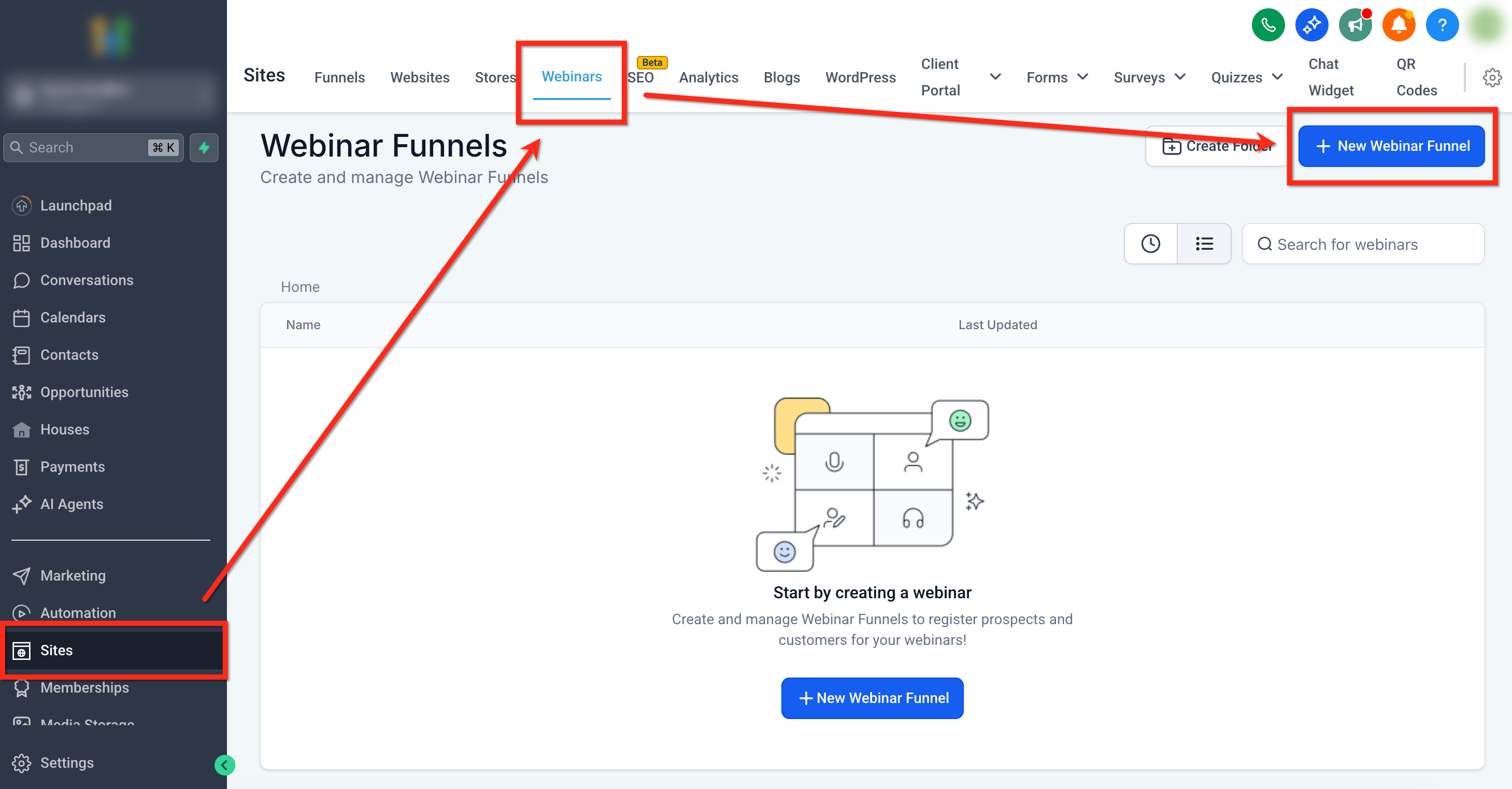
Step 1: Navigate to Webinars
Navigate to Sites ➜ Webinars ➜ + New Webinar Funnel(or open an existing webinar)
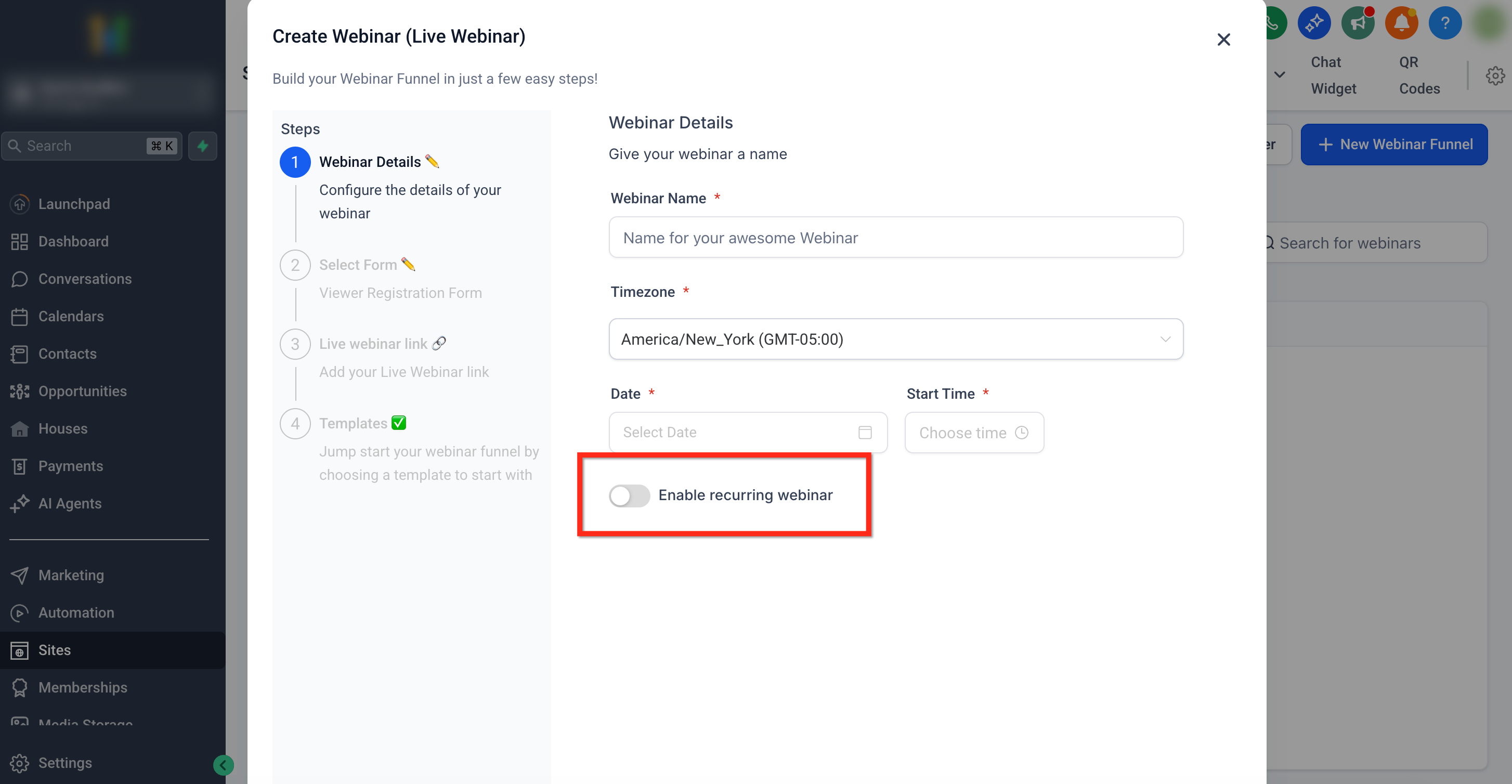
Step 2: Turn on Recurring Toggle
First fill out the Webinar Details. Then Toggle Enable recurring webinar to ON
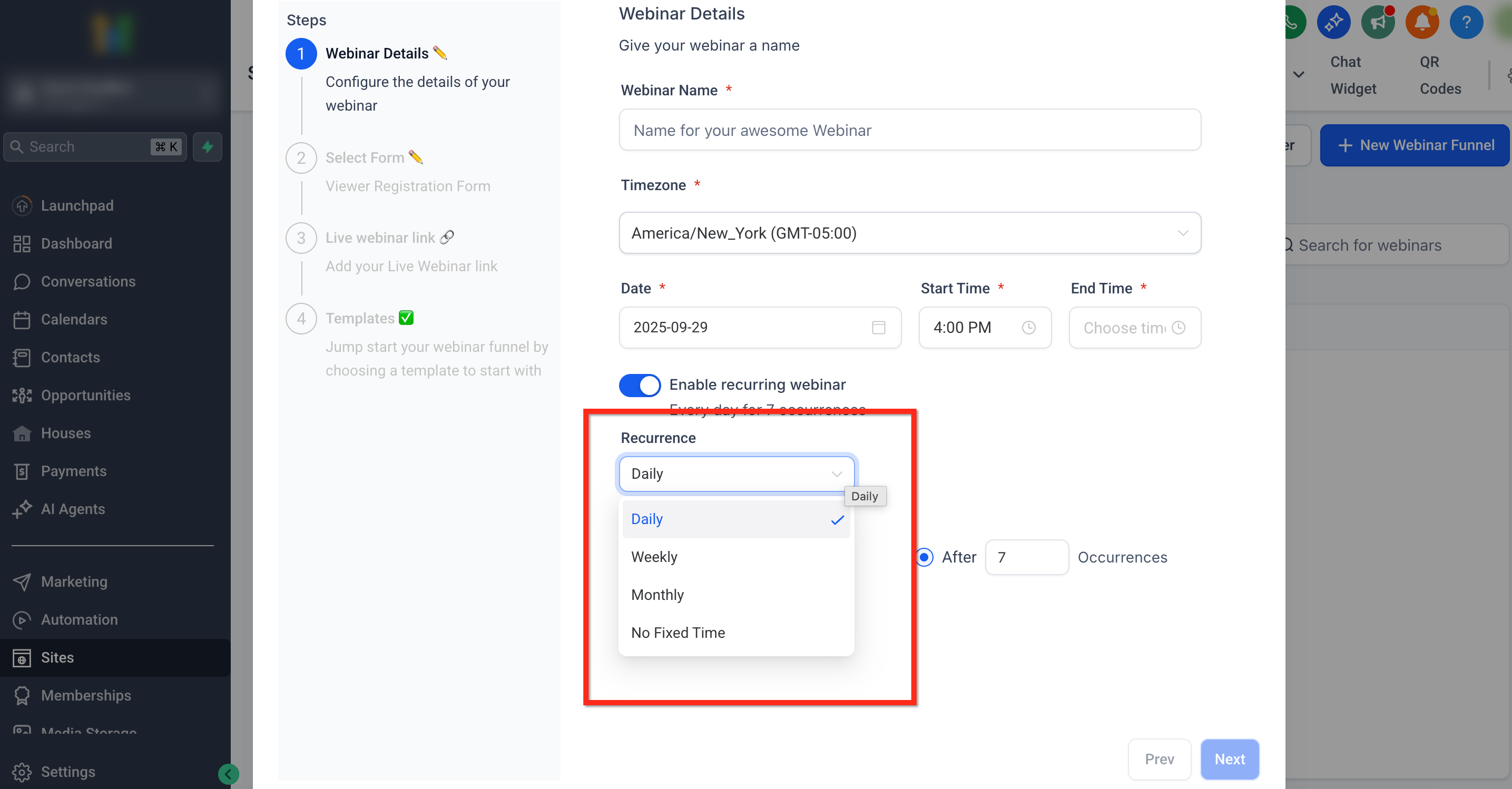
Step 3: Select a Frequency
Select a Frequency: Daily, Weekly, Monthly, or No Fixed Time.
Step 4: Configure Pattern Details
Configure pattern details (e.g., “repeat on the second Monday of the month”).
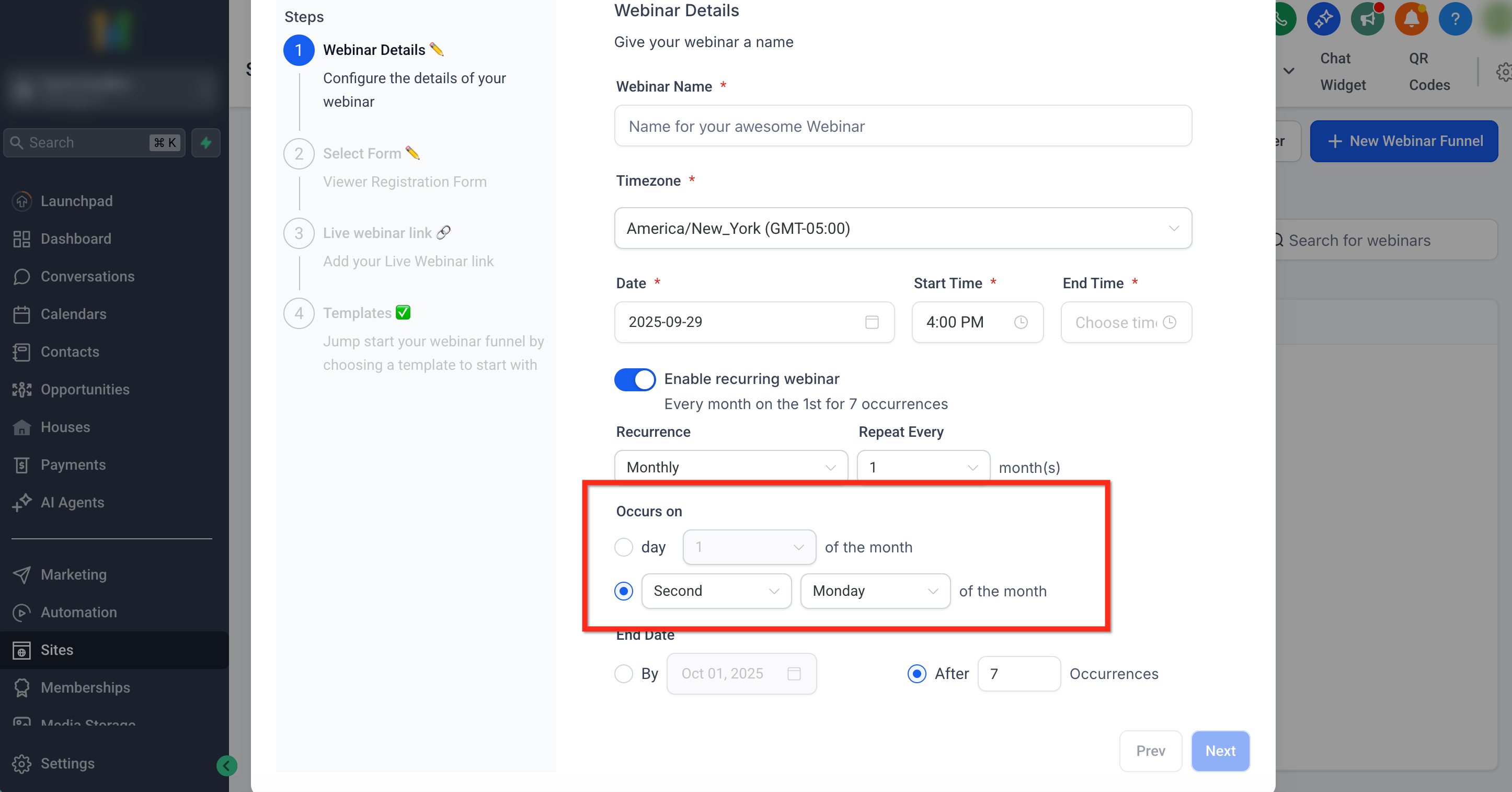
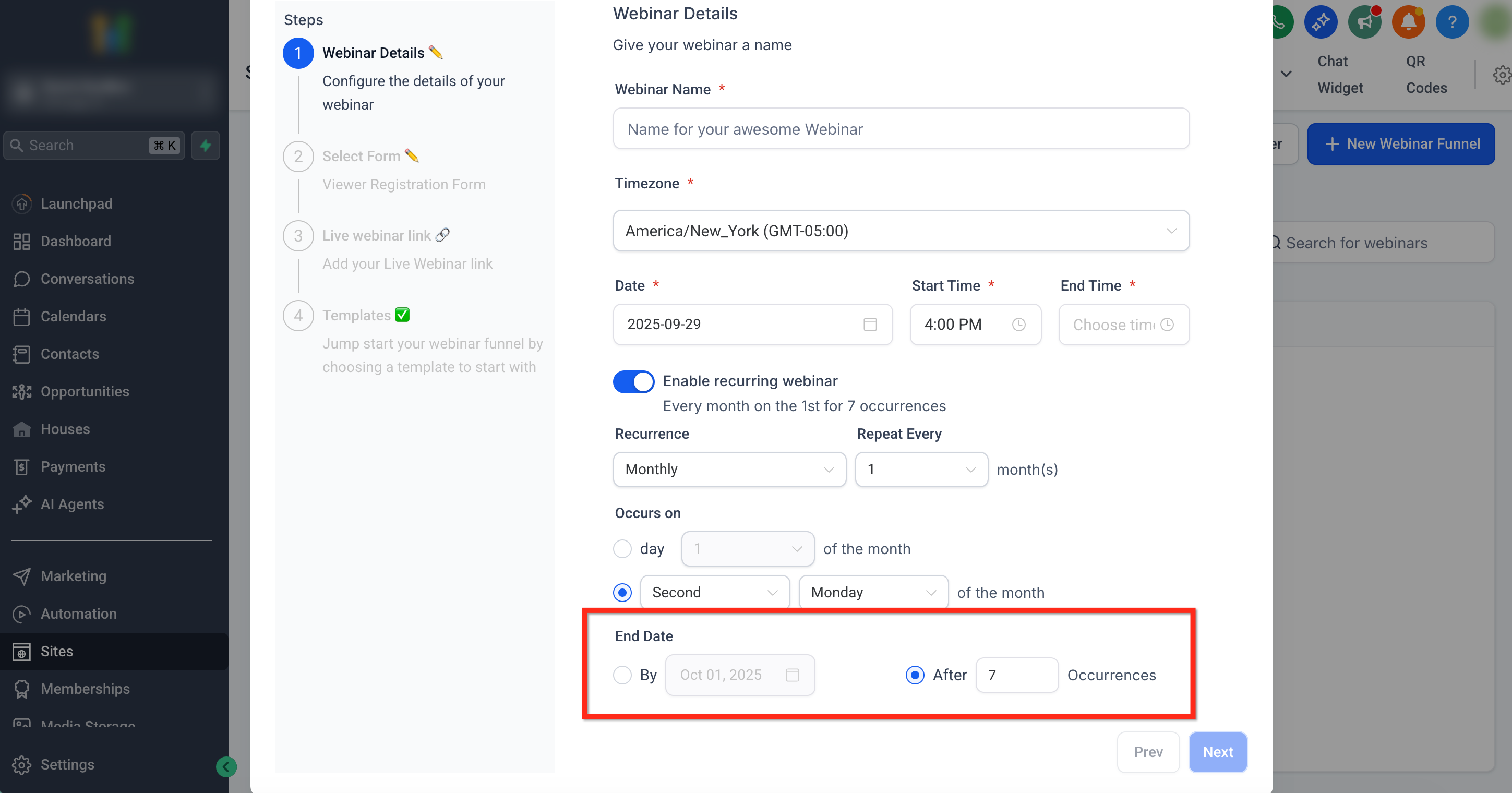
Step 5: Choose End Condition
Choose an End Date (after N sessions, or end on a date).
Frequently Asked Questions
Q: Do registrants need to sign up for every session?
No. One registration enrolls them for the entire series. Reminder emails adjust to each person’s next session.
Q: Can I edit the schedule after the series begins?
Yes. Changing the recurrence pattern updates all future (not past) occurrences. Existing registrants are automatically mapped to the new dates.
Q: How do reminders work for recurring webinars?
The standard webinar reminder workflow reschedules itself to the next occurrence, so you don’t have to rebuild automation. You can further customize timings in Workflows.
Q: What happens to the broadcast page between sessions?
It shows a countdown or “Next session starts …” banner until the host goes live, then streams the session. Afterward, it reverts to the next countdown.
Q: Can I mix live and on-demand content in one series?
Not within the same webinar. Create separate on-demand webinars or share the replay link via post-webinar automation instead.
Q: How does the “No Fixed Time” option work?
It creates a continuous evergreen webinar. Registrants can join at any time; the broadcast page immediately plays the pre-recorded video.
Related Articles
- Webinar Funnels
- Template Library for Webinars
- How to Create a Recurring Timer
- How to Use Wait Time in Recurring Timers
- Configure Recurring Calendar Appointments
- Collect Payments with Recurring Appointments (Booking Widget)