This article explains the Payments - Xero Integration feature that streamlines financial workflows by automatically syncing contacts and invoices between Omnix and Xero. With real-time updates and accurate tax mapping, this integration reduces manual work while ensuring data consistency across your systems.
TABLE OF CONTENTS
- Xero Integration with Omnix
- Key Benefits of Payments - Xero Integration
- How to Set Up Xero Integration
- How it works
- Frequently Asked Questions
Xero Integration with Omnix
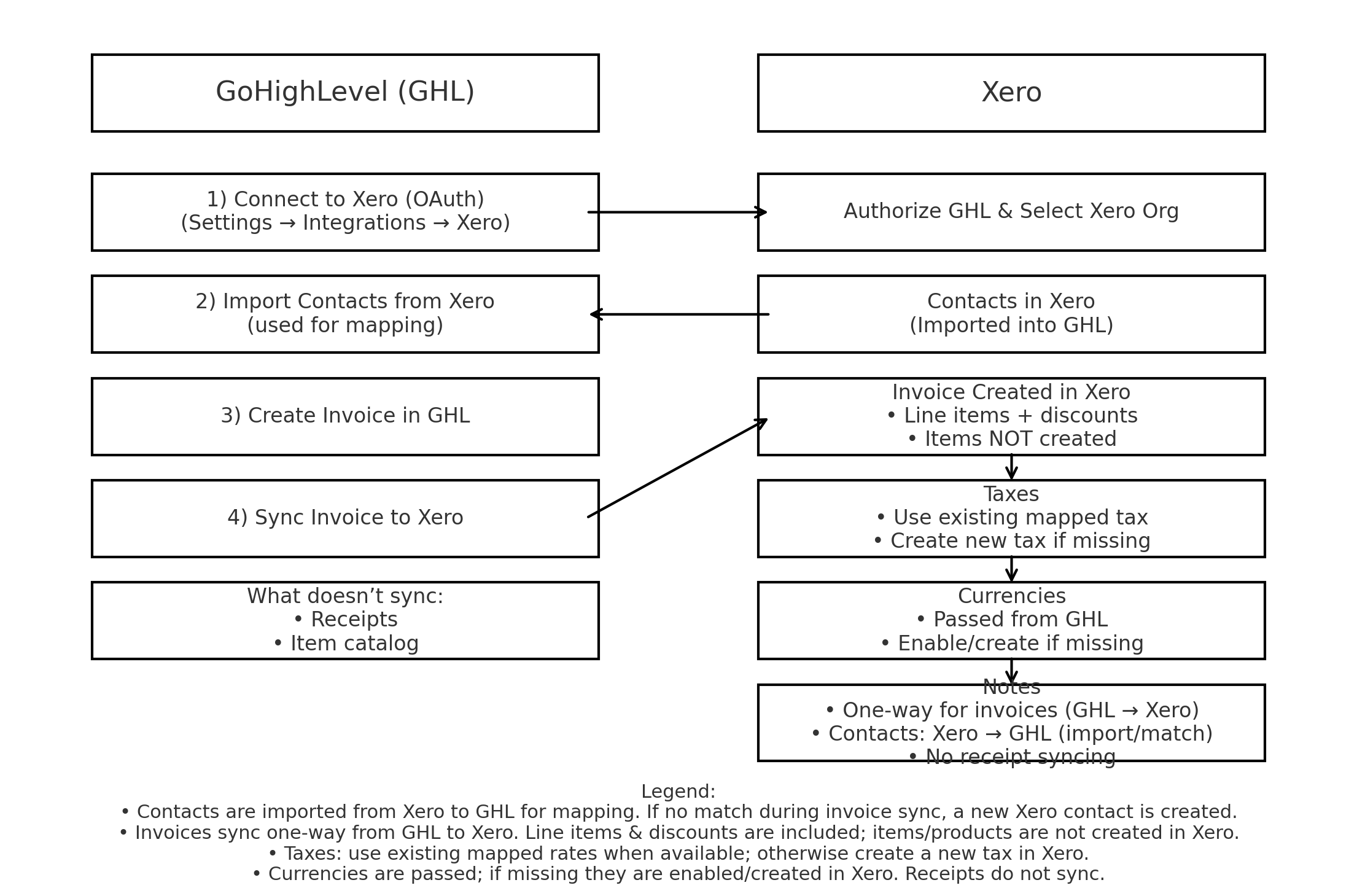
The Xero integration lets you one‑way sync invoices from Omnix to Xero. Contacts are first imported from Xero into Omnix, so invoices created in Omnix can map to the correct Xero contact when they’re synced. If a matching contact isn’t found, a new contact is created in Xero during the invoice sync.
What syncs today
Contacts: Imported from Xero → Omnix for mapping; new Xero contact is created on invoice sync if no match exists.
Invoices: Any invoice created in Omnix gets created in Xero automatically. Line items and discounts are included in the invoice created. Products/Items are not created in Xero; line items stay on the invoice only.
Taxes: If the mapped tax already exists in Xero, it’s applied; if not, a new tax rate is created and sent with the invoice.
Currencies: The invoice currency is passed to Xero; new currencies are added to the org if they don’t already exist. (Ensure your Xero plan supports multi‑currency.)
Status: As and when the status of the Invoice changes -> the statuses are synced into Xero. Eg: Sent, Partially Paid, Void.
What does not sync
Receipts: Receipt syncing is not included in this integration. It will be available soon.
Flow Diagram
Key Benefits of Payments - Xero Integration
Leveraging this integration empowers you to enhance efficiency and accuracy across your financial operations. Key benefits include:
- Automatically syncing new or updated contacts to maintain accurate records.
- Instantly transferring invoices from Omnix to Xero with up-to-date payment statuses and tax details.
- Ensuring compliance through precise tax mapping, even with multi-component tax structures.
- Filtering accounts to display only those with payments enabled, keeping data relevant and organized.
How to Set Up Xero Integration
Connecting your Omnix sub-account to Xero is straightforward and ensures that all financial data flows seamlessly between platforms. Follow these steps to set up the integration:
Step 1: Navigate to Xero under Integrations
In the left navigation, click Settings → Integrations → Xero.
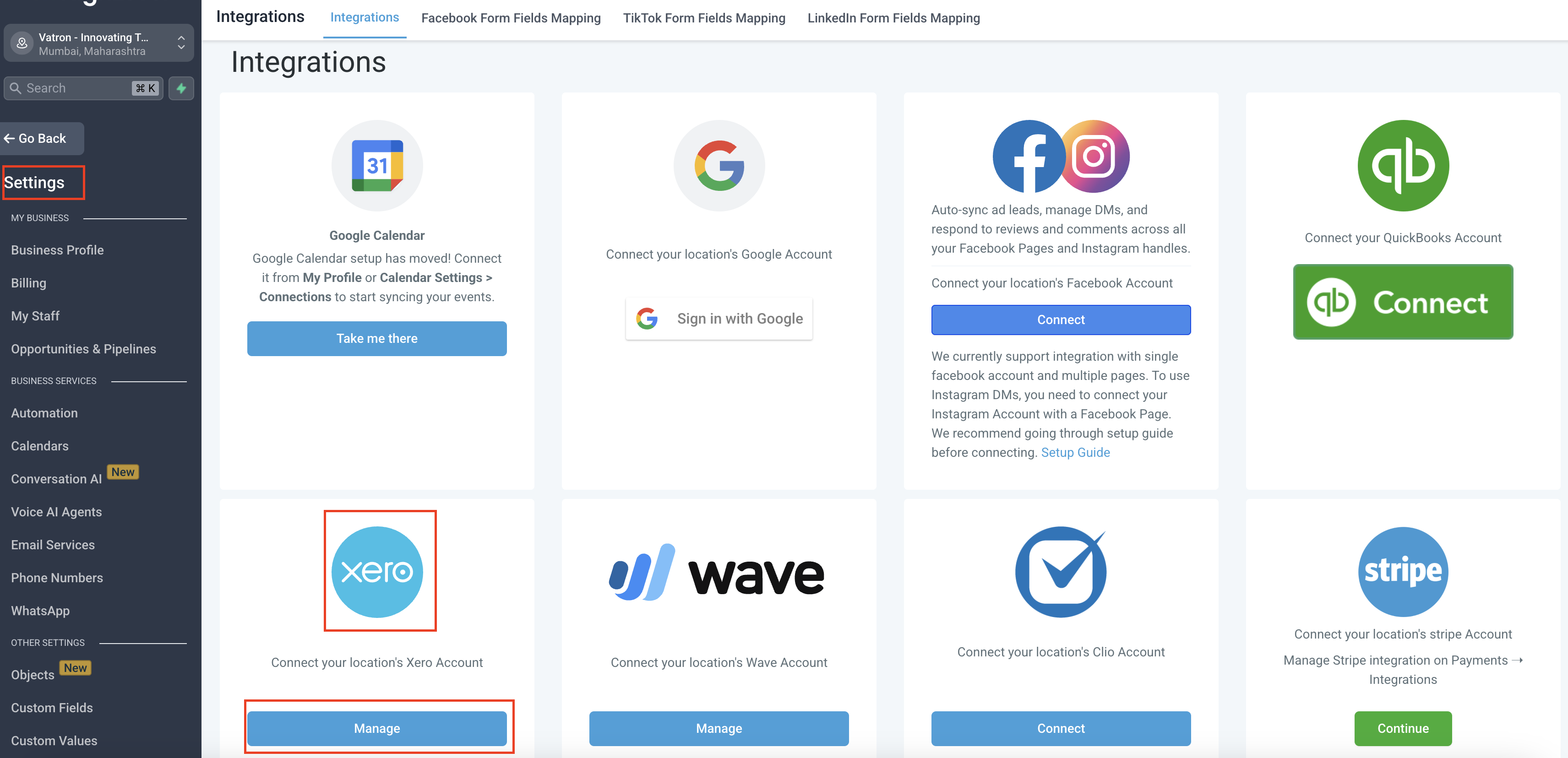
Step 2: Choose Xero
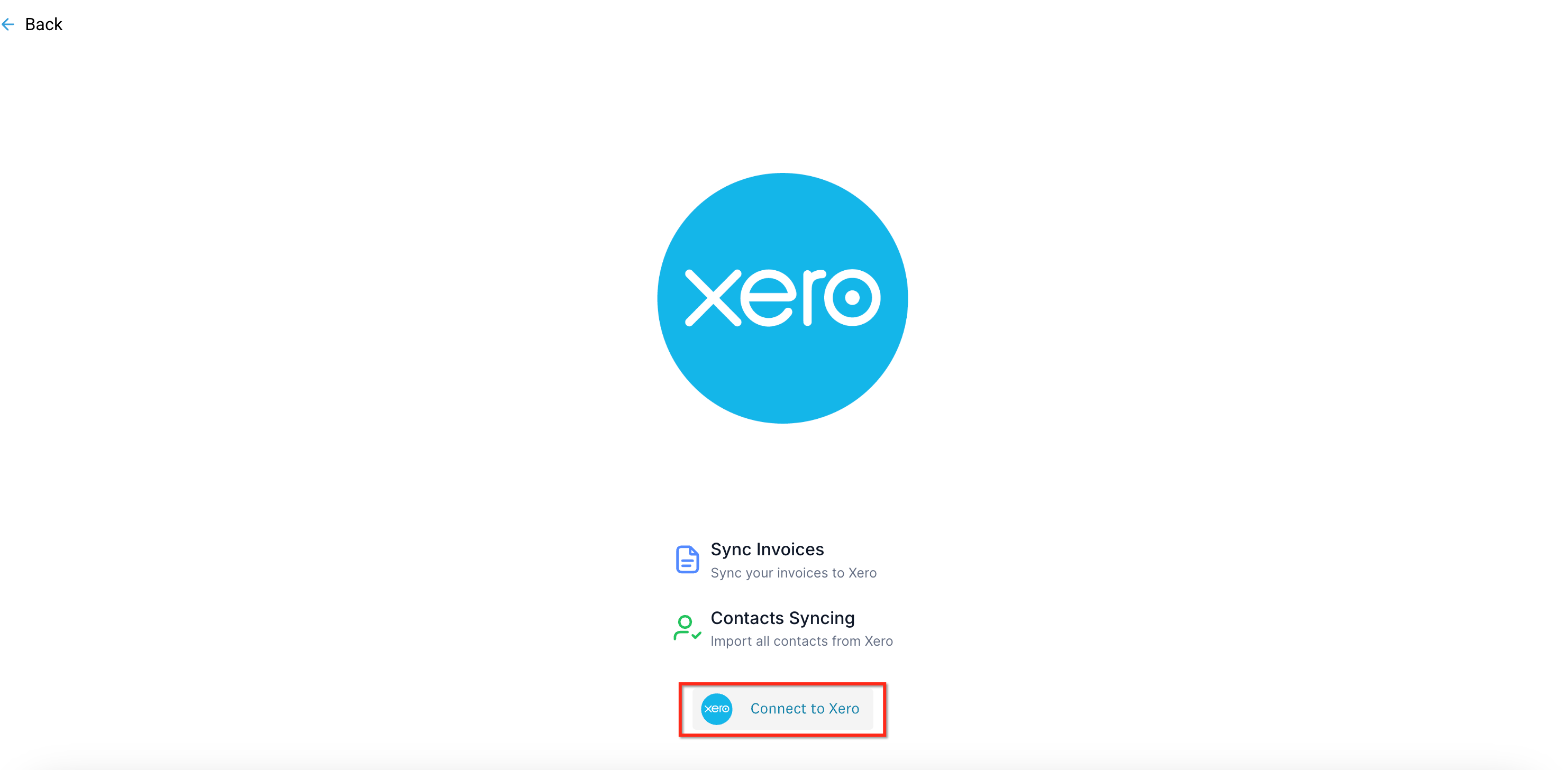
In the Integrations list, click the Xero tile, then select Connect. This opens a secure Xero window for authorization.
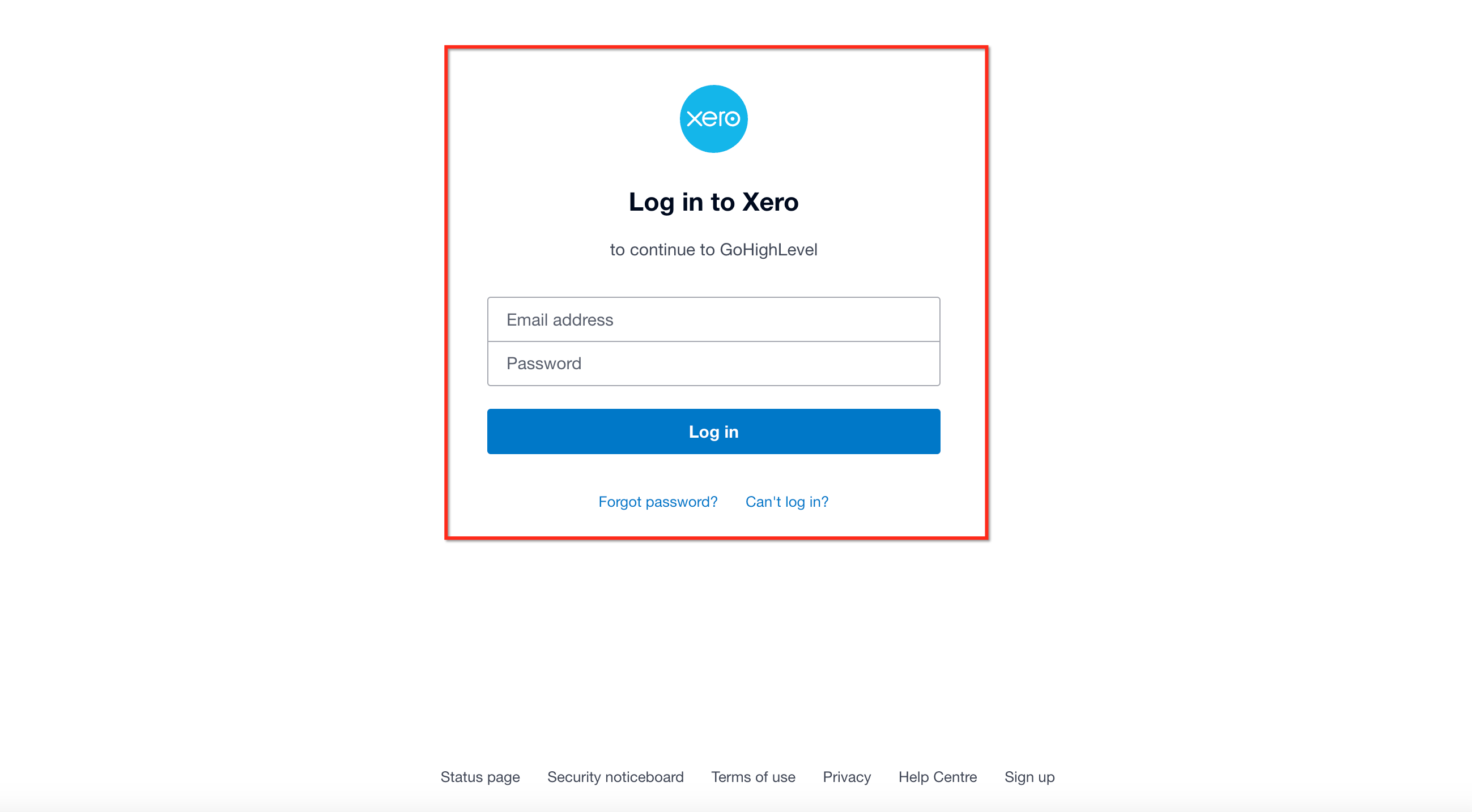
Step 3: Sign in & Authorize
Sign in to Xero (if prompted), select the Xero organization you want to connect, and click Allow access. (Omnix requests standard scopes to read contacts/settings and create invoicing transactions.)
Tip: Once connected, confirm the connection in Omnix
Back in Omnix, you’ll see the connected organization name and connection status in Integrations → Xero.
Step 4: Choose a default account for invoices
In the Xero settings pane inside Omnix, select the account and organization you want to use when posting invoices to.
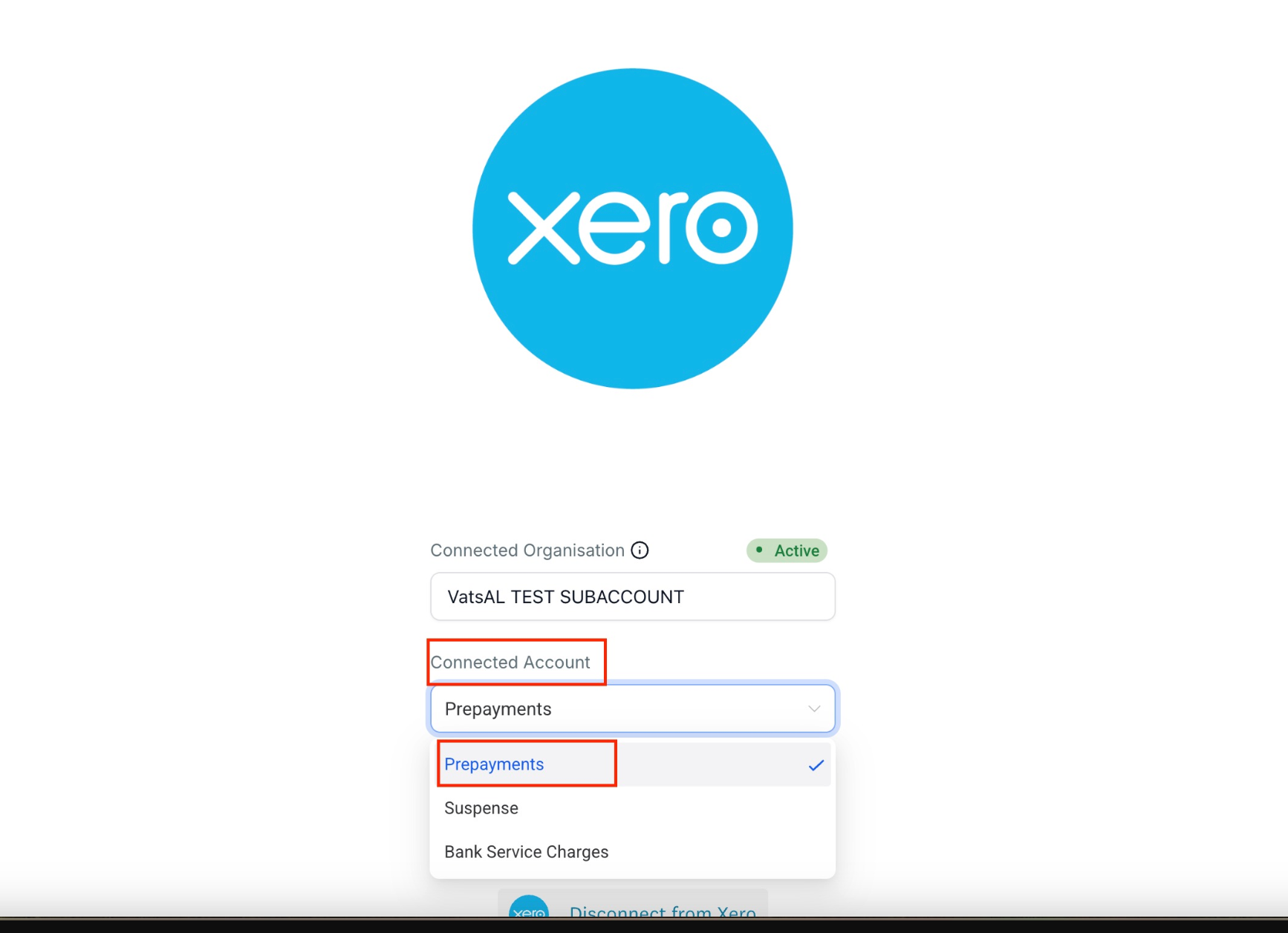
How to view all "Chart of Accounts" in Xero Integration?
If you are unable to view your Chart of Accounts in your CRM after connecting with Xero, follow the steps below to enable it.
Step 1: Go to Settings in Xero
From your Xero dashboard, select your organization. Click Settings from the dropdown menu.

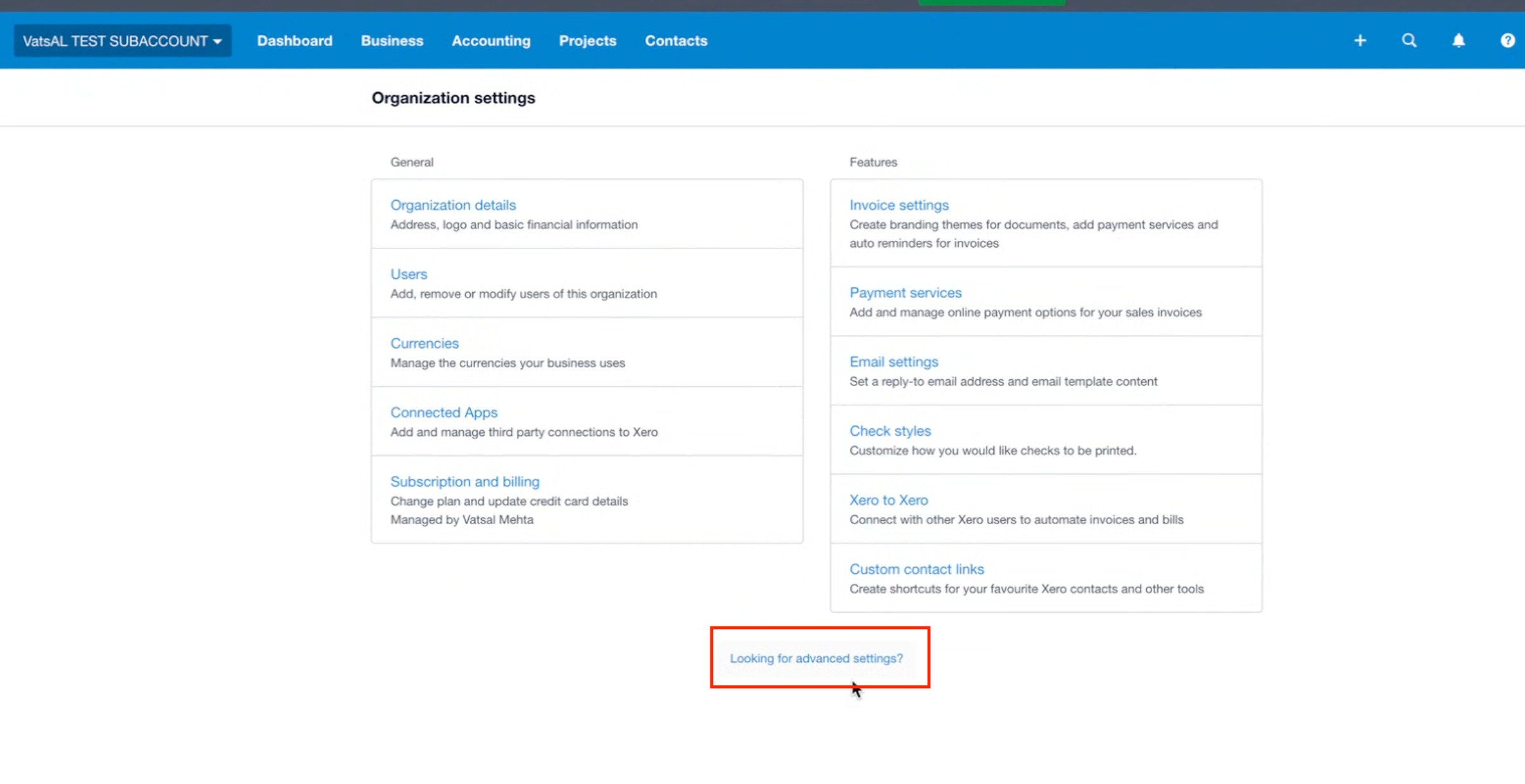
Step 2: Open Advanced Settings
In Organization settings, scroll down and click Looking for advanced settings?
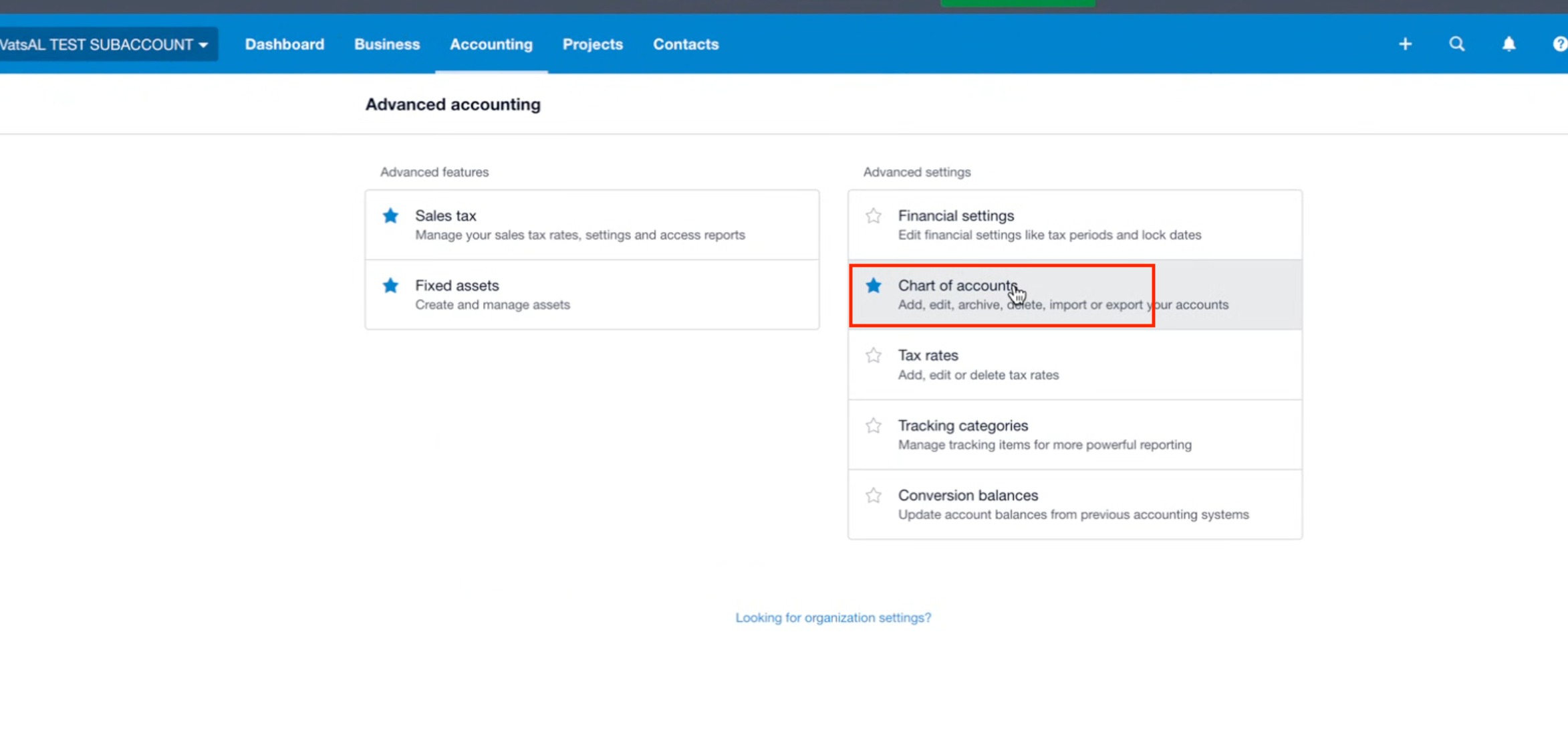
Step 3: Access Chart of Accounts
Under Advanced Accounting, click Chart of accounts.
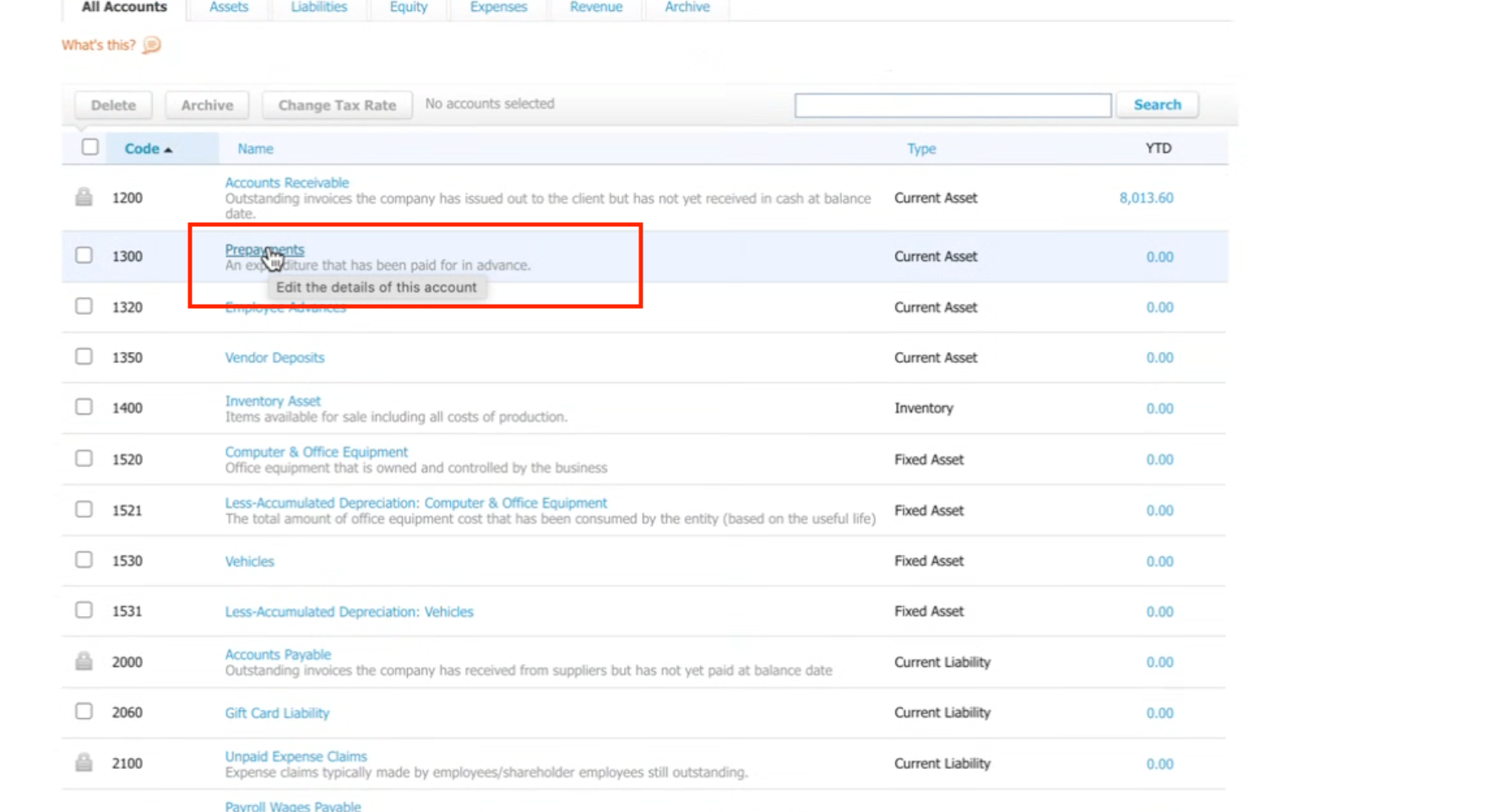
Step 4: Select the Relevant Account
From the list of accounts, choose the account you want to connect (e.g., Prepayments). Click to edit the details of this account.
Step 5: Enable Payments for the Account
In the edit popup:
Tick ✅ Enable payments to this account.
Click Save.
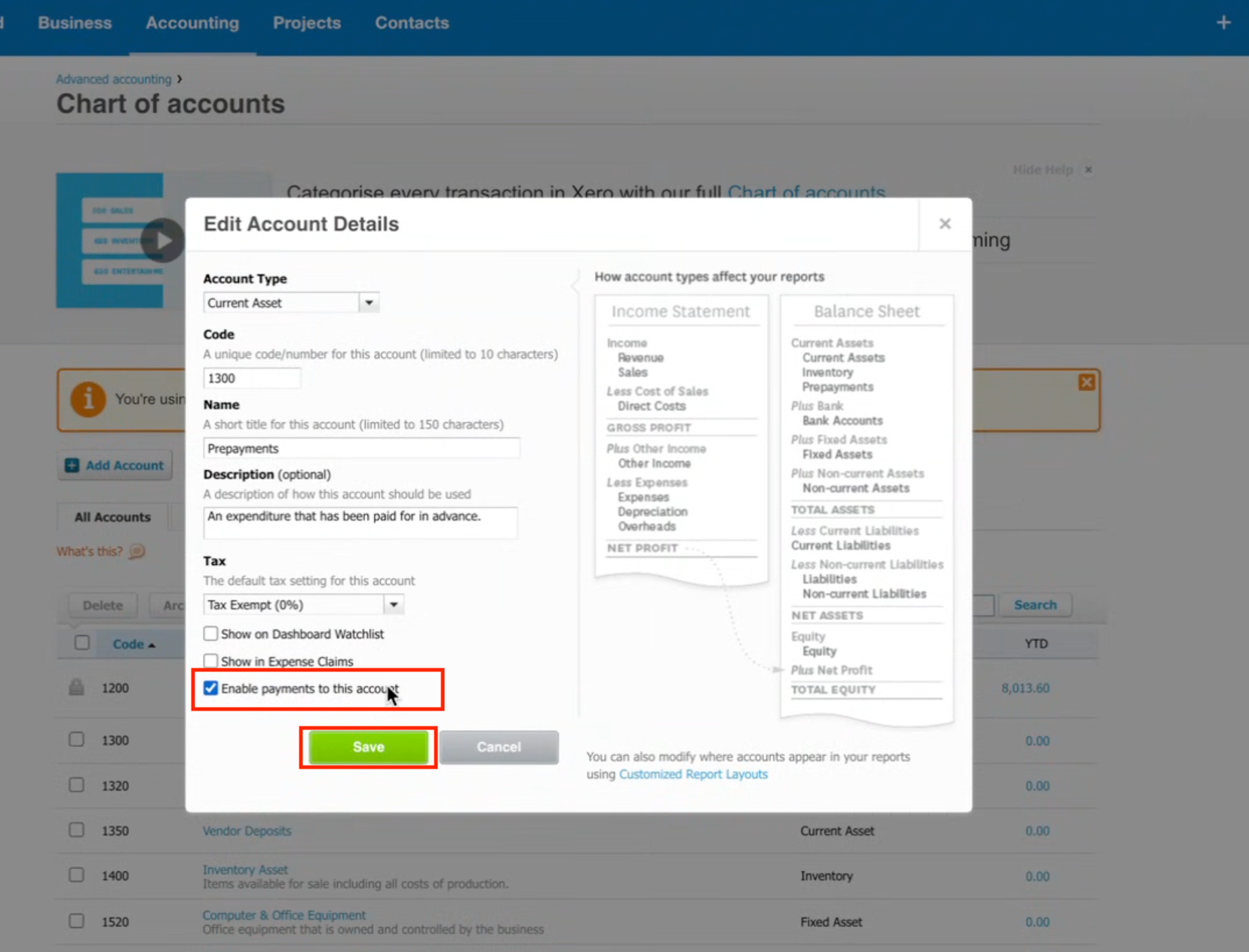
Step 6: Connect to CRM
Go back to your CRM Xero integration. Under Connected Account, select the account you just enabled (e.g., Prepayments).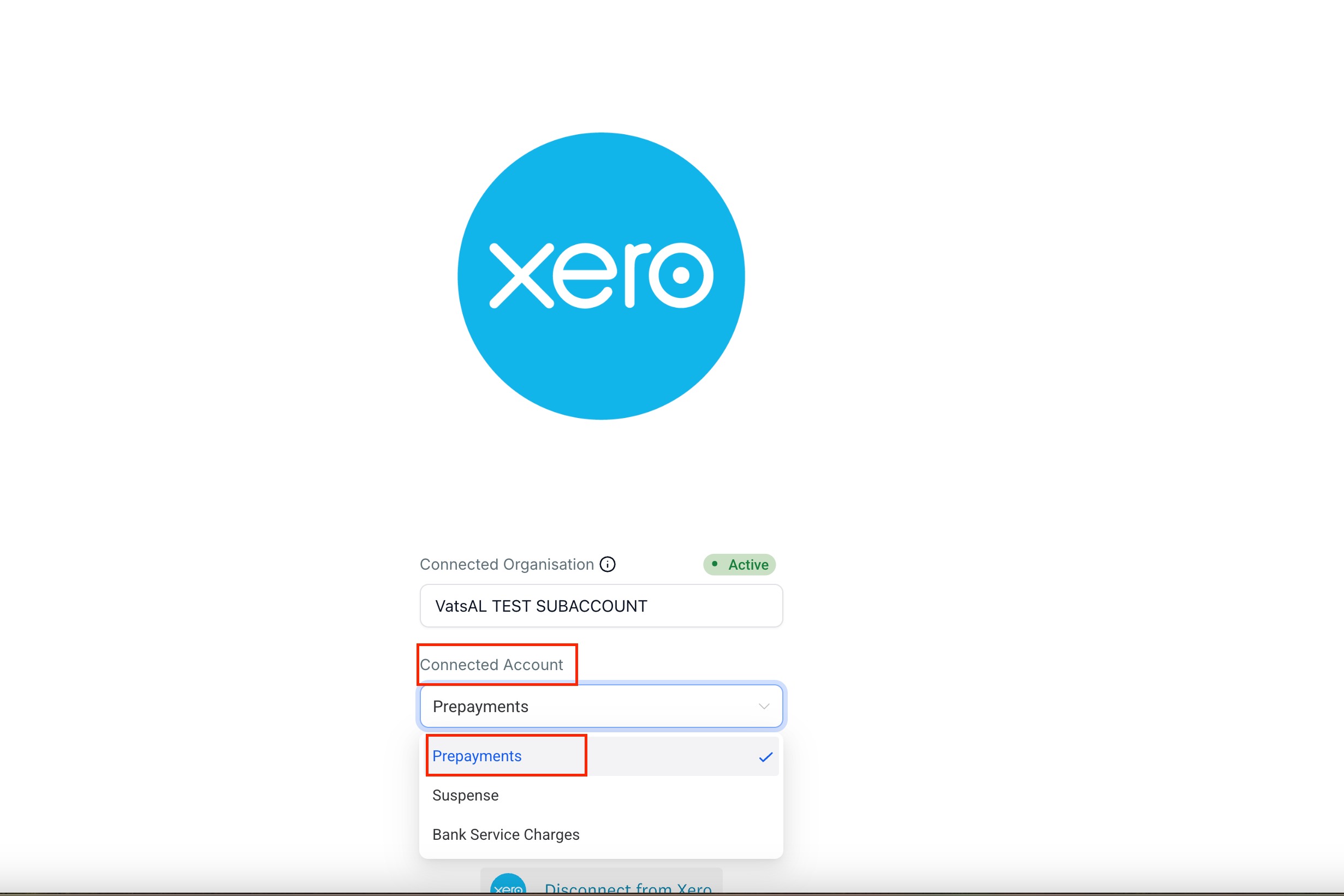
Once done, your Chart of Accounts will now be visible and ready to use in your CRM.
How it works
1. Contacts import (Xero → Omnix)
On connection, Omnix imports active Xero contacts (core profile details) so your upcoming invoices map to the right contact.
If you later sync an invoice and no imported contact matches, Omnix will create the contact in Xero automatically during the invoice sync.
2. Invoice sync (Omnix → Xero)
When you create/send an invoice in Omnix and choose Sync to Xero, Omnix posts an invoice to your connected Xero org that includes:
Contact: The imported/matched Xero contact, or a new Xero contact is created if none exists.
Line items: Names, quantities, amounts, and discounts are sent on the invoice. Products/Items are not created in Xero.
Taxes:
If a mapped tax already exists in Xero, that existing tax rate is applied.
If not, Omnix creates the tax rate on the fly and uses it for the invoice.
Currencies:
The invoice currency is passed to Xero.
If that currency isn’t enabled, Omnix adds/enables it in your Xero org before posting the invoice. (Ensure your Xero plan supports multi‑currency.)
3. What’s intentionally out of scope
No receipt syncing: Receipt/expense entries (or receipt PDFs) are not synced by this integration.
No item catalog sync: Omnix does not create or manage Products/Items in Xero; line items stay embedded in the invoice.
4. Disconnections
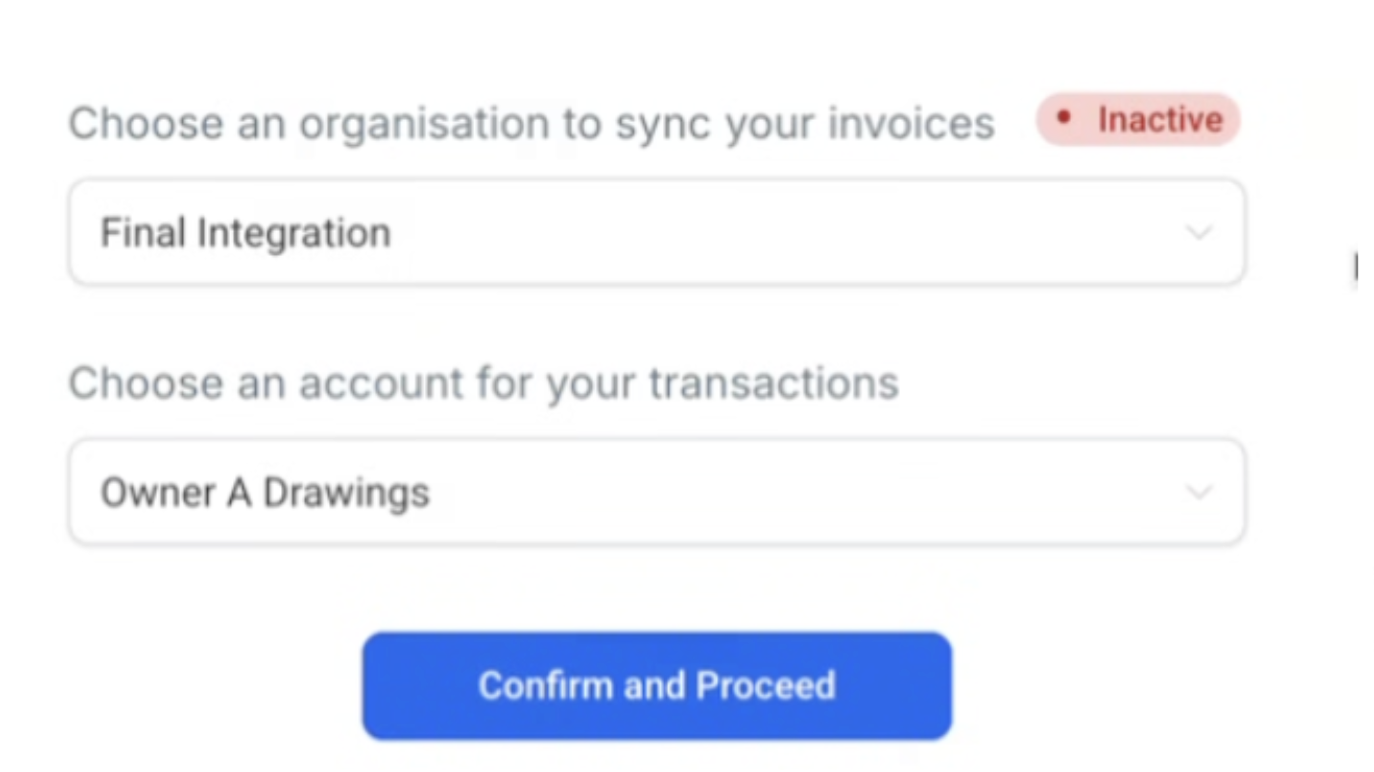
Best practice: If you use accounting‑specific tracking categories or bespoke revenue accounts in Xero, set the default account mapping in Omnix’s Xero settings carefully, and avoid mapping Bank accounts to line items to prevent Xero validation errors.
Frequently Asked Questions
Q. Is this a one‑way or two‑way sync?
One‑way. Contacts import from Xero to Omnix for mapping, and invoices sync from Omnix to Xero.
Q. Will Omnix create new contacts in Xero?
Yes—if the invoice’s customer doesn’t match any imported contact, Omnix will create the contact in Xero at sync time.
Q. Do products/items get created in Xero?
No. Line items are posted on the invoice only; Products/Items are not created or maintained in Xero.
Q. How are taxes handled?
If the mapped tax rate already exists in Xero, it’s used. If it doesn’t exist, Omnix creates the tax rate and applies it to the invoice.
Q. How are currencies handled?
Omnix passes the invoice currency to Xero and adds it to the org if it isn’t already enabled. Make sure your Xero org supports multi‑currency.
Q. Are receipts synced?
No. Receipt syncing is not included in this integration.
Q. Can I connect multiple Xero organizations to one Omnix account?
Not in this version. One Omnix account/instance connects to one Xero organization at a time. Agencies/whitelabels can connect each sub‑account to its own Xero org separately.
Q. Where do I manage the connection?
Go to Settings → Integrations → Xero in Omnix to view the connected organization name, check status, and disconnect/reconnect as needed.
Q. I received “Organisation is not subscribed to currency XXX.” What should I do?
This occurs when the invoice currency isn’t enabled in your Xero org. Enable multi‑currency in Xero and retry, or ensure your org allows that currency; Omnix will pass and create currencies as part of sync once available.
Q. I disconnected—how do I reconnect?
Return to Settings → Integrations → Xero and click Connect to authenticate again and select your organization.
Q. Will invoices created before connecting Xero sync automatically?
No. Typically, only invoices created after the Xero integration will sync automatically.