With the new update, you can now choose when your template expires. Follow these simple steps:
⌛️ Setting a Specific Expiry Date:
Go to Certificates from the dashboard.
Select the template you wish to edit.
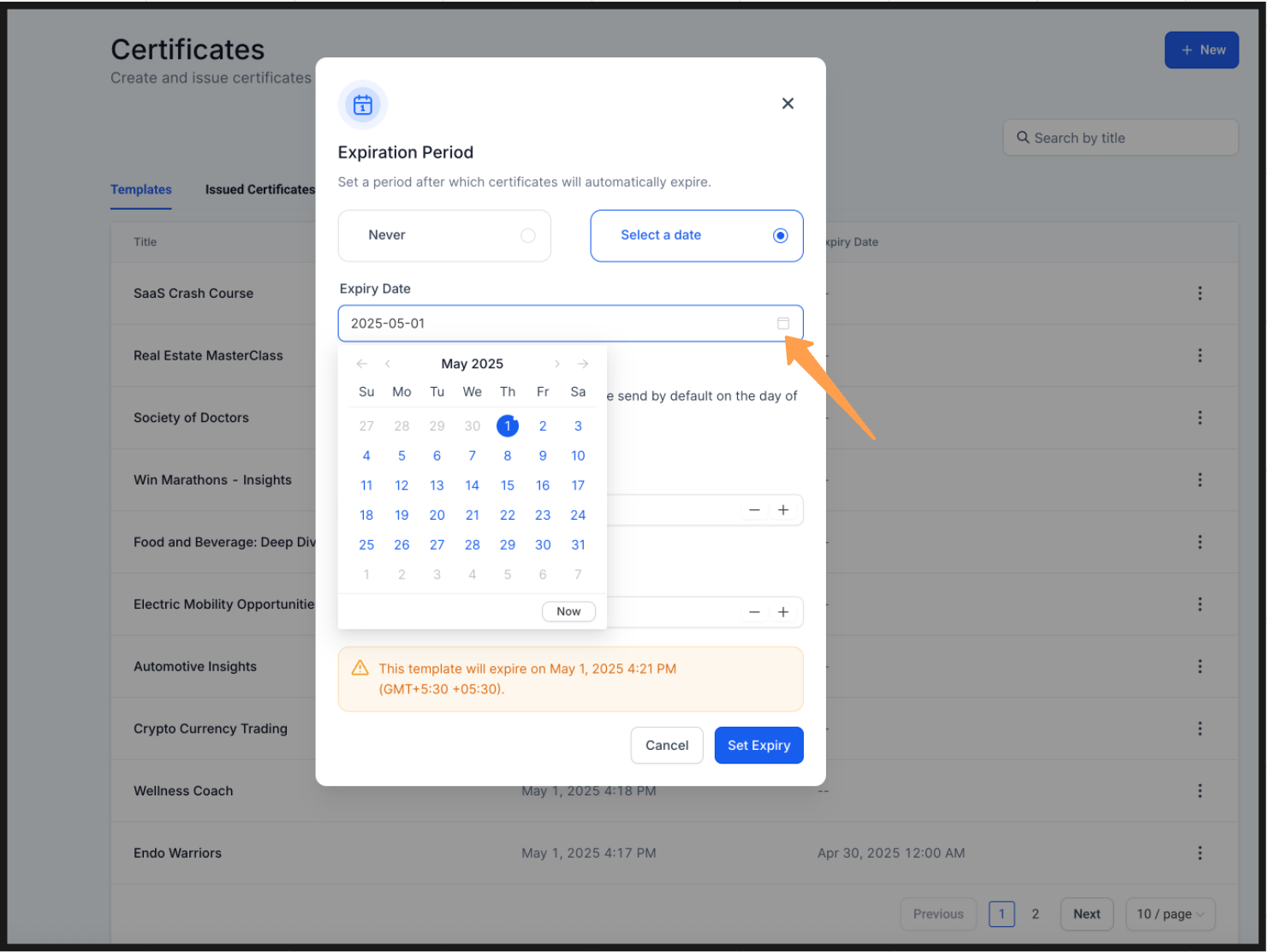
Click the three-dot icon and select Set a Date.
Choose your desired expiry date from the calendar. A preview will show the selected expiry date.
Click Set Expiry to confirm.
?? Setting a Template to Never Expire OR Removing an Expiry Date:
Go to Certificates from the dashboard.
Select the template you wish to edit.
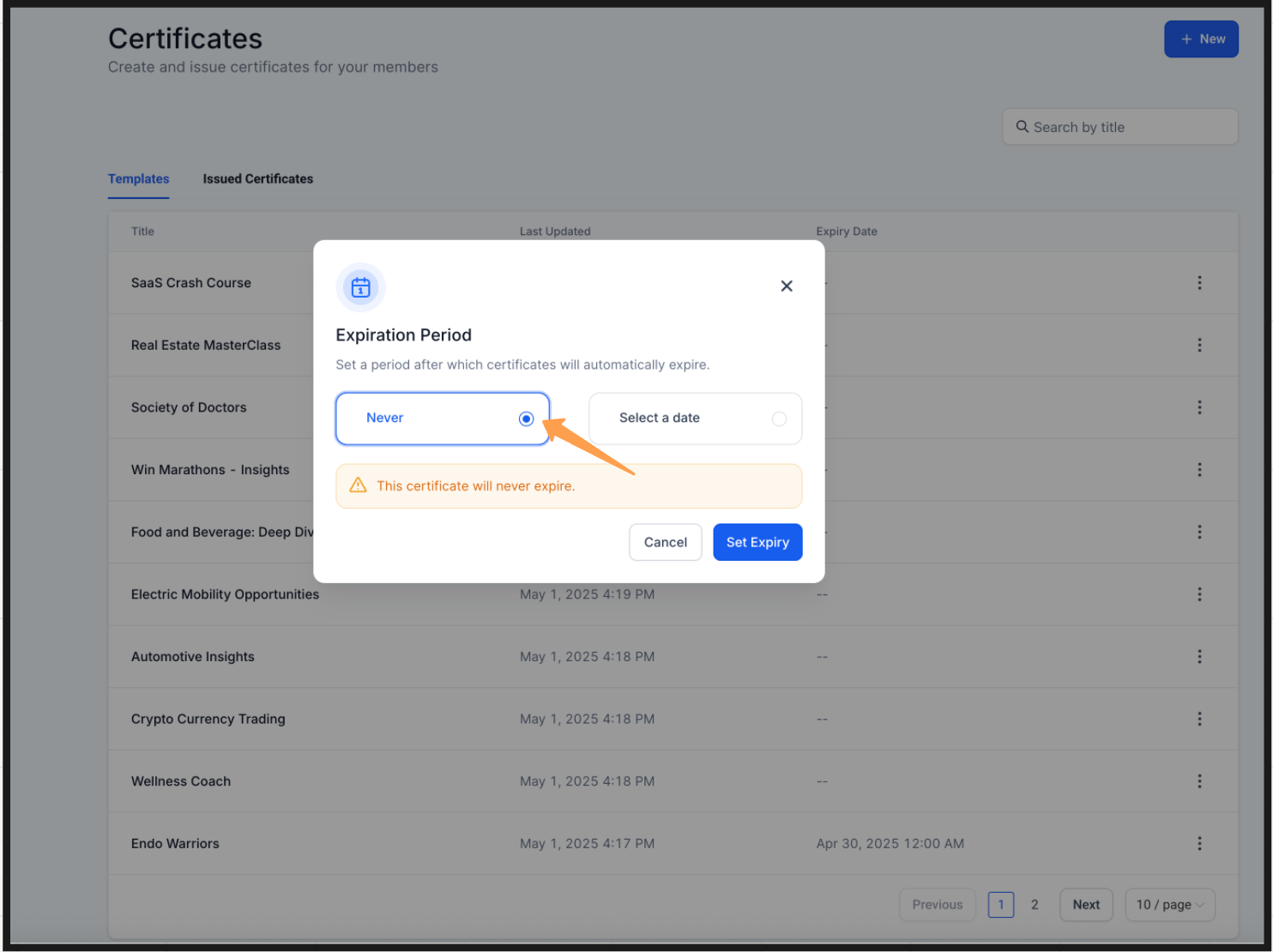
Click the three-dot icon and select Never.
A preview message will show that the template will never expire.
Click Set Expiry to apply the changes.