This article provides an in-depth guide on using the "Customer Booked Appointment" workflow trigger, a powerful tool for automating actions when a customer books an appointment independently. By the end of this article, you’ll understand how this trigger works, its key benefits, the setup process, and real-world use cases.
TABLE OF CONTENTS
- What is Customer Booked Appointment Workflow Trigger?
What is Customer Booked Appointment Workflow Trigger?
The Customer Booked Appointment workflow trigger activates whenever a customer books an appointment using a booking link or online scheduling system without intervention from your team. This trigger is essential for businesses that want to automate follow-up actions, reminders, and notifications based on scheduled appointments. It works only for regular appointments and does not support recurring appointments.
Key Benefits of Customer Booked Appointment Trigger
Automating appointment-based workflows can significantly improve operational efficiency and enhance the customer experience. Here are some key benefits:
- Automated Reminders: Reduce no-show rates by sending timely appointment reminders via email or SMS.
- Improved Customer Experience: Keep customers informed and engaged with automated confirmation messages and follow-ups.
- Guest Enrollment Support: Automate workflows not just for the primary contact but also for appointment guests. Send reminders, confirmations, and follow-ups to all participants in a multi-participant appointment.
- Efficient Team Notifications: Ensure that the relevant team members are automatically notified whenever an appointment is booked.
- Flexible Customization: Use filters to trigger workflows for specific calendars, calendar groups, or customers with particular tags.
- Better Resource Management: By automating reminders and follow-ups, your team can focus on delivering services rather than manually managing schedules.
Configuring the Customer Booked Appointment Trigger
Follow these steps to set up the Customer Booked Appointment trigger in your workflow:
Access Workflow Builder
Go to the "Automation" section. Create a new workflow from scratch or select the existing workflow where you want to use the "Customer Booked Appointment" trigger.
Add a New Trigger
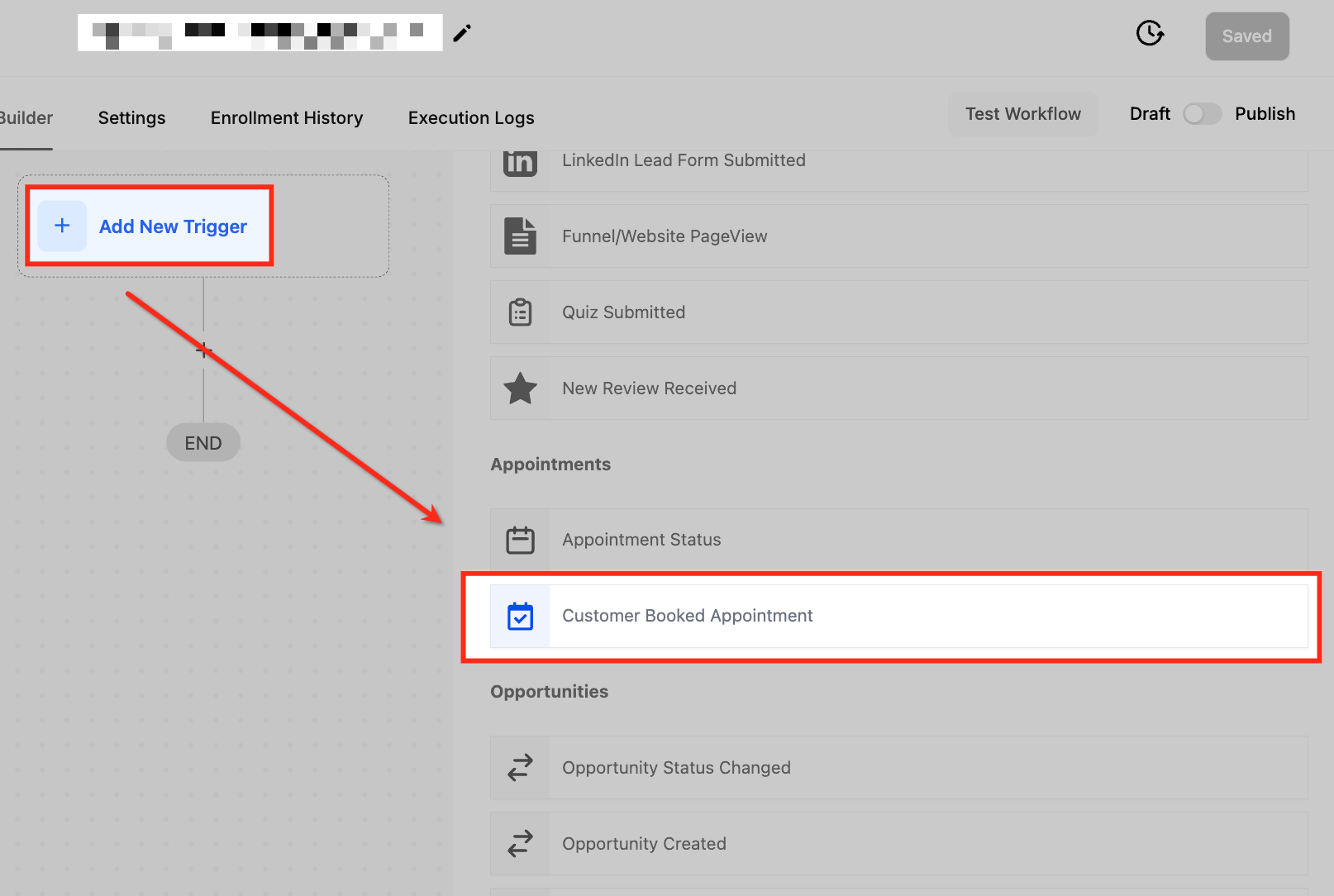
Click “Add New Trigger” and type in "Customer Booked Appointment." Select it from the list.
Name Your Trigger
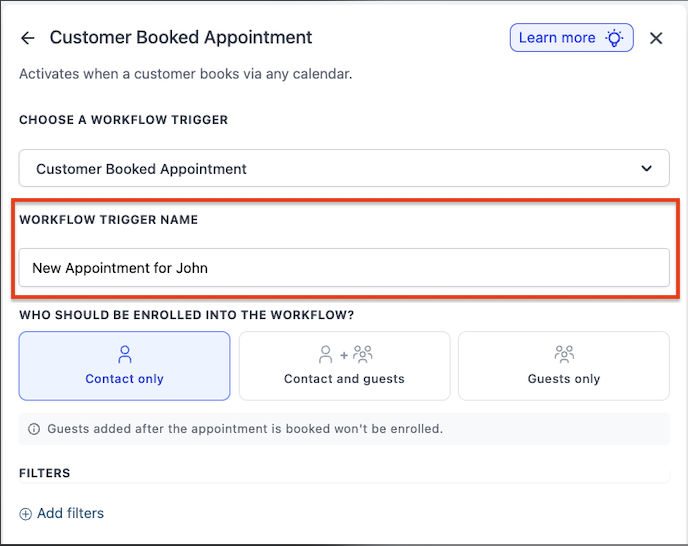
Enter a descriptive name that helps you identify the trigger, such as “New Appointment Booking Trigger.”
Choose Workflow Enrollment
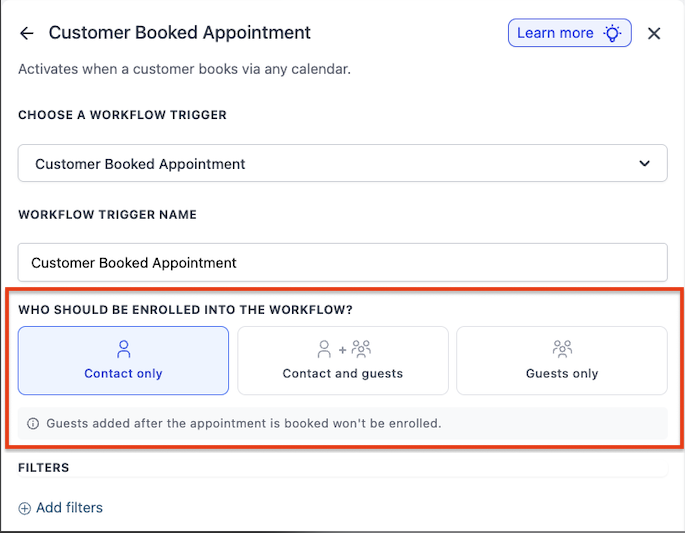
After naming your trigger, select who should be enrolled into the workflow when the trigger fires. This setting appears under "Who should be enrolled into the workflow?" and offers three options:
- Contact only: The workflow runs only for the primary contact on the appointment. This is the default behavior.
- Contact and Guests: The workflow runs once for the primary contact and once for each guest contact attached to the appointment. This is useful for multi-participant appointments where all attendees need reminders or follow-ups.
- Guests only: The workflow runs only for the guest contacts; the primary contact is skipped. Use this when the primary contact already has a separate workflow and you only want to target guests.
Important: For the Customer Booked Appointment trigger, guests added to the appointment after it is booked will not be enrolled by this trigger event. Only guests present at the time of booking are included.
Set Up Filters
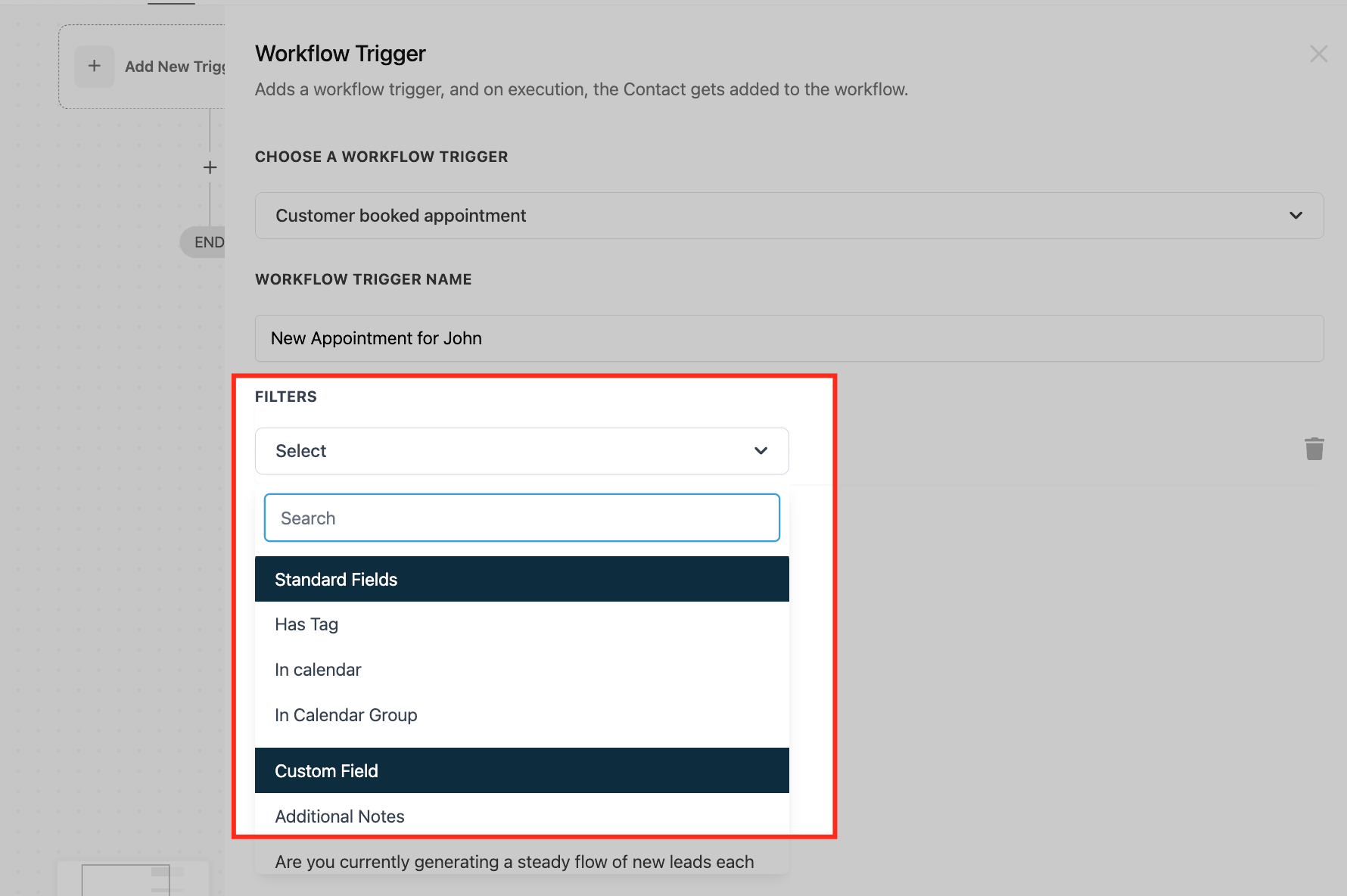
You can refine the trigger using the following filters:
- Has Tag : Select this filter if you want the trigger to activate only when a customer with a specific tag books an appointment.
- In Calendar: Use this filter to target specific calendars. The workflow will trigger only when an appointment is booked in the selected calendar.
- In Calendar Group: Choose this filter to target calendar groups. The workflow will trigger when an appointment is booked in any calendar within the selected group.
Save the Trigger
Once the filters are set, click the "Save" button. Ensure that you save the entire workflow by clicking the blue save button in the top-right corner.
Use Cases
Lets look at some examples where you can use this trigger:
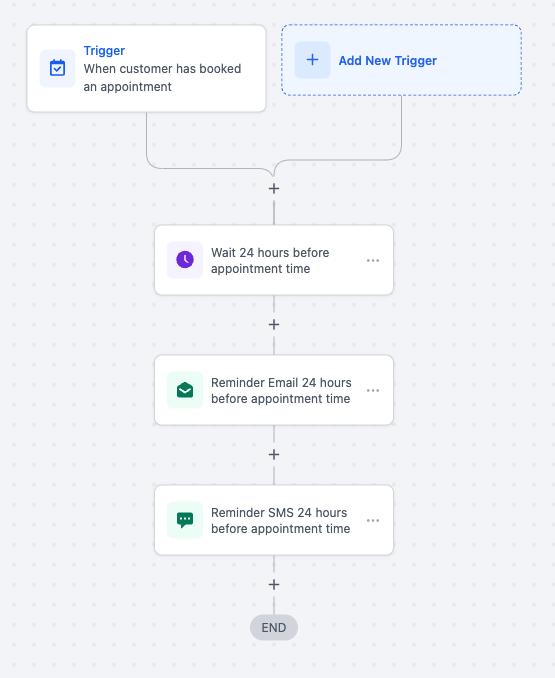
Use Case #1 Appointment Reminder
Scenario: A dental clinic wants to send automated reminders to patients 24 hours before their scheduled appointment to reduce no-shows.
Outcome: The workflow sends an email and SMS reminder to the patient 24 hours before the appointment, improving attendance rates.
Use case #2 Follow-Up After Appointment Booking
Scenario: A real estate agency wants to send follow-up emails to clients who book property viewings to confirm the details and provide necessary instructions.
Outcome: The workflow sends a confirmation email with the appointment details, directions to the property, and a checklist of required documents.
Use Case #3 Internal Notification for High-Priority Clients
Scenario: A financial advisory firm wants to notify senior advisors whenever a VIP client books an appointment.
Outcome: The workflow sends an internal email notification to the senior advisor, ensuring they are prepared for the upcoming appointment.
Use Case #4 Group Appointment Management
Scenario: A fitness center wants to manage group training sessions by automating notifications whenever a customer books a session in a group calendar.
Outcome: The workflow sends an email confirmation to the customer and an internal notification to the assigned trainer.
Use Case #5 Multi-Participant Appointment Notifications
Scenario: A consulting firm schedules strategy sessions that include both the primary client and additional stakeholders as guests. The firm wants all participants to receive a confirmation email and a prep checklist.
Outcome: By selecting "Contact and Guests" in the enrollment setting, the workflow sends a personalized confirmation email and prep checklist to the primary contact as well as each guest, ensuring everyone arrives prepared.
Frequently Asked Questions
Q. Can this trigger be used for recurring appointments?
No, the Customer Booked Appointment trigger only works for normal (one-time) appointments. Recurring appointments are not supported.
Q. How can I trigger different workflows for different types of appointments?
You can use filters such as “In Calendar” or “In Calendar Group” to target specific appointment types and set up separate workflows for each.
Q. What happens if a team member manually books the appointment on behalf of the customer?
This trigger only activates when the customer independently books an appointment through a booking link. Manually booked appointments will not trigger the workflow.
Q. Can I send reminders at multiple intervals, like 48 hours and 24 hours before the appointment?
Yes, you can add multiple reminder actions within the same workflow and set different wait times for each (e.g., wait for 48 hours, then send the first reminder; wait for another 24 hours, then send the second reminder).
Q. How can I track appointments booked by high-priority clients?
You can use the “Has Tag” filter to create a workflow that triggers only when clients with a specific tag (e.g., “VIP Client”) book an appointment. This way, you can ensure timely follow-ups and special handling for important clients.
Q. Can I send workflow notifications to appointment guests?
Yes. When configuring the trigger, use the "Who should be enrolled into the workflow?" setting and select either "Contact and Guests" or "Guests only." This allows the workflow to run for guest contacts attached to the appointment.
Q. What happens if a guest is added to the appointment after it was booked?
Guests added after the appointment is booked are not enrolled by the original trigger event. Only guests present at the time of booking are included.
Q. Will updating my enrollment setting affect my existing workflows?
No. All existing trigger configurations remain unchanged with the default behavior of "Contact only." You must manually update the enrollment setting if you want to include guests.