Need to store more than one phone number for a contact? Omnix makes it easy to manage multiple contact numbers from mobile to work, home, and more. You can also set a primary number and assign labels for better organization.
TABLE OF CONTENTS
- What is the Multiple Phone Numbers Feature?
- Key Benefits of Managing Multiple Phone Numbers
- Managing Multiple Phone Numbers
- Editing or Removing Phone Numbers
- Use Cases for Multiple Phone Numbers
- Frequently Asked Questions
- Related Articles
What is the Multiple Phone Numbers Feature?
The Multiple Phone Numbers feature in Omnix allows users to store up to 11 phone numbers for a single contact. Each number can be labeled (e.g., Mobile, Work, Home), and one can be marked as the primary number. This flexibility is ideal for clients, leads, or vendors who use multiple lines of communication.
Key Benefits of Managing Multiple Phone Numbers
Managing several phone numbers for a contact helps ensure your communication is always effective and well-organized.
Store up to 11 numbers per contact.
Assign meaningful labels to each number for clarity.
Set a primary number to prioritize outgoing communication.
Easily update or remove outdated phone numbers.
Improve accuracy in workflows and automation.
Ideal for sales, support, vendors, or personal contacts.
Managing Multiple Phone Numbers
You can quickly add, label, and manage contact phone numbers directly from the contact record in Omnix.
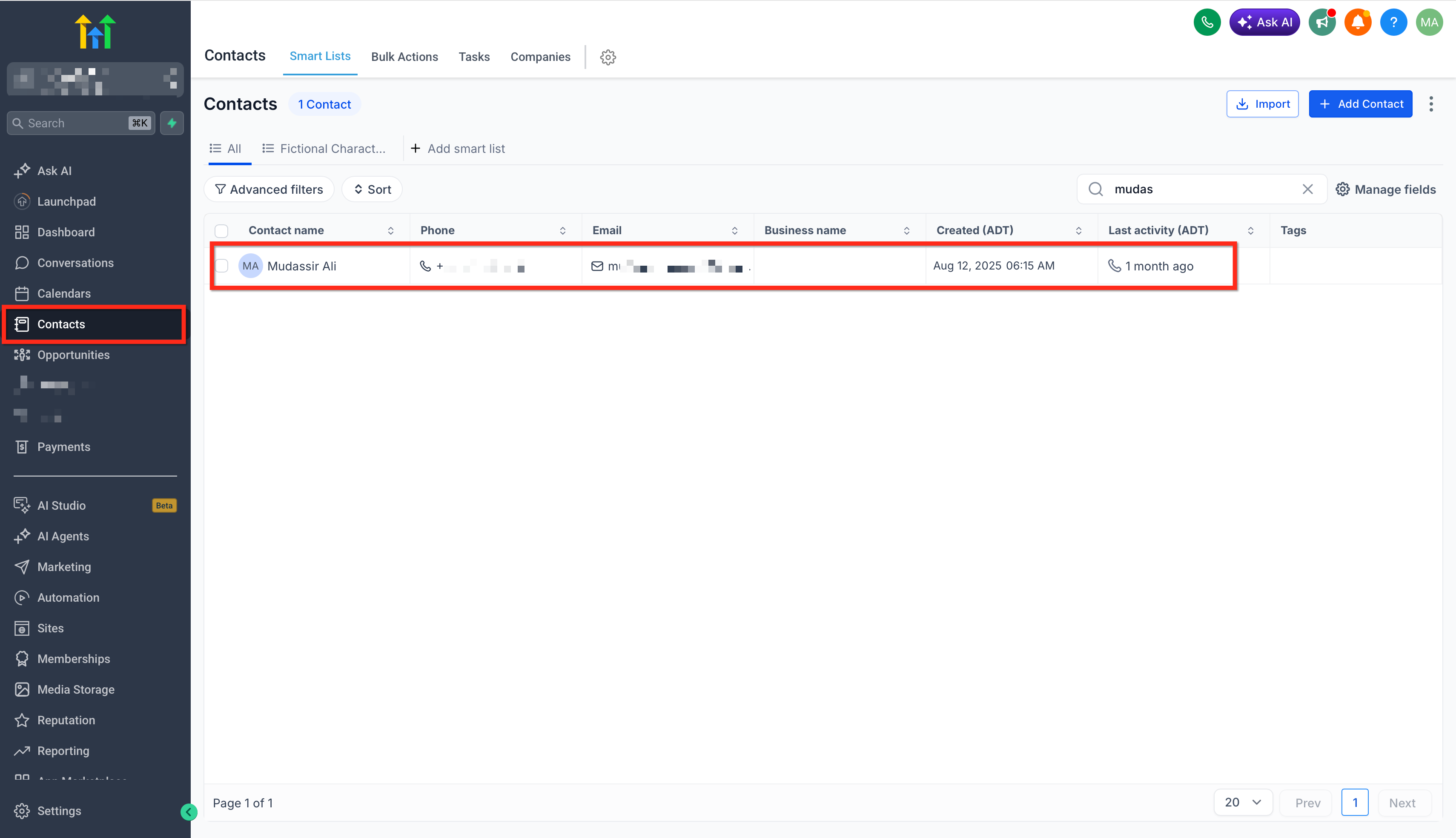
Step 1: Navigate to the Contacts tab
In your Omnix dashboard, navigate to the Contacts tab and click on an existing contact or create a new contact to access the Phone numbers section.
Step 2: Click “+ Add Phone Number”.
Add phone numbers one at a time, with support for up to 11 phone numbers total, and choose a label for each one, such as Mobile, Home, Landline or Work.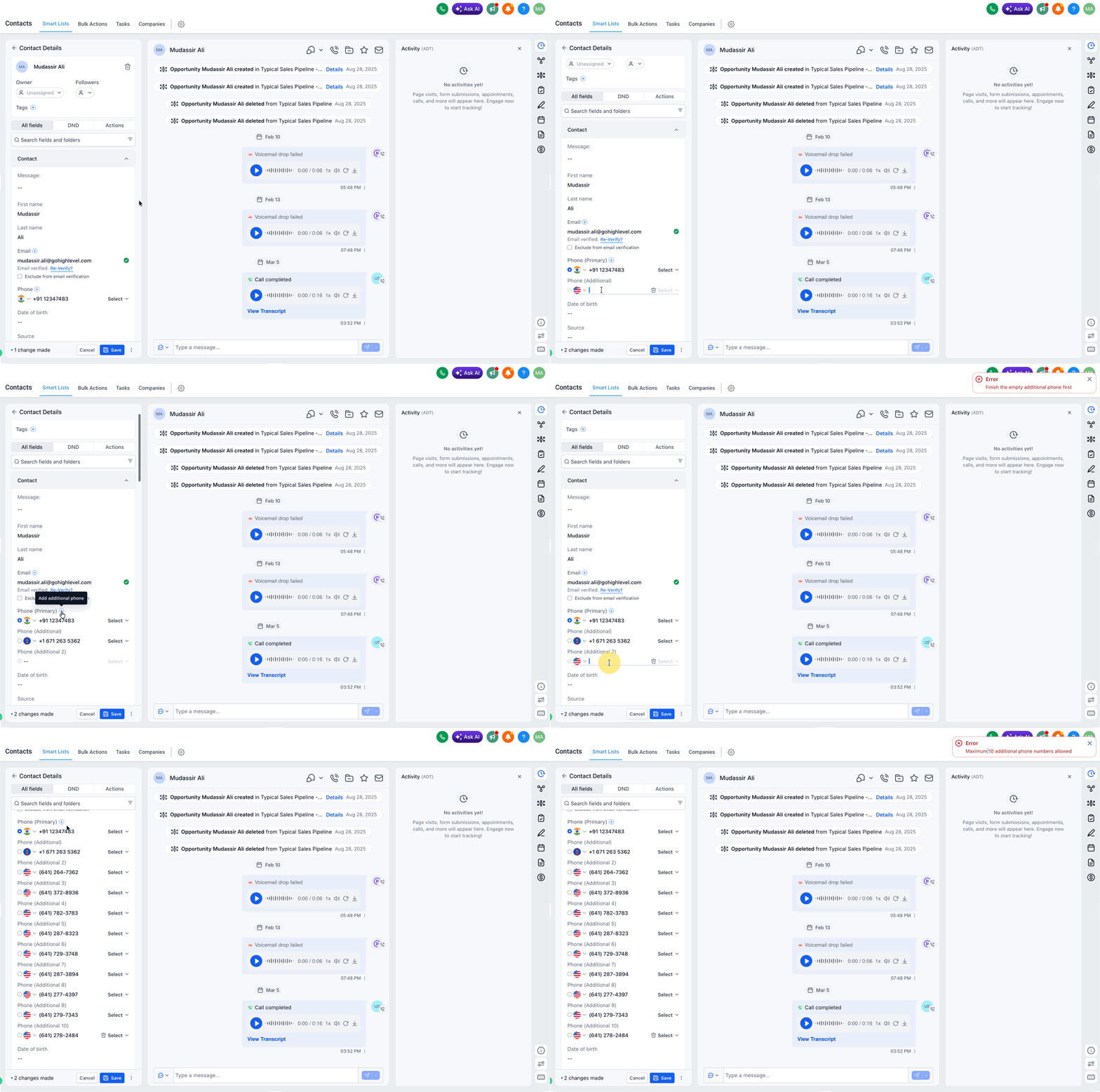
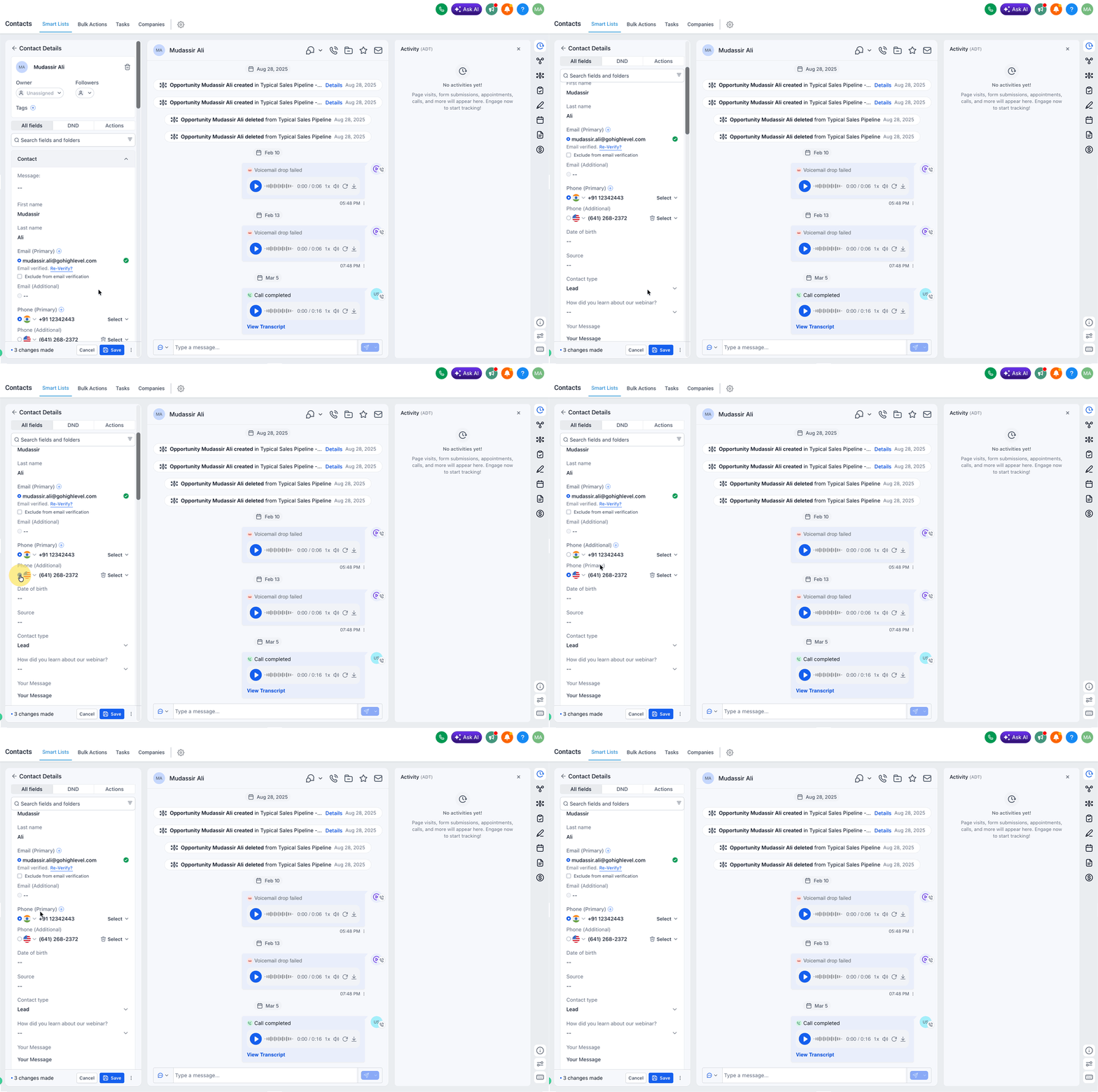
Check the Primary box to set the main number for the contact.
Editing or Removing Phone Numbers
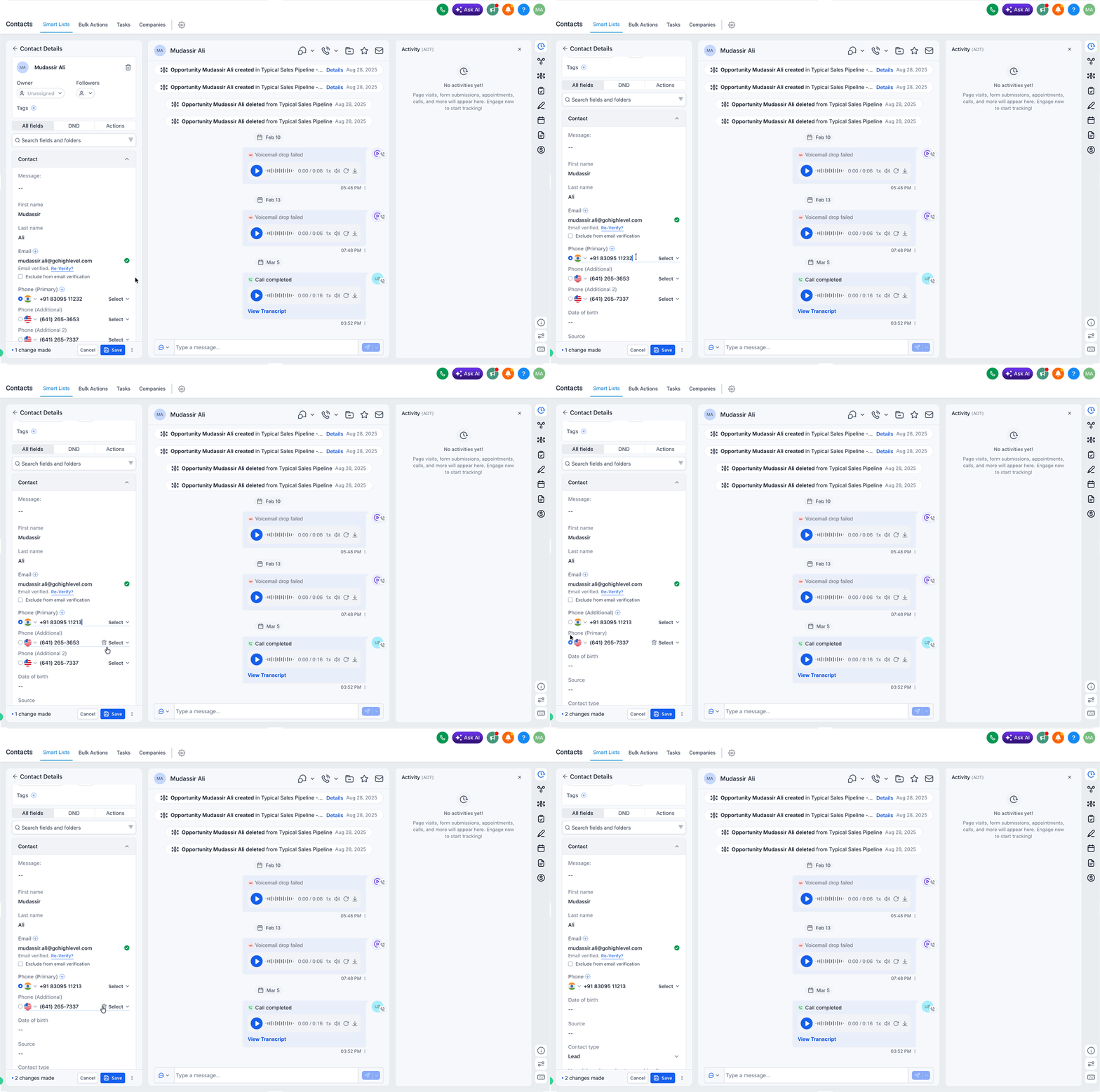
Keep your contact records clean and accurate by updating or deleting numbers as needed.
Click the Trash icon to remove a number completely.
Only one number can be marked as Primary at a time.
Use Cases for Multiple Phone Numbers
This feature is especially useful in a variety of real-world business and communication scenarios.
Sales teams can call multiple numbers to reach leads more effectively.
Support teams can ensure they have backup contact options for clients.
Agencies can maintain both personal and professional numbers for each contact.
Vendors and partners often have different departmental numbers (e.g., billing vs. operations).
Emergency readiness for critical clients or services by saving backup numbers.
Frequently Asked Questions
Q: What happens if I don’t set a Primary number?
The first number listed will automatically be treated as the primary number in outgoing calls or messages.
Q: Can I use the same label for multiple numbers?
No, each label can only be used once per contact to maintain clarity.
Q: Can I add international numbers?
Yes, just make sure to enter the number with the proper international code (e.g., +44 for the UK).
Q: Is there a way to reorder phone numbers?
Numbers are displayed in the order they’re entered. To reorder, remove, and re-add in your desired order.
Q: Can I use these numbers in workflows?
Yes! Workflows will always use the Primary number unless otherwise configured.